
Before you start
Save the source questionnaire and choose the languages required for fieldwork. Prepare localized consent wording separately where the panel needs it.Add a language
1
Open Translations
In Create, open the builder view menu and select Translations. The language bar appears above the questionnaire.
2
Choose target languages
Select Add language, tick one or more languages, and confirm. Translation begins for the questionnaire content available at that time.
3
Wait for completion
Keep the study open or return later. Translation continues on the server. The language bar shows progress for each language.
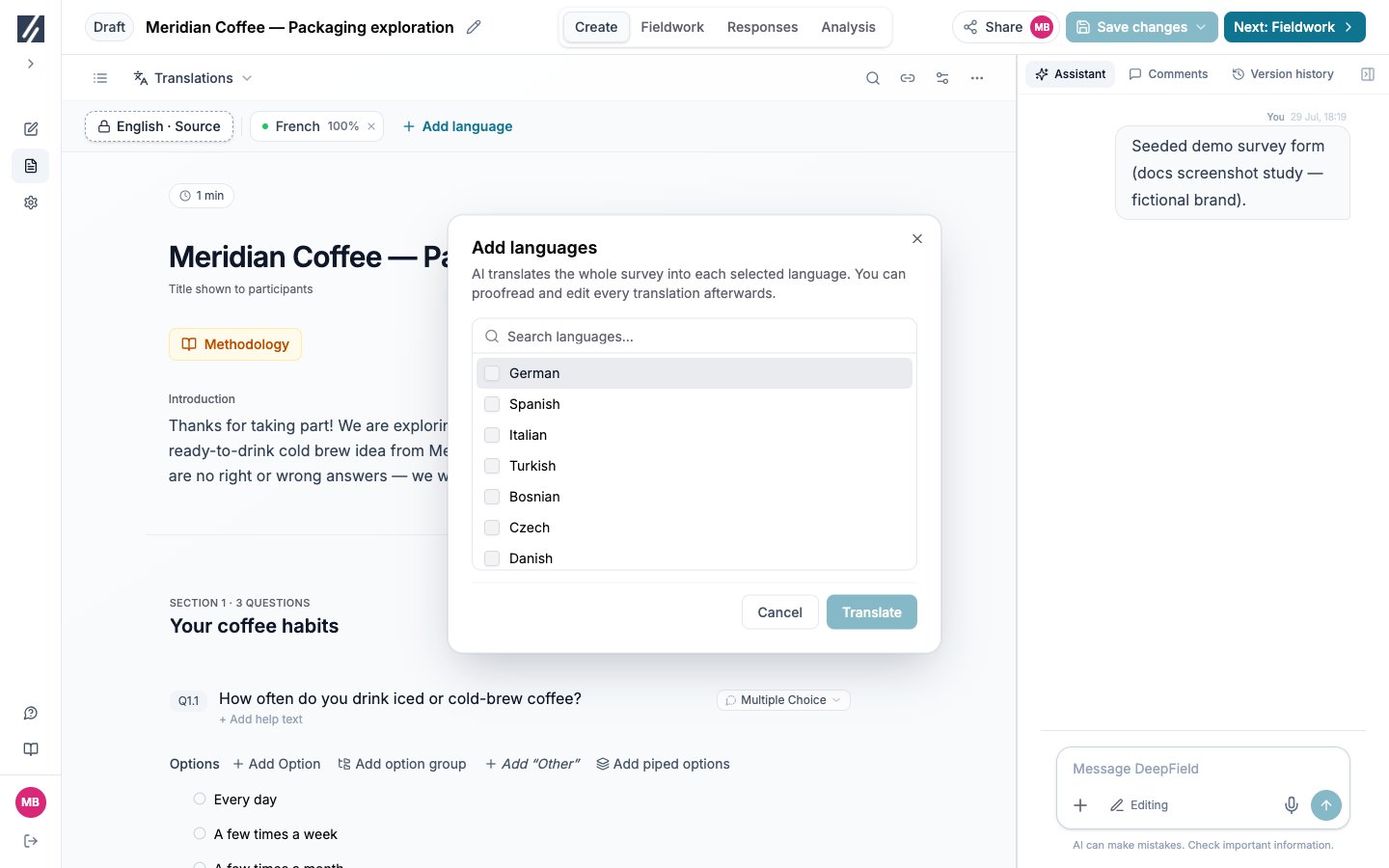
Add language opens the target-language list while the source language remains identified in the language bar.
Review a translation
Select a target language in the language bar. The proofing view displays the editable translation beside the read-only source.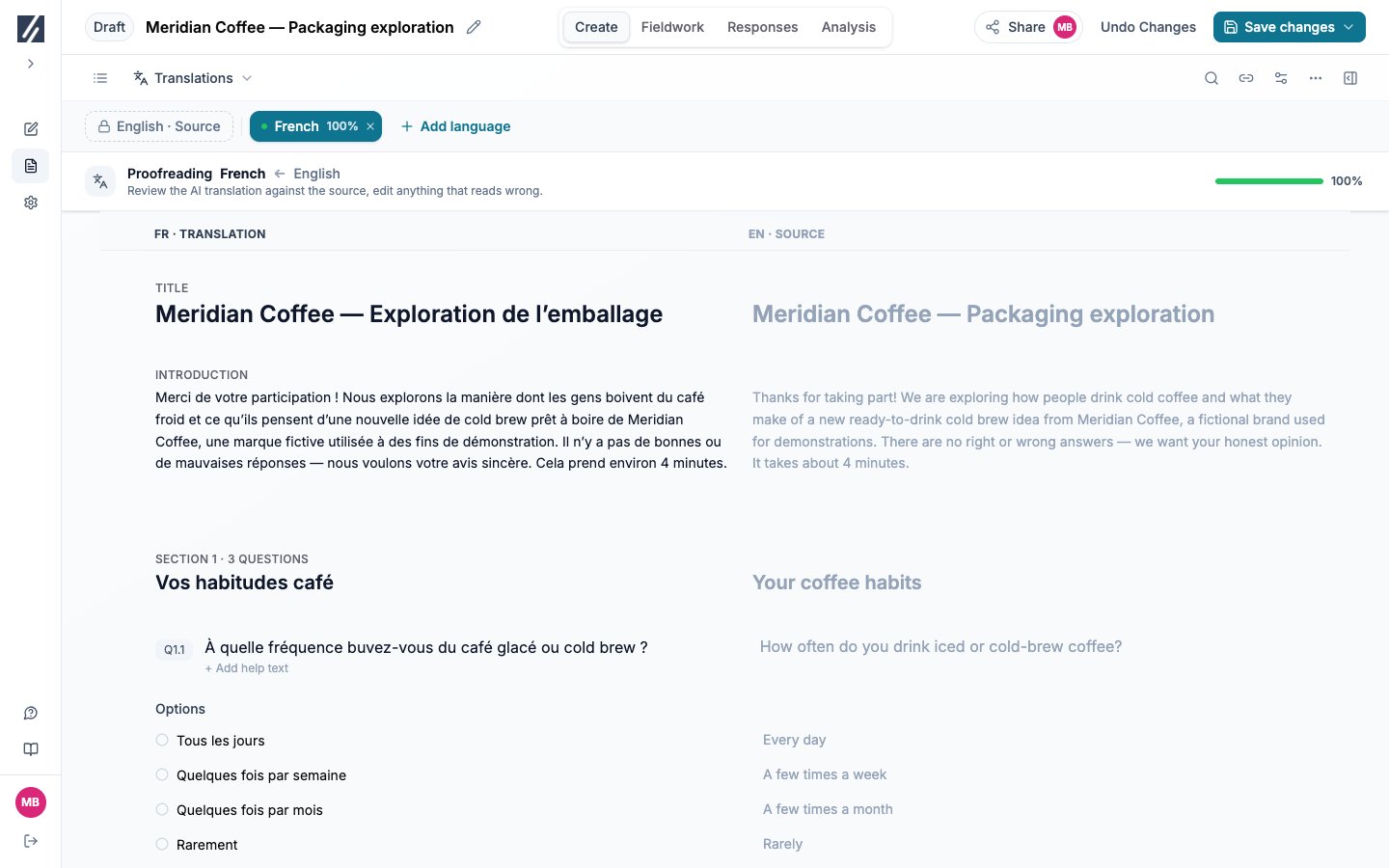
Proofing keeps the target-language field next to its source so wording and answer lists can be compared item by item.
- Introduction and section transitions.
- Question text, help text, and validation messages.
- Answer options, group headers, and Other labels.
- Piped wording in the routes where each source answer is present.
- Concept titles and media descriptions.
- Text used by custom-code questions.
Preview a target language
Open Test, generate or open the test link, and choose the target language using the participant language selector. Complete routes containing conditional, piped, concept, or custom-code content. The initial language can also come from the invite URL. If the requested language is unavailable, the source language is used.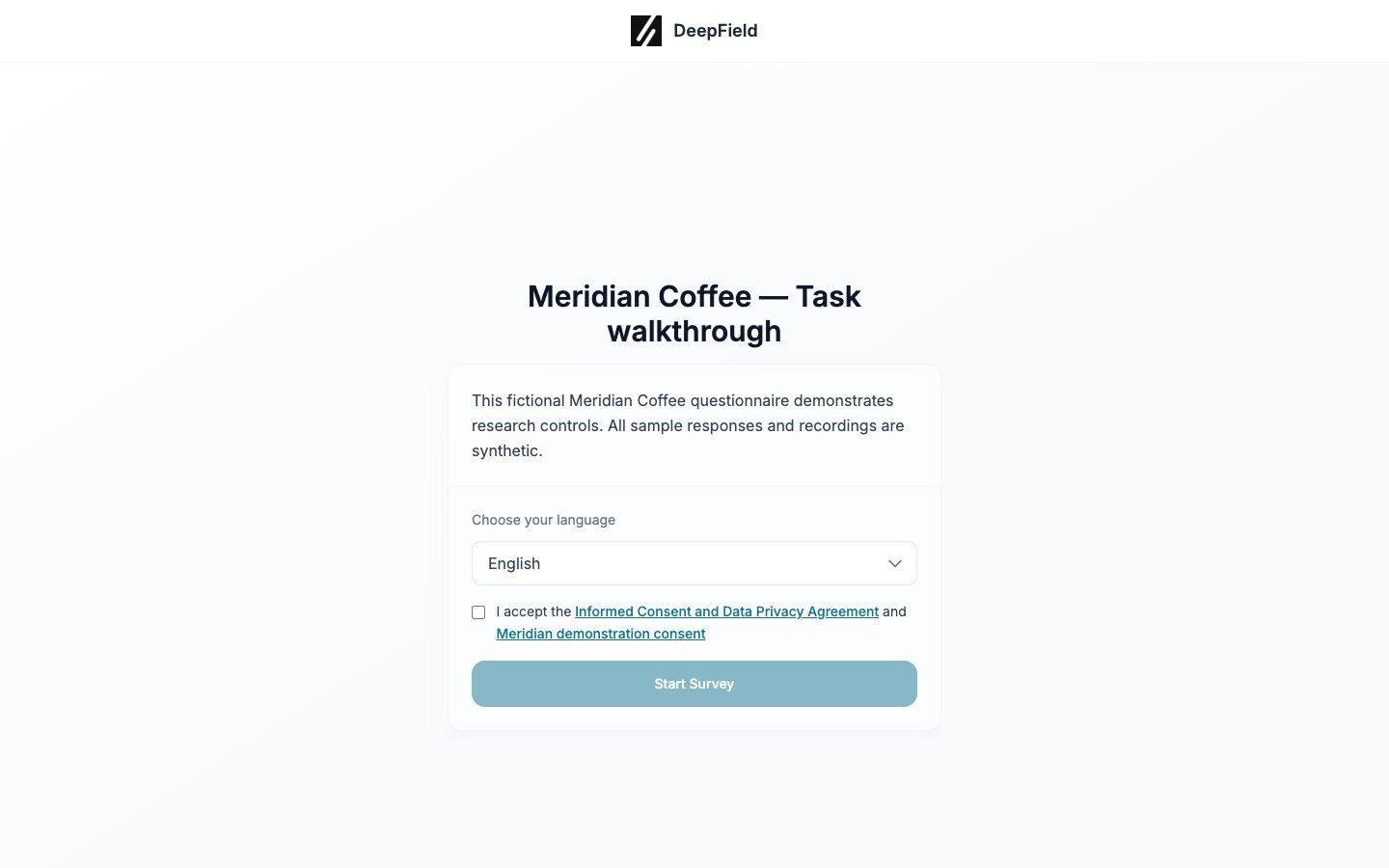
The participant selects a language on the welcome page before accepting consent.
Update a translation after editing the source
Editing source-language content marks affected translations as out of date. Open Translations and select the language carrying the update indicator. Use Complete translation to generate updates for the changed source fields. Review the changed target fields, make any required edits, and save them. Completing an update does not replace target-language edits unrelated to the changed source fields. Review the change markers before saving to confirm the intended wording remains.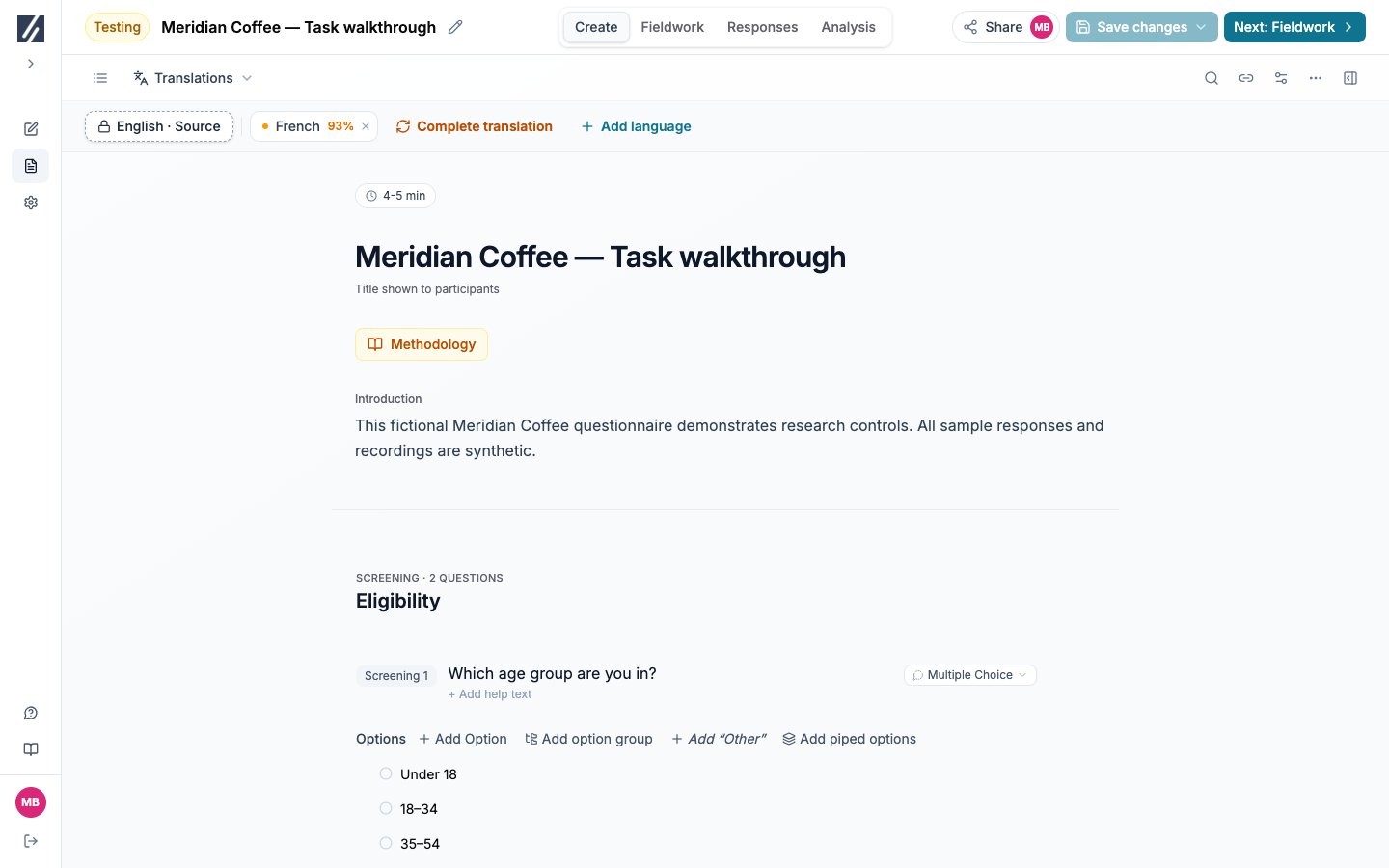
After source content changes, the French indicator shows 93% and offers Complete translation.
Understand publication requirements
Publish is unavailable while any selected language is incomplete or out of date. Return to each marked language, complete its update, review it, and save the translation. For a custom-code question, also open the renderer’s locale preview. Named values under Advanced — inputs & text enter the translation workflow. The code itself remains the same across languages, so layouts must accommodate longer text.Troubleshooting
Translation progress does not finish
Translation progress does not finish
Leave the study and reopen it to refresh the server status. If the same language still shows no progress, contact support with the study name and target language.
Publish says translations are out of date
Publish says translations are out of date
Open Translations and inspect every language pill. Select each marked language, run Complete translation, review the updated fields, and save.
A custom question still shows source-language text
A custom question still shows source-language text
Open Custom-built question → Advanced — inputs & text. Put short or explicitly managed participant labels in named text values, complete the translation again, and verify the locale in Preview and the test link.
The test link opens in the wrong language
The test link opens in the wrong language
Confirm the language is complete, then choose it from the participant language selector or verify the language value supplied in the invite URL.