
Create a guest link
1
Start a new link
Open Links and select New link. Give it a recipient-facing purpose, such as “Agency debrief review.”
2
Choose what it contains
Select any combination of Questionnaire, Results, Report, and Slides. Review the This link shows summary before continuing.
3
Set access details
Choose an expiry, switch Allow comments on if the recipient should review slides, and select Create link.
4
Copy and test it
Copy the URL and open it in a private browser window to confirm that it exposes the intended material.
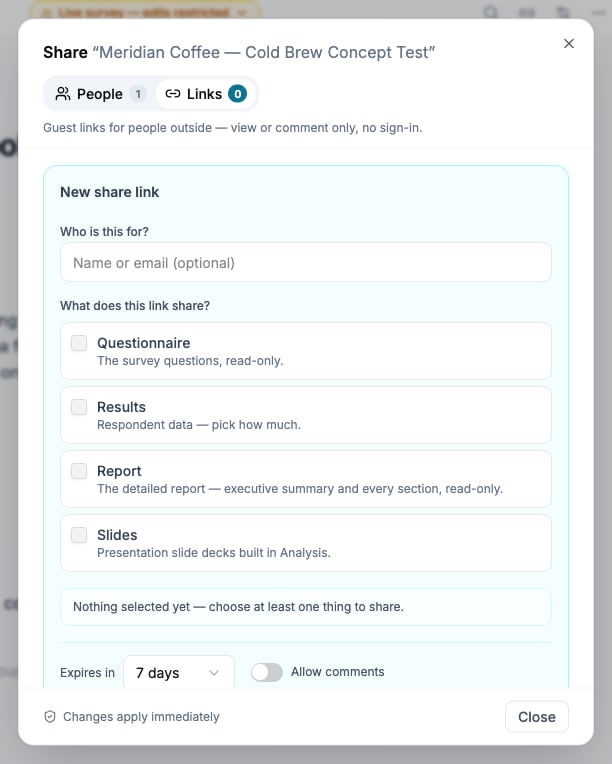
Select the exact study material the guest link should expose.
Results access levels
Each level includes the information listed above it.
When sharing results without a report or deck, you can limit them to a panel provider and choose whether to display that provider’s respondent IDs and entry-link parameters. These extra parameters come from the participant’s entry URL; they are distinct from study variables. The same visibility setting controls both identifiers and parameters.
Content that is included automatically
A report or slide deck depends on the study’s full questionnaire and results. Selecting either can therefore raise other choices to Full form and Full results. Locked rows identify why the access was added. Clear the report or deck selection to make those rows editable again. If a recipient should see a presentation but not participant-level results, send the exported PowerPoint instead of a live report link.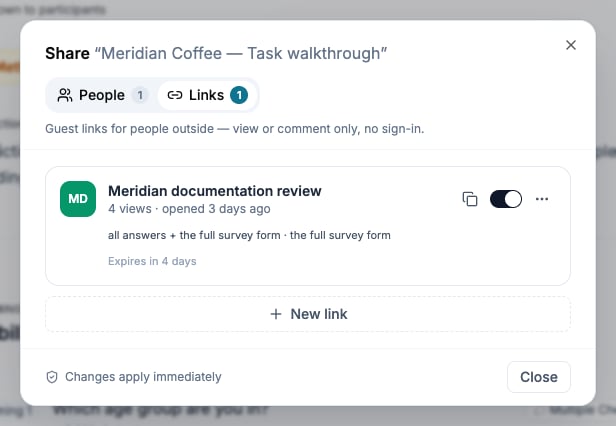
Review the enabled link, its content permissions, and its remaining expiry.
What a guest can do
The guest opens a page titled Shared with you without creating an account. They see only the tabs enabled on the link, such as Survey form, Tracking, Responses, Report, or Slides. If comments are enabled, they can comment on included slide decks; internal analysis chat is not shared.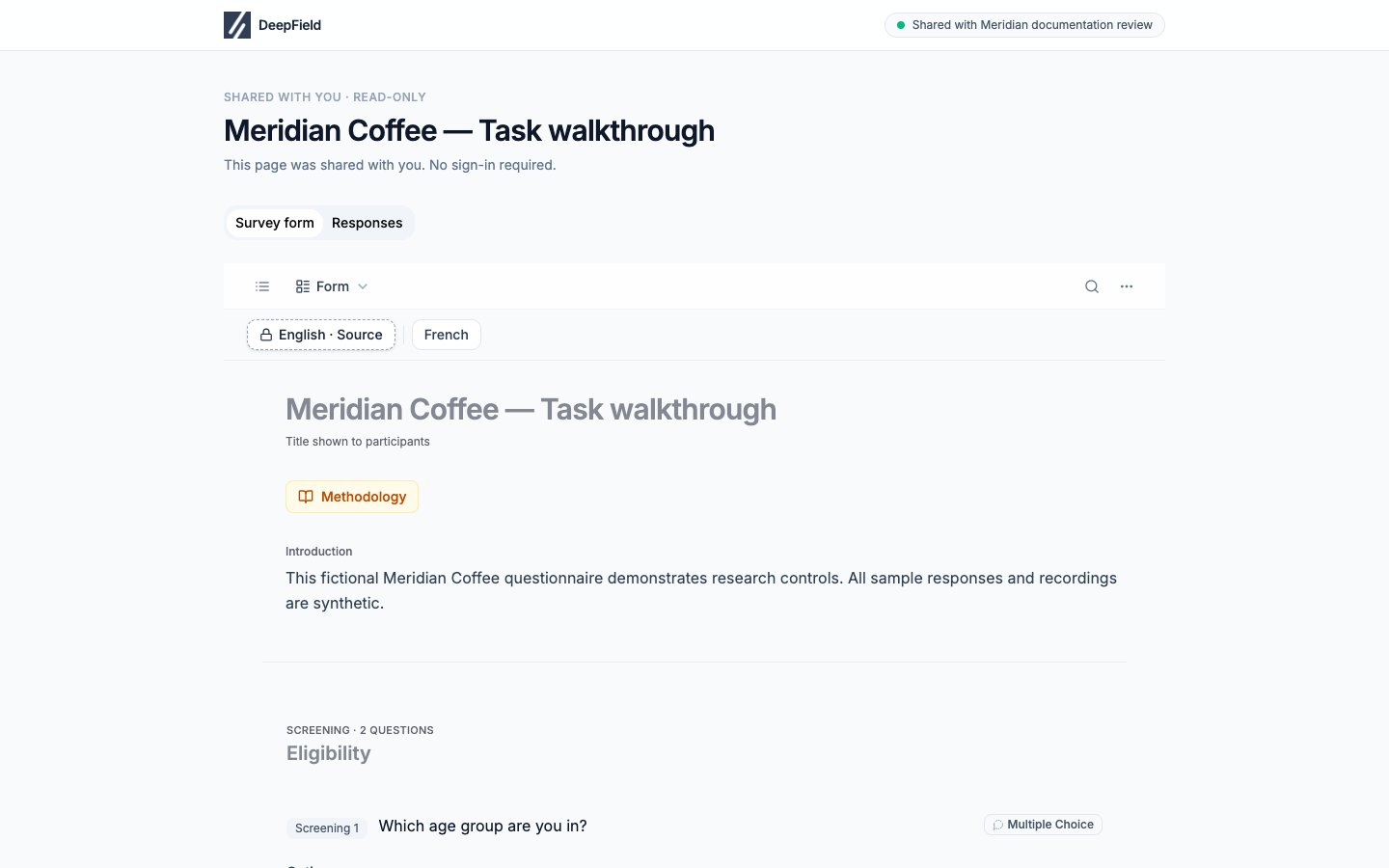
A guest sees only the enabled tabs; this link includes Survey form and Responses.
Update or revoke access
The last Owner cannot be removed or demoted. Assign another Owner first. Only the link creator or an Owner can disable or delete a guest link.
An administrator can disable guest links for the entire organization in Workspace settings. That switch immediately makes existing guest links unavailable as well.
If a recipient cannot open the link
Open Share → Links and inspect the link card:- An Expired label means its expiry must be extended through Edit access.
- A disabled toggle means the link must be enabled again.
- A missing card means the link was deleted.
- A message that link sharing is disabled means an organization administrator must enable it.