
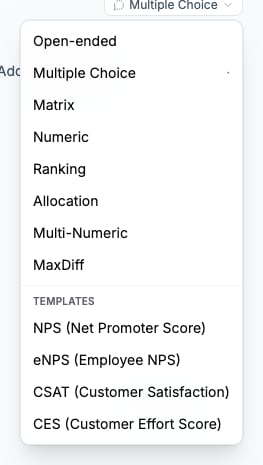
The type picker lists the built-in question types and standard research templates.
Before you start
Define what each question must measure and how its answer will be analyzed. Choose the type before collecting live responses.Select a built-in type
MaxDiff is not available in the Screening section.
Configure settings shared across types
Use Add help text for participant instructions that belong directly under the question. Type @ in question text, help text, or an option label to insert an earlier answer or variable. Open ⋯ to configure logic, answer validation, media, display settings, or a custom renderer. The Templates group in the type picker can create NPS, eNPS, CSAT, or CES wording and scales. Applying a template replaces the current question configuration after confirmation.Configure Open-ended questions
Set the number of Follow-up questions from none to five. Follow-up instructions can focus the assistant on specific parts of the participant’s response. Use format validation for an email address, phone number, postal code, date, number, letters-only response, or a character range. Write the correction message the participant should see when the response does not pass. Preferred input type controls whether the question follows the study default or requests Audio, Video, or Text. The study-level Response Mode takes precedence:
Open-ended answers advance according to the participant response flow. If participants need to correct an earlier answer, enable the study’s back-navigation setting and verify it in a test link.
Configure Multiple Choice questions
Add options individually, reorder them, or insert option groups as non-selectable headers.- Multi-select allows several choices.
- Max Selections limits a multi-select answer.
- Add “Other” adds a write-in option; Require typed text makes its text mandatory.
- Randomize Order changes the option order per participant.
- The display-count setting draws only the specified number of randomized options.
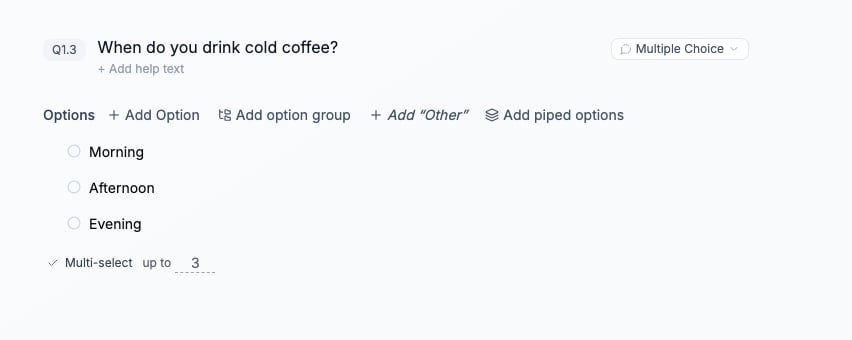
Configure Multi-select before testing the choices.
Configure Matrix questions
Enter the items to evaluate as rows and the shared answer scale as columns. Choose categorical Selection cells or Numbers. Numeric matrices can set a range, show totals, and require each row or column to add to a defined amount. Categorical matrices can permit several selections per row. The scale can be entered directly or piped from an earlier Allocation or Multi-Numeric question. Piped numeric values can be limited with Top N or Greater than. Rows can also be randomized or drawn as a subset.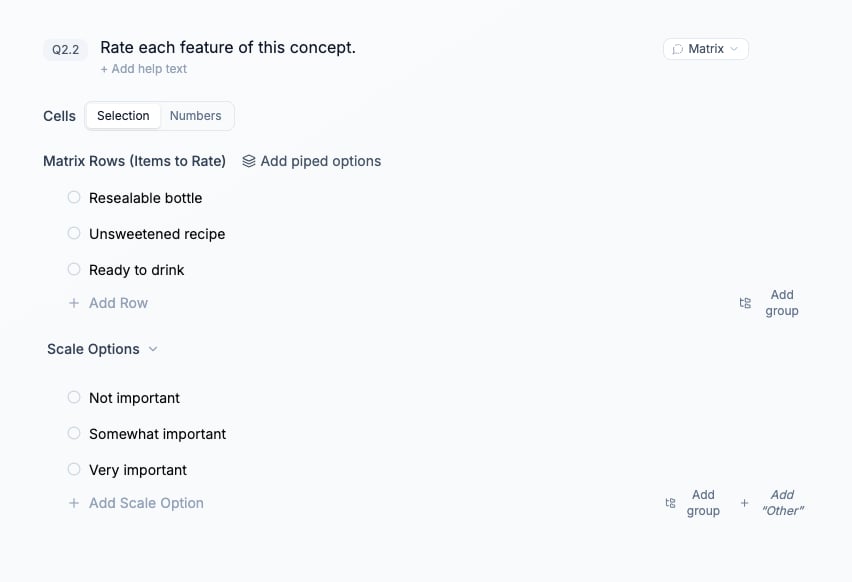
The feature rows share one three-point importance scale.
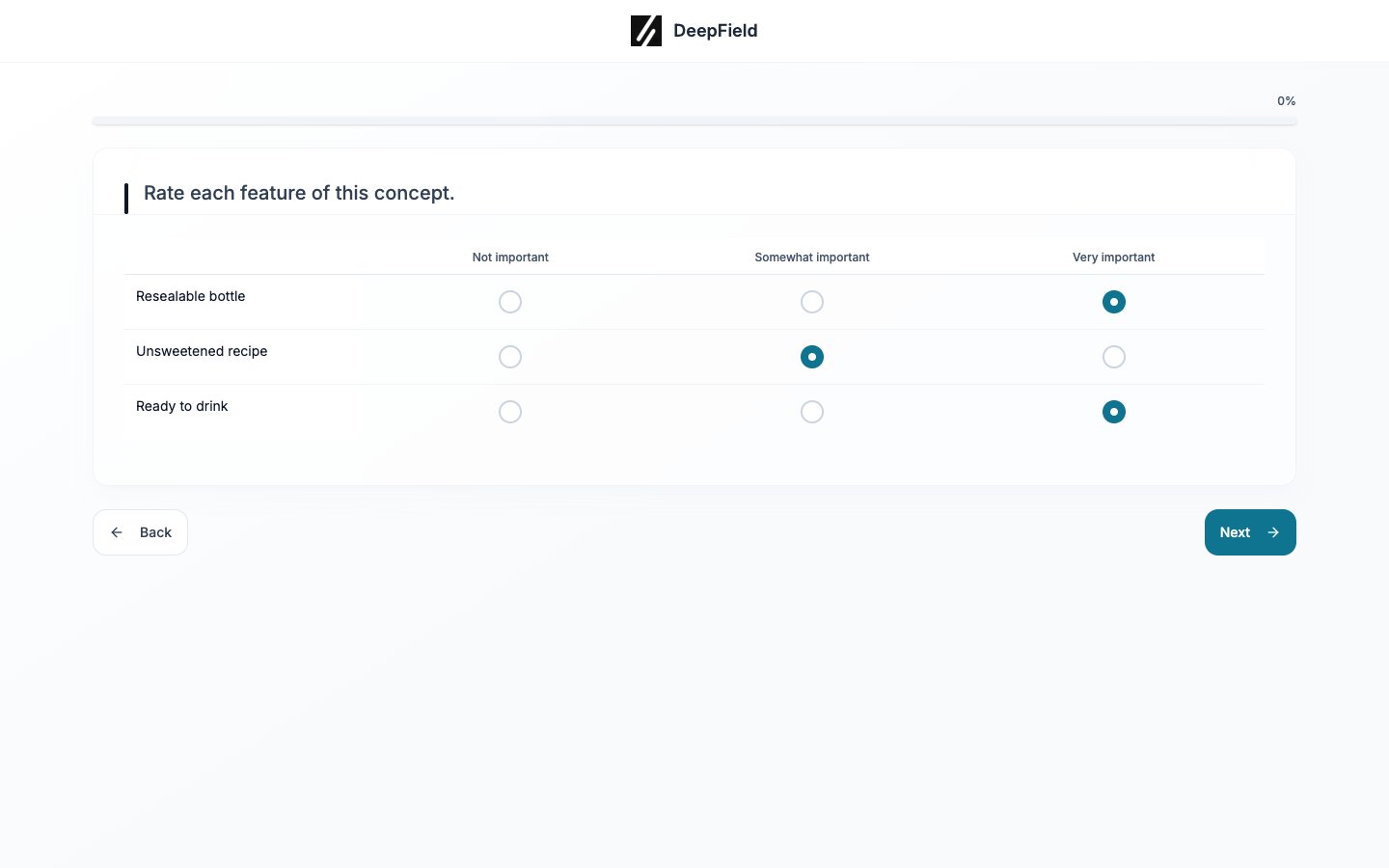
Choose one importance level in every required row, then check that Next is available.
Configure Numeric and Multi-Numeric questions
For Numeric, set Scale Min and Scale Max when the value must fall inside a range. Choose a Number field for precise entry or Slider for selection along a bounded scale. Ask for currency adds a currency selector. The participant can change the suggested currency. The setting applies to numeric question types and is removed if the question changes to an incompatible type. Multi-Numeric uses the same range for a list of items and can display their total. Use Allocation instead when the values must add to a fixed amount.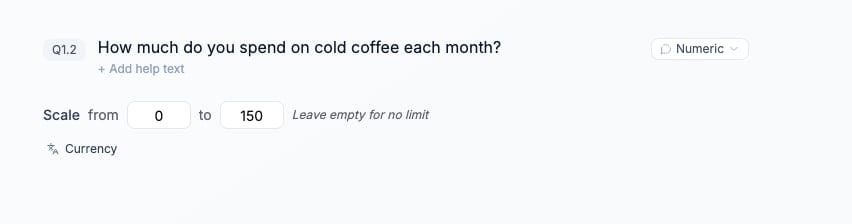
This spend question accepts values from 0 to 150.
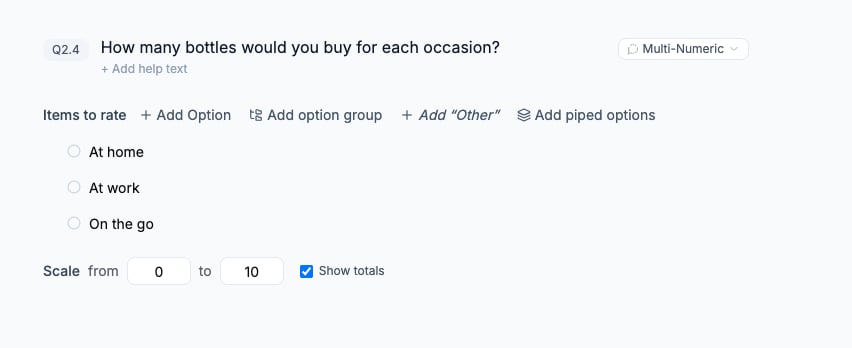
Each occasion accepts 0–10 bottles; Show totals adds the sum.
Configure Ranking and Allocation questions
Ranking can require all items or only the top N. It can randomize the starting list and include an Other item. Allocation requires a Budget and a unit such as percent, dollars, points, hours, or a custom unit. The participant sees the amount used and remaining, and cannot continue with an invalid total.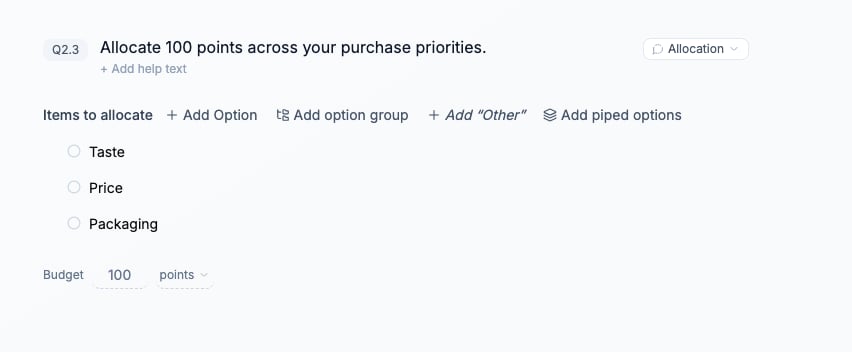
The three purchase priorities must share a budget of 100 points.
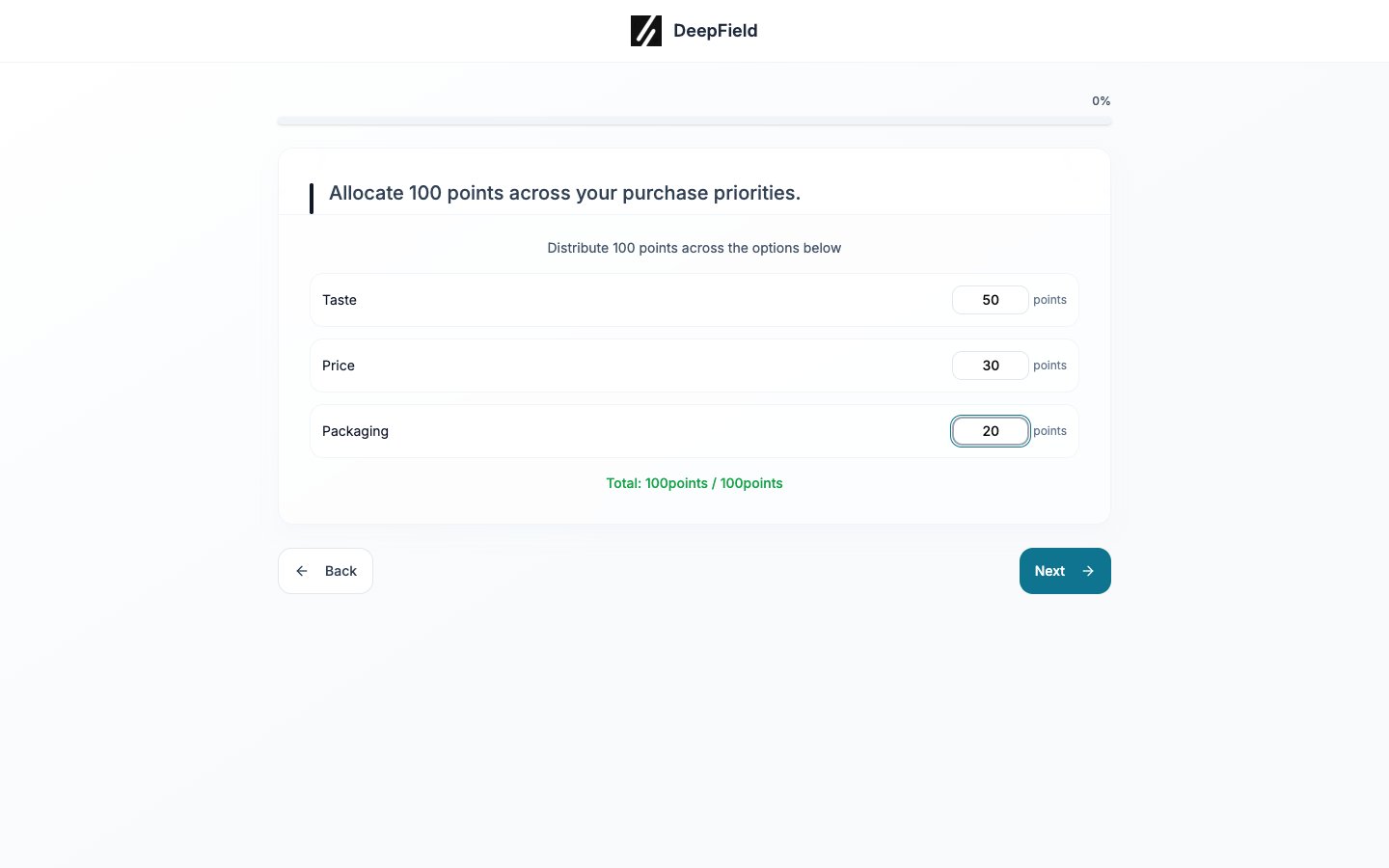
The participant can continue when the allocations total the required 100 points.
Configure MaxDiff
Add the items, then set Items per question and Number of appearances per item. DeepField calculates the resulting number of tasks. Use at least four items. The total number of item appearances must divide evenly by the number of items shown in each task. Adjust appearances or task size until the configuration passes validation.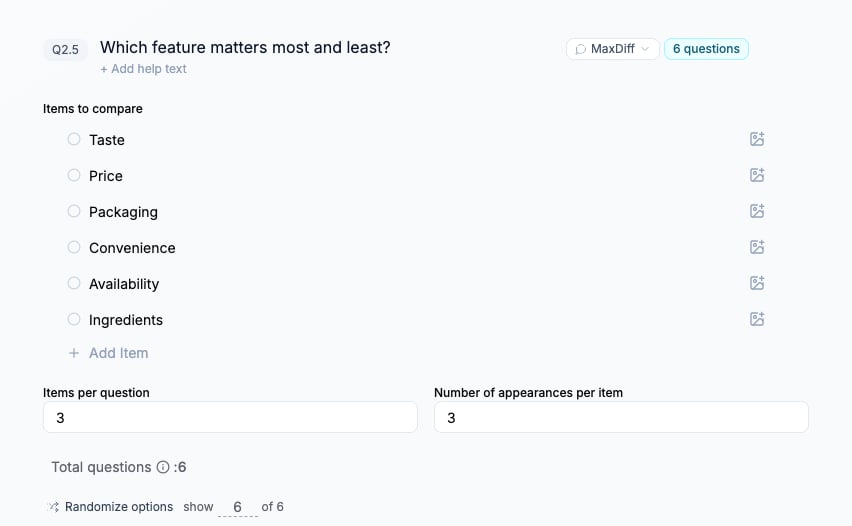
Six items, three per task, and three appearances per item produce six tasks in this example.
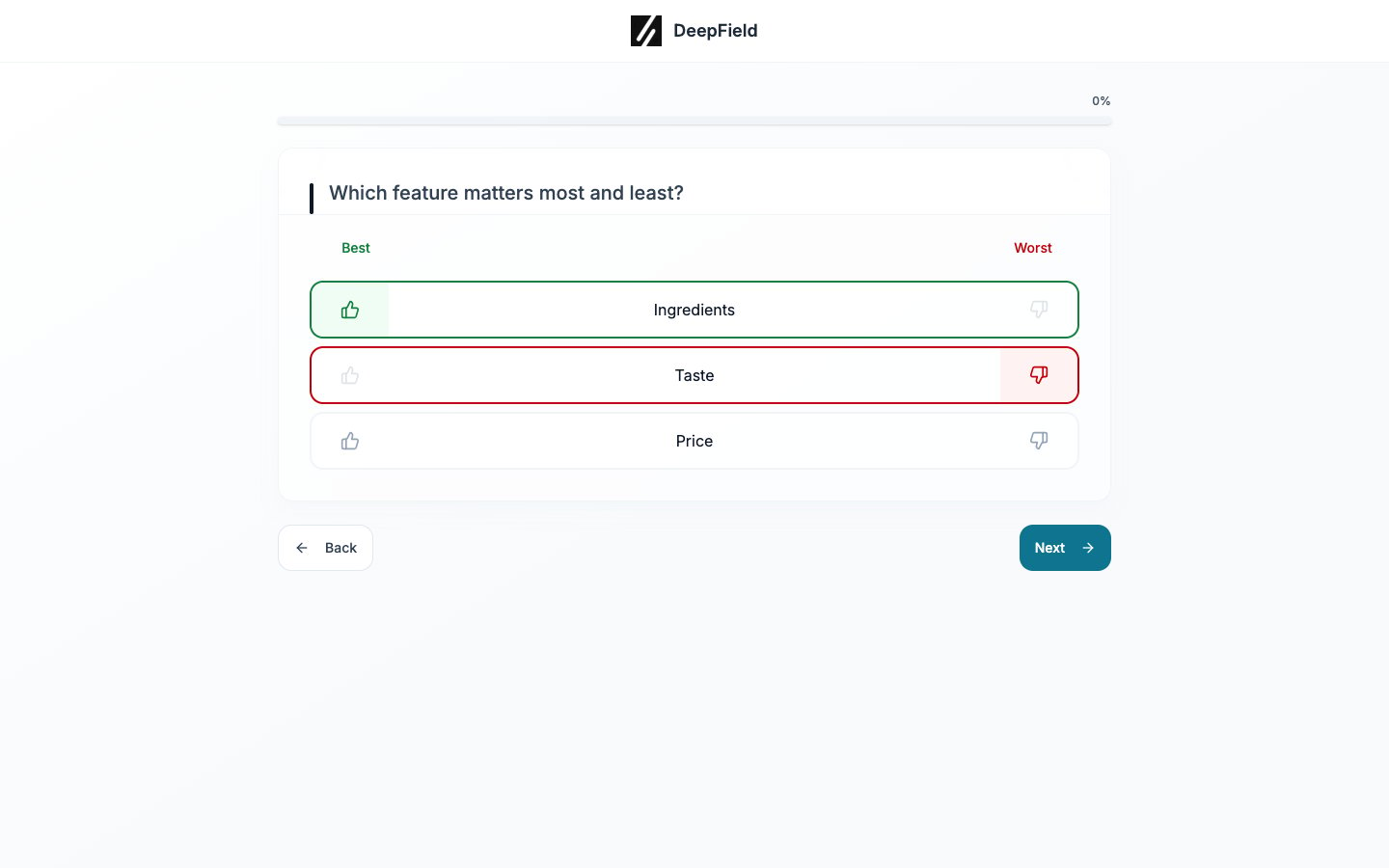
Choose different items for Best and Worst before continuing to the next task.