
Before you start
Open the editable questionnaire and keep the intended routes and panel setup available for comparison.Open the problem list
Select the red Fix problems control in the builder toolbar. The Problems to fix panel lists each affected question or section. Select an entry to expand and scroll to that item.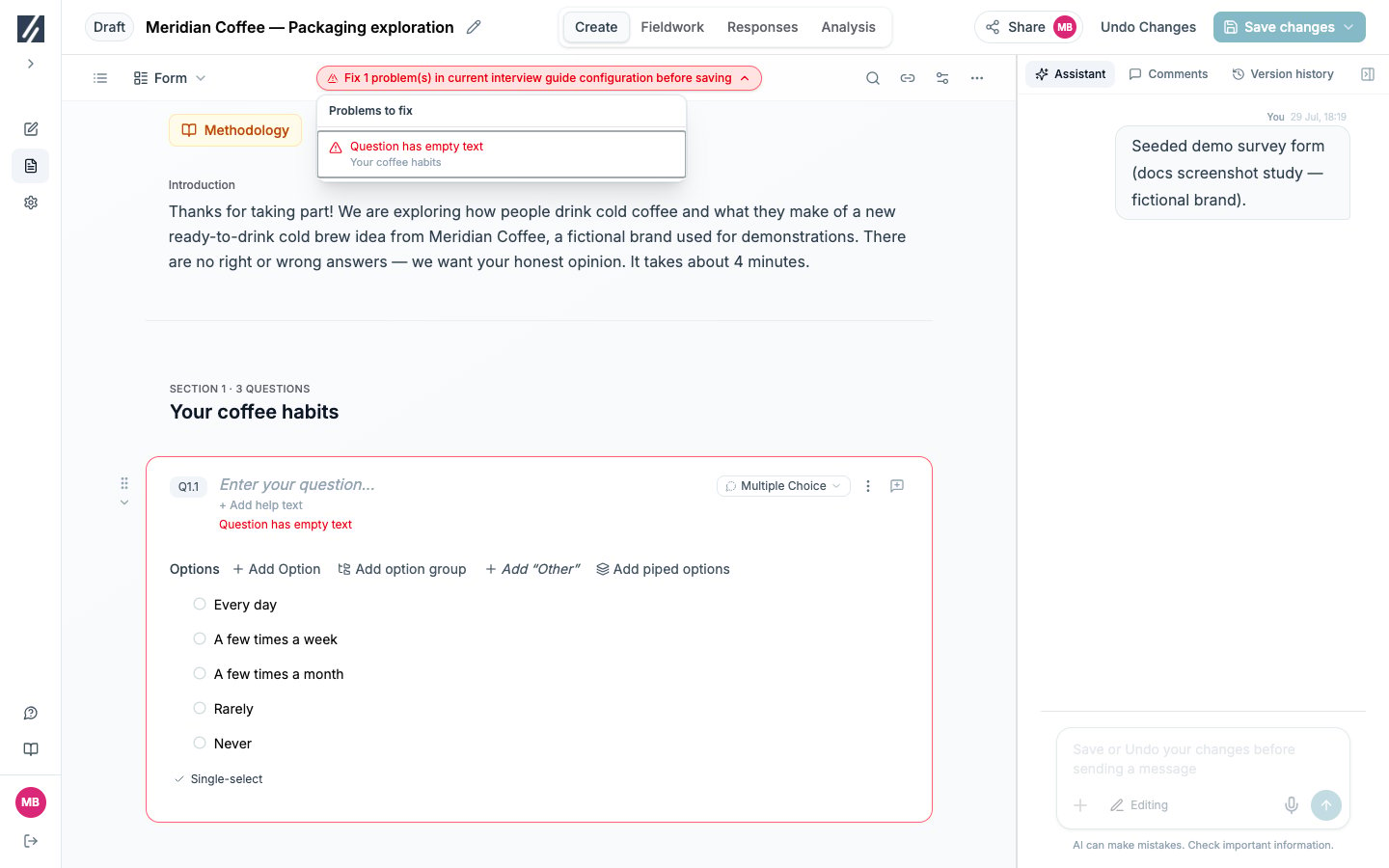
The problem list links each validation message to the affected part of the questionnaire.
Resolve missing content
Review settings that do not match the type
Changing a question type can leave an incompatible setting behind. These messages are warnings rather than blocking errors.
When the form is saved, settings that cannot apply to the selected type are removed.
Repair logic references
See Configure logic and piping for the controls behind these messages.
A text pipe from a concept-loop question into a question outside the loop has no single value and blocks saving. Move the dependent text inside the loop or ask for the source value outside it.
Repair a quota reference
If a saved quota uses an option that was removed from its screening question, the form can save but fieldwork cannot launch with that quota. Open Quotas, panels & links, edit the quota, and assign each target to an option that still exists.Check custom-code questions
A custom renderer is checked when it is saved with the form. Resolve the error reported by the editor or problem list:- Fix syntax and type errors in Code.
- Remove imports other than
reactand@deepfield/question-kit. - Declare every earlier answer read by the component under Advanced — inputs & text.
- Use unique, non-empty keys for participant-facing text.
- Answer the question in Preview and confirm that it produces the value shape required by the underlying question type. Then use Test this question to verify the saved renderer with the study’s routing; Preview uses sample inputs.
Resolve publishing blockers
Publishing also requires:- No pending questionnaire changes. Save them or select Undo Changes.
- Every translation to be current. Open Translations, complete the update, review it, and save it.
- A valid panel and launch configuration.