
Before you start
Open the intended study with edit access. Check its status before changing structure; live studies restrict changes.Edit questions and sections
Select a question card to expand it. Select its text, help text, or answer options to edit them. The controls on each card let you:- Drag the handle to reorder the question.
- Select the question-type chip to change its type.
- Open ⋯ for logic, display, validation, media, duplication, and deletion controls.
- Add or edit help text below the question.
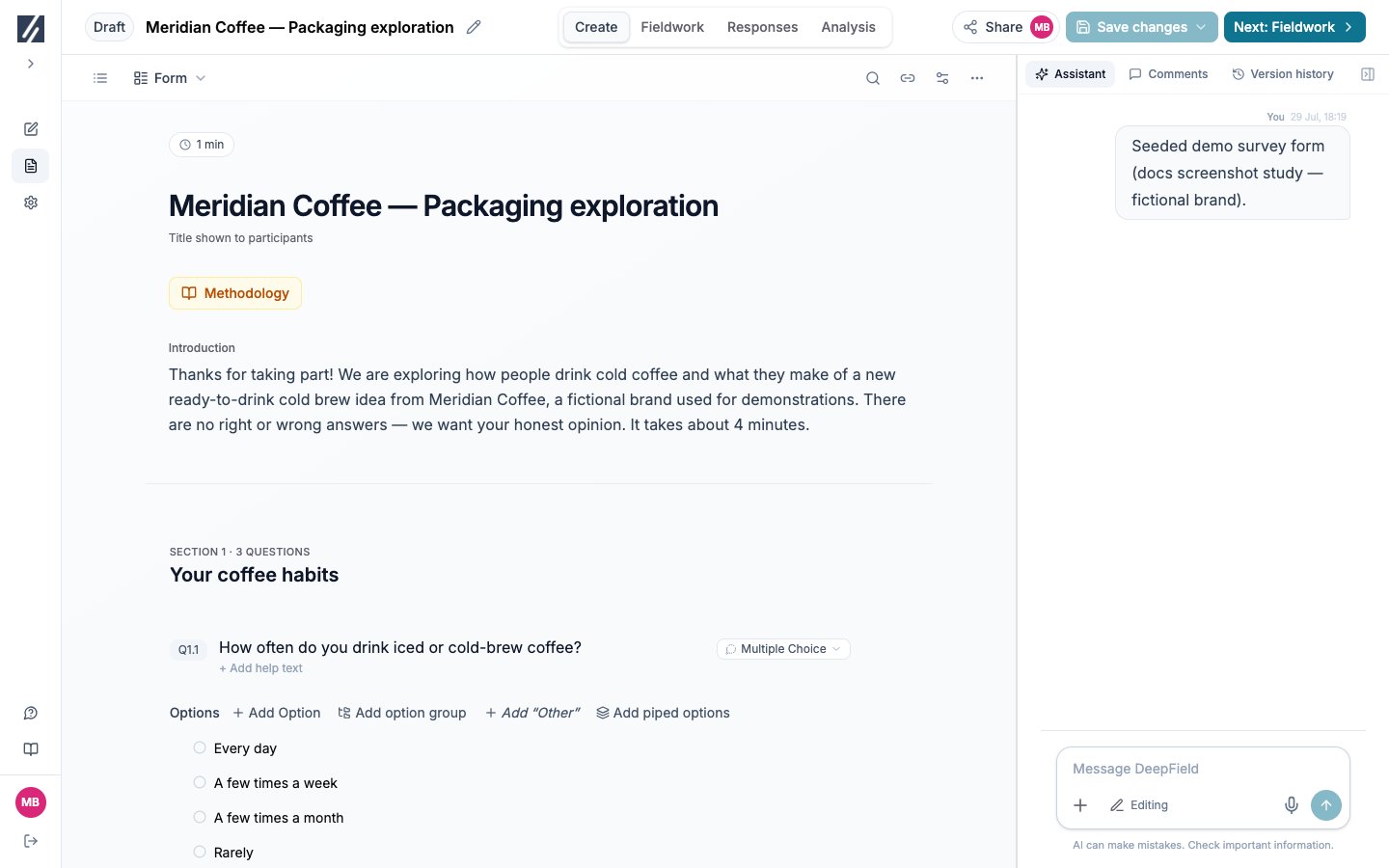
The Form view places the editable questionnaire beside Assistant, Comments, and Version history.
Save a version
The Save changes control opens a menu. Choose one of these actions:- Save changes records the current form without requesting an assistant review.
- Save & get feedback records the form and asks the assistant to review it.
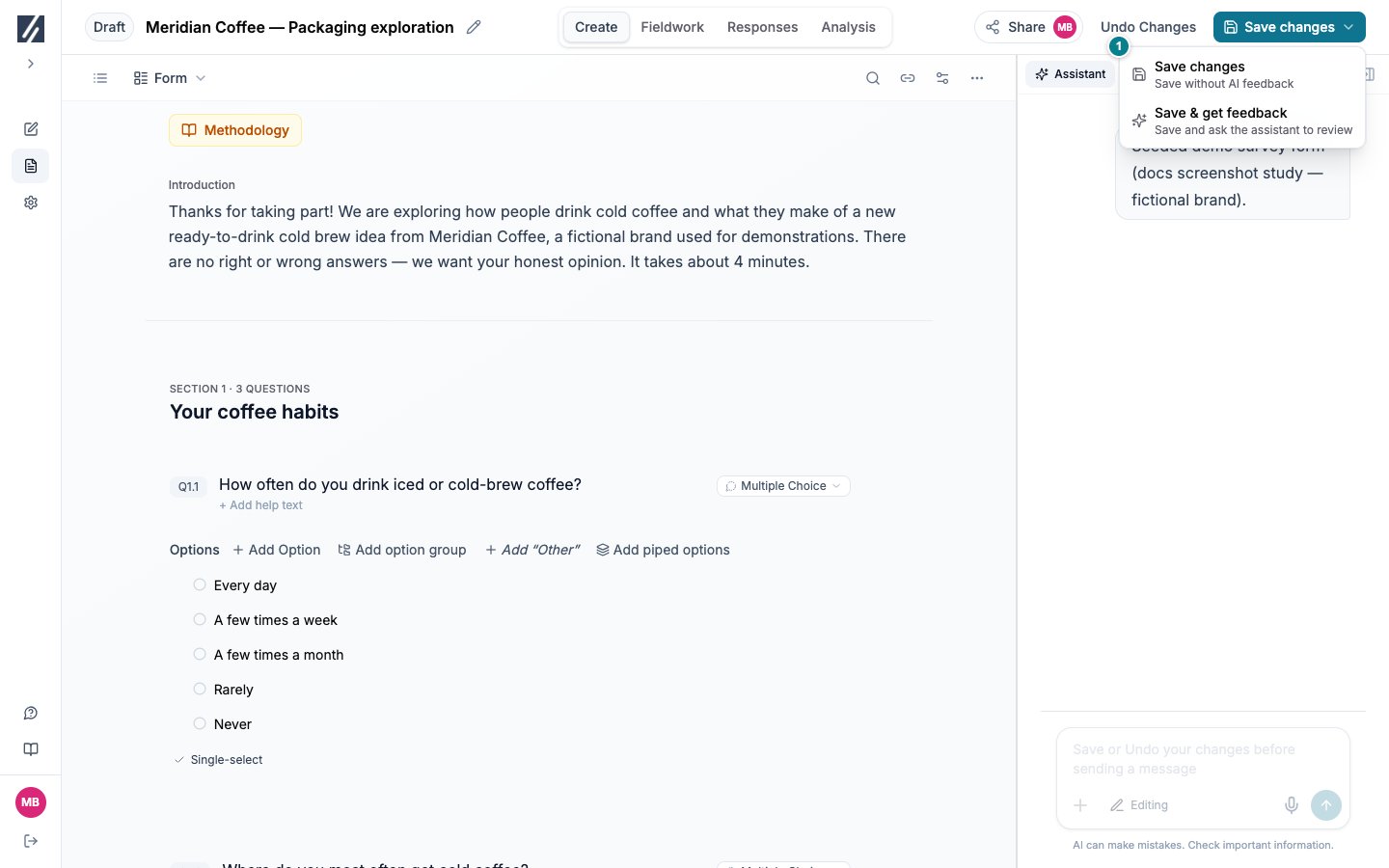
Open the save menu and choose whether the saved version should also be reviewed by the assistant.
Recover unsaved work
The browser keeps a private recovery draft after a short period of inactivity and when you navigate away. This draft is not visible to teammates and is not a saved questionnaire version. When a recovery draft is available, an amber message shows Restored your unsaved changes or Restored unsaved changes from another tab.- Select Dismiss to keep the recovered content as pending edits.
- Select Discard to remove the recovered content and return to the last saved version.
Work with another open tab or editor
This study is open in another tab means that both browser tabs can still save. The last save becomes the current version. If someone else saves while you have pending edits, the builder reports that the form changed. Open View history, compare the versions, and decide which edits to keep before saving your local version.View and restore saved versions
Open Version history beside Assistant and Comments. Each save has a version number, timestamp, author, and summary of additions, edits, and removals.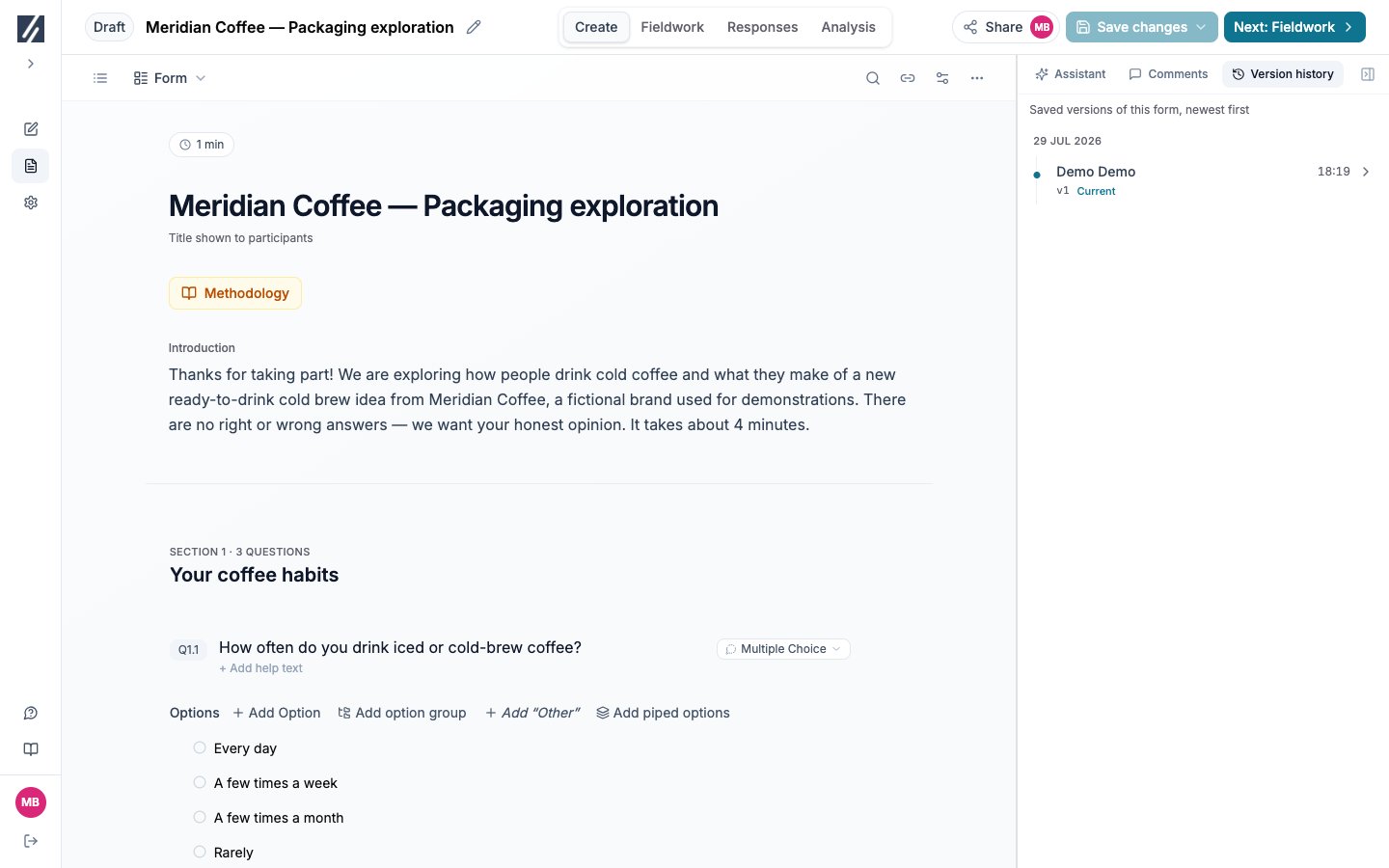
Version history lists saved versions and identifies the current version.
1
Preview a version
Expand an entry and select View this version. The questionnaire opens read-only so you can inspect it without changing the current form.
2
Restore the version
Select Restore this version and confirm. The restored form is recorded as a new version, leaving the earlier history available.
Edit a published or completed study
An amber Live survey — edits restricted message identifies the settings that remain available. Wording changes, appended options, selected panel or quota adjustments, and analysis-only variables may remain editable. Structural changes that could alter existing responses or referenced logic are locked. Read the message shown on the affected control for the specific restriction. A published study’s assistant chat is read-only.Troubleshooting
A test link stopped opening
A test link stopped opening
A change returned the study from Testing to Draft. Open Test, generate a new test link, and distribute the replacement.