
Prepare and import the file
You need edit access. Prepare a CSV or XLSX file with headers and no more than 10,000 data rows. Choose a column with a nonempty, unique identifier on every row. Keep customer identifiers as text when leading zeroes matter.1
Upload and preview
Select Upload a file, choose the file and, for a workbook, the worksheet. Inspect the detected columns and sample rows.
2
Choose the identifier
Set Identifier column. Check that each row represents the intended person. Duplicate or empty identifiers block import.
3
Confirm
Name the dataset, check the row count, and select Import. Reopen it with View all rows to find a known identifier and verify its values.
Choose the right entry route
A customer file keyed by a customer identifier makes the study personal-link only, even before a variable reads it. Participants enter through their own campaign invitation or personal test link. Open provider links cannot coexist with that file. Resolve any named provider conflict before import; do not remove a live provider merely to bypass the message. For a segmentation added after collection, retain the export’sconsumer_survey_id column as the identifier. Every supplied identifier must belong to a respondent in this study. This kind of file can coexist with panel providers and fills file-reading variables for existing respondents.
Read a column or link value
In Variables, define a variable that reads the dataset’s selected column or a link attribute. Review its type, missing-value behavior and uses in conditions or piping. A customer-file value or link attribute is fixed when the participant starts; adding it later does not fill earlier sessions. The respondent-ID file described above is the exception. The file’s key becomes a link attribute carried by its personal invitations. Provider-supplied attributes are values on the entry URL; configure the provider to pass the actual value. A declared attribute alone does not populate a variable. See Create a derived variable.Replace or remove a file
Replace requires the same columns and compatible types. Inspect the replacement before confirming. Existing sessions retain entry-time values. A dataset used by a variable or campaign cannot be deleted; remove those dependencies first when permitted. If the stored file is missing, replace it with the same source file to repair access.Check the result
Use a personal test link for a known synthetic row. Confirm the participant sees the intended values and that Responses stores them. For a respondent-ID file, compare the resulting variables with the original export identifiers.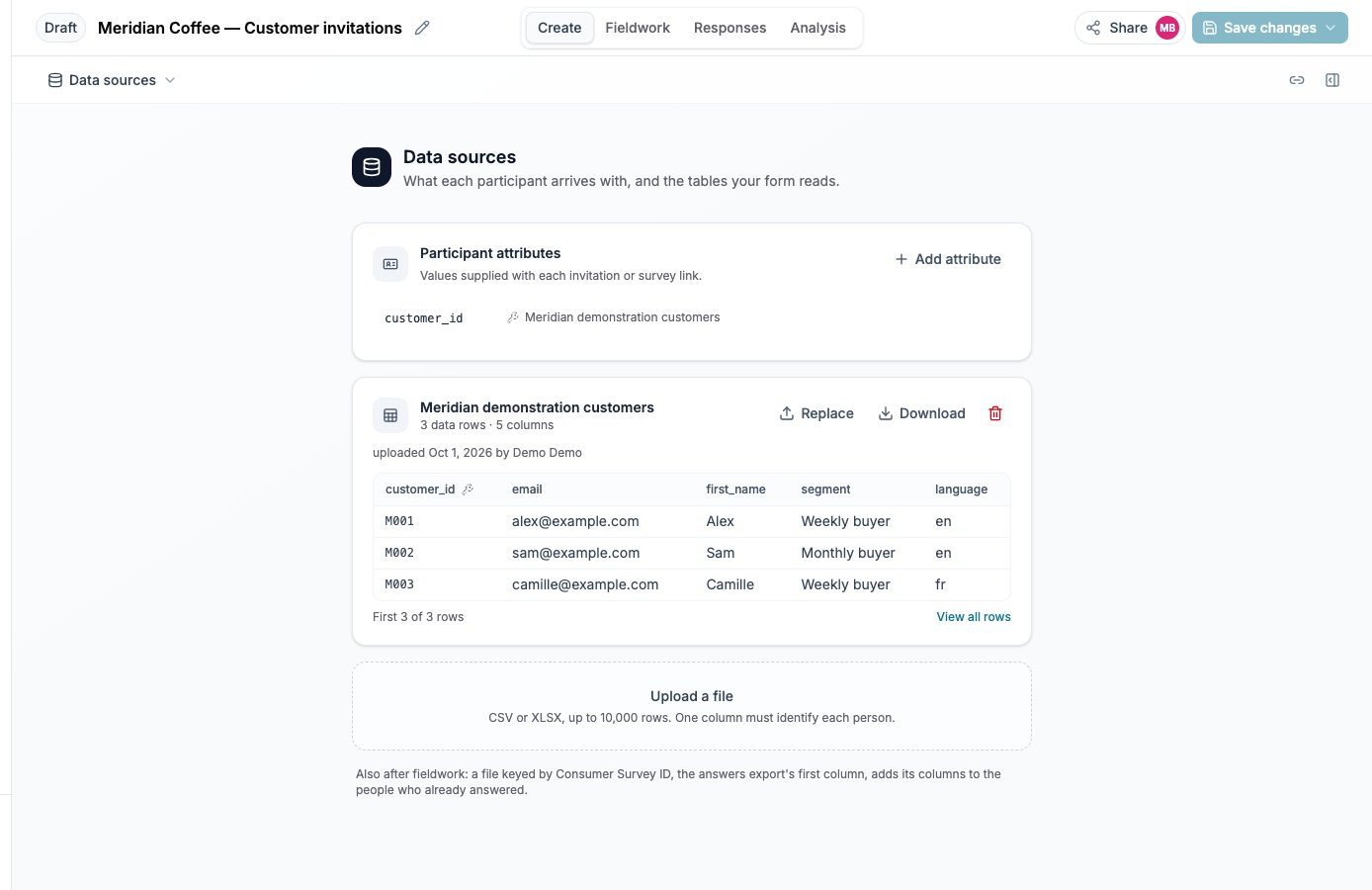
The dataset card shows the key, detected columns and sample rows.
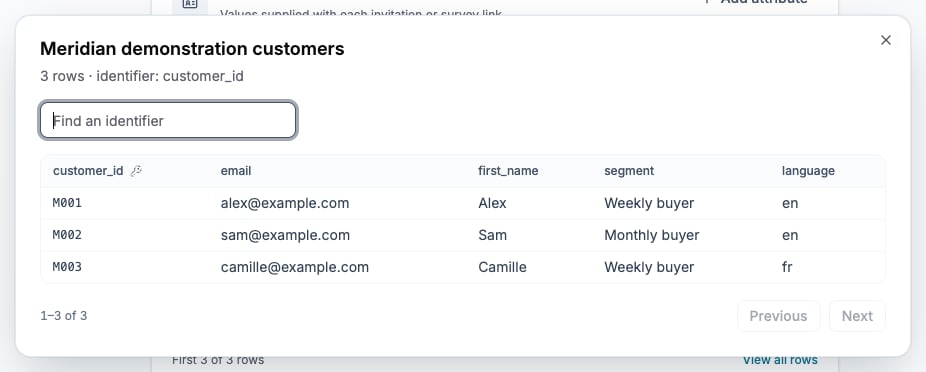
Find a known identifier and check its values before using the file.