
Before you start
Save the questionnaire and prepare the final audience, translations, consent wording, and provider configuration.Run Flow coverage
In Create, open the builder view menu and select Test. Under Flow coverage, select Run check.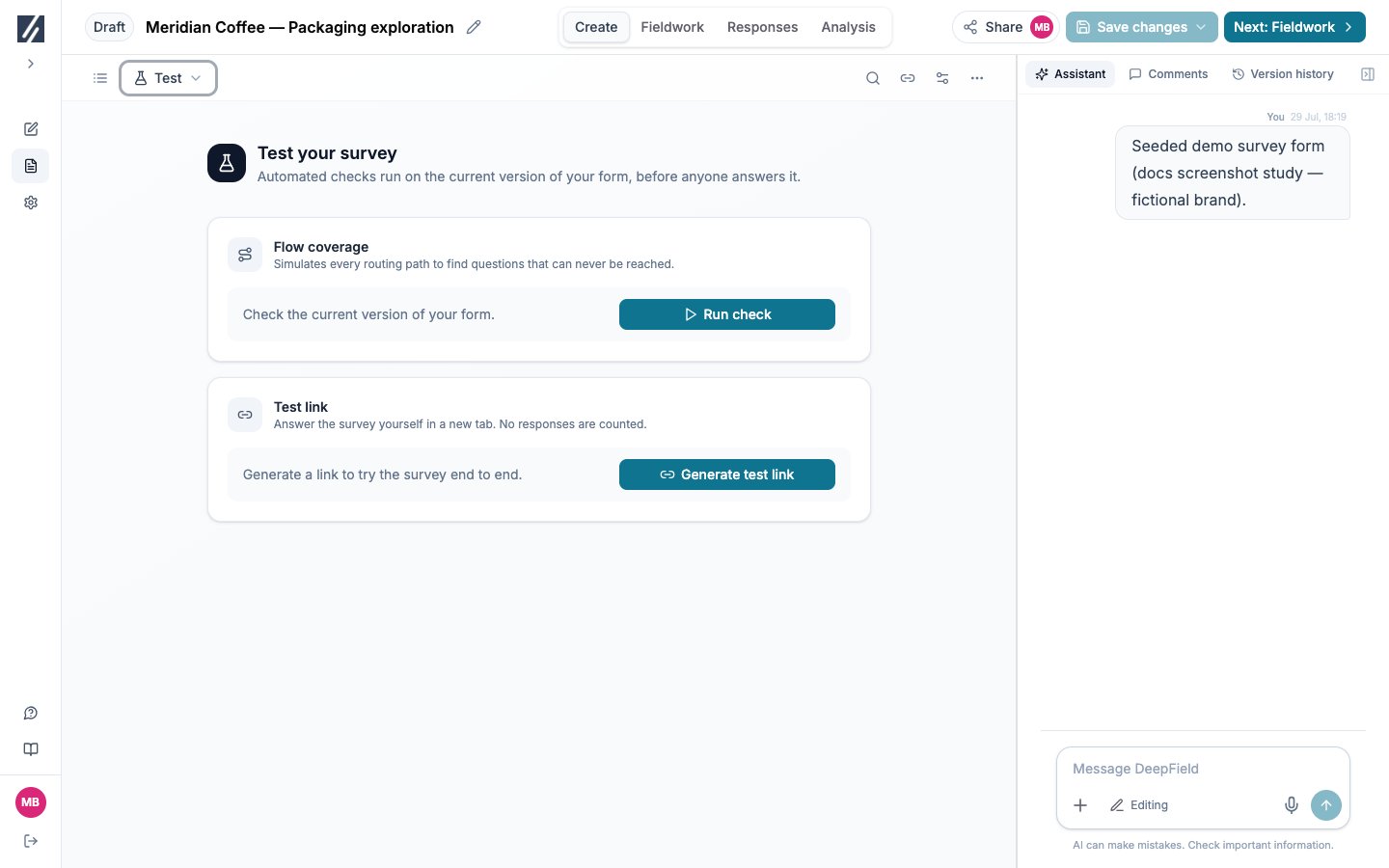
The Test view contains Flow coverage and the test-link controls.
Generate a test link
Select Generate test link. The current form is saved and published for testing, and the study moves from Draft to Testing. Use Open to start a session or Copy to share it with reviewers. Test sessions do not count as live panel completes. To focus on one question and its dependencies, open that question’s menu and select Test this question. Test at least:- A normal qualifying completion.
- Every screen-out and early-end route.
- Each language.
- Boundary answers used by conditions and validation.
- Randomized or concept-loop variants.
- Custom-code questions on desktop and mobile widths, including a reload after answering.
- Redirect behavior when a provider is involved.
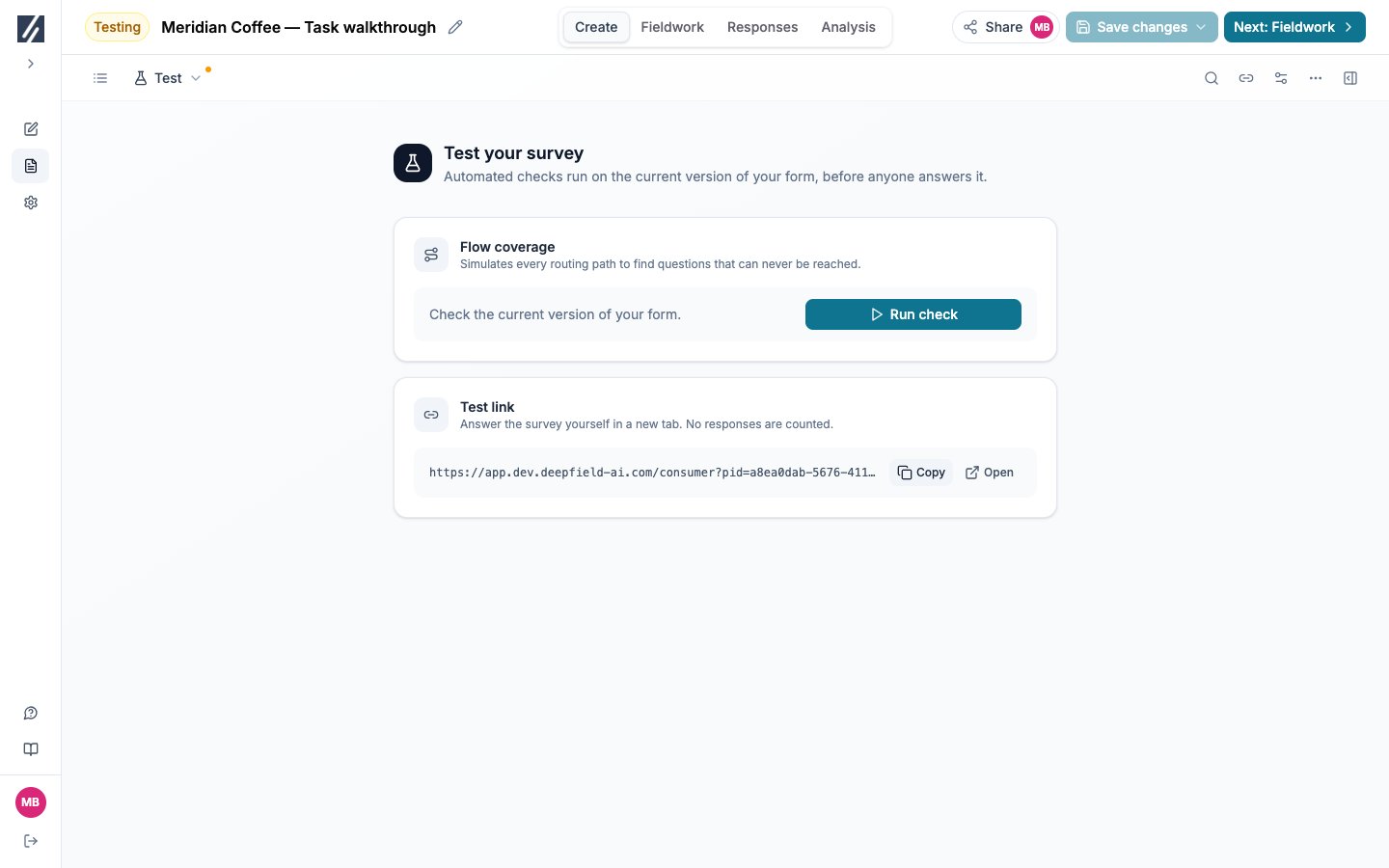
The generated test link offers Copy and Open controls. Run the flow check as well as the participant test.
Invite one participant directly
When the study is Published, select Invite on Fieldwork. Enter the participant’s email and select Generate Link. Share the unique URL and note its displayed expiry date. The link can reopen an unfinished response within its allowed sessions. It stops accepting entries when the response is complete or the link expires. For provider traffic, use the panel invite workflow described in Configure a panel-provider link.Publish
1
Resolve launch blockers
Save or undo all questionnaire changes. Complete and save every translation. Confirm the panel and quota configuration.
2
Open Fieldwork
Review the coding fees, the recruiting estimate for any panel DeepField recruits, and the launch summary. Check the sample-size estimate in Create → Quotas, panels & links.
3
Select Publish
Read the Publish Survey confirmation. Use Open Test if another participant review is required.
4
Confirm submission
Confirmation moves a Draft or Testing study directly to Published. It can then accept live participants.
Understand status changes
Troubleshooting
A test link no longer works
A test link no longer works
The study returned to Draft after an edit, assistant action, or version restore. Open Test and generate a new link.
The participant does not see the DeepField completion screen
The participant does not see the DeepField completion screen
A Success Redirect URL is configured for the panel or provider. Clear it if the built-in completion screen should be used.