
Before you start
Save eligible Multiple Choice screening questions and decide the target and optional cap for every planned cell.Create a quota
1
Open the selected panel
In Create, open the builder view menu, select Quotas, panels & links, and choose the panel to configure.
2
Add the quota
In Quotas, select Add quota and choose a Multiple Choice screening question. Its selectable options become quota rows.
3
Enter Min and Max
Use Min for the target and Max for the intake cap. Leave Max empty only when responses may continue past the target while the panel remains open.
4
Save and review totals
Resolve any validation message, save the form, and confirm the cells on Fieldwork.
Max must be equal to or greater than Min and cannot exceed the allowed panel total. To exclude an answer entirely, use a screening rule instead of setting Max to zero.
Create nested quota cells
Use nesting to cross one eligible screening question with another, such as region within age.1
Choose the parent row
Open its actions and select Add nested quota.
2
Choose the second question
Select the screening question that defines the nested rows.
3
Choose where to apply it
Apply the structure to the selected parent option or to all options at that level.
4
Preview and create
Review the cell structure, select Add Nested Quota, and enter Min and Max for each resulting cell.
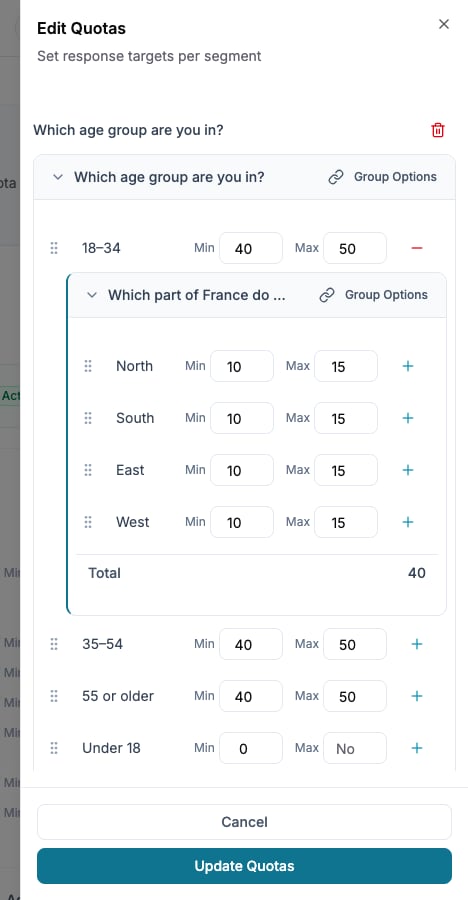
The 18–34 group has a target of 40, divided into four regional targets of 10.
Group options under one target
Select Group Options and choose at least two options, or drag one option onto another. The combined row receives one target and cap. Use Ungroup to restore separate rows. Grouped options cannot contain nested quotas. Keep options separate when the group also needs another quota dimension.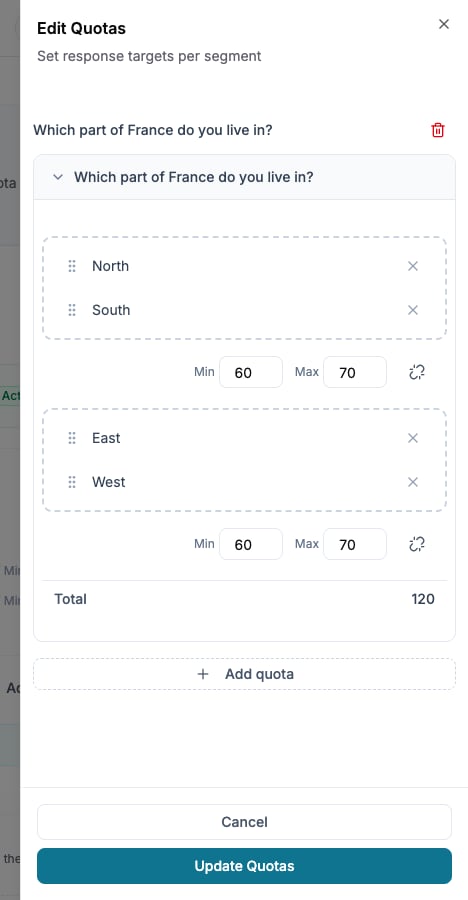
Grouped options share one target: North and South together require 60 respondents, with a cap of 70.
Monitor quota fills
Open Fieldwork and find Recruitment progress. Each row compares the current count with Min and, when set, Max. Review individual cells as well as the total panel progress. When a cell reaches Max, later participants who match it end as quota exceeded. The panel’s Quota Exceeded Redirect URL determines whether they return to a provider or see the built-in end screen.Troubleshooting
A segment exceeded its target
A segment exceeded its target
Check whether Max is empty or higher than Min. Min measures the target; only Max stops additional intake.
A quota cell does not fill
A quota cell does not fill
Compare it with the screening rules, then review any nested dimensions. The UI identifies direct screener conflicts; a narrow combination may also require a feasibility decision.
No question appears when adding a quota
No question appears when adding a quota
Add and save a Multiple Choice question in the Screening section. Open-ended, numeric, custom-code, or main-questionnaire fields are not eligible quota sources.