
Before you start
Identify the recipient and the work they need to do. Check both their organization account type and the study-level access you can grant.Choose how to share
The Share dialog has two tabs:- People grants access to a member of your organization or invites a new member.
- Links creates a guest view with selected content, an optional expiry, and optional commenting.
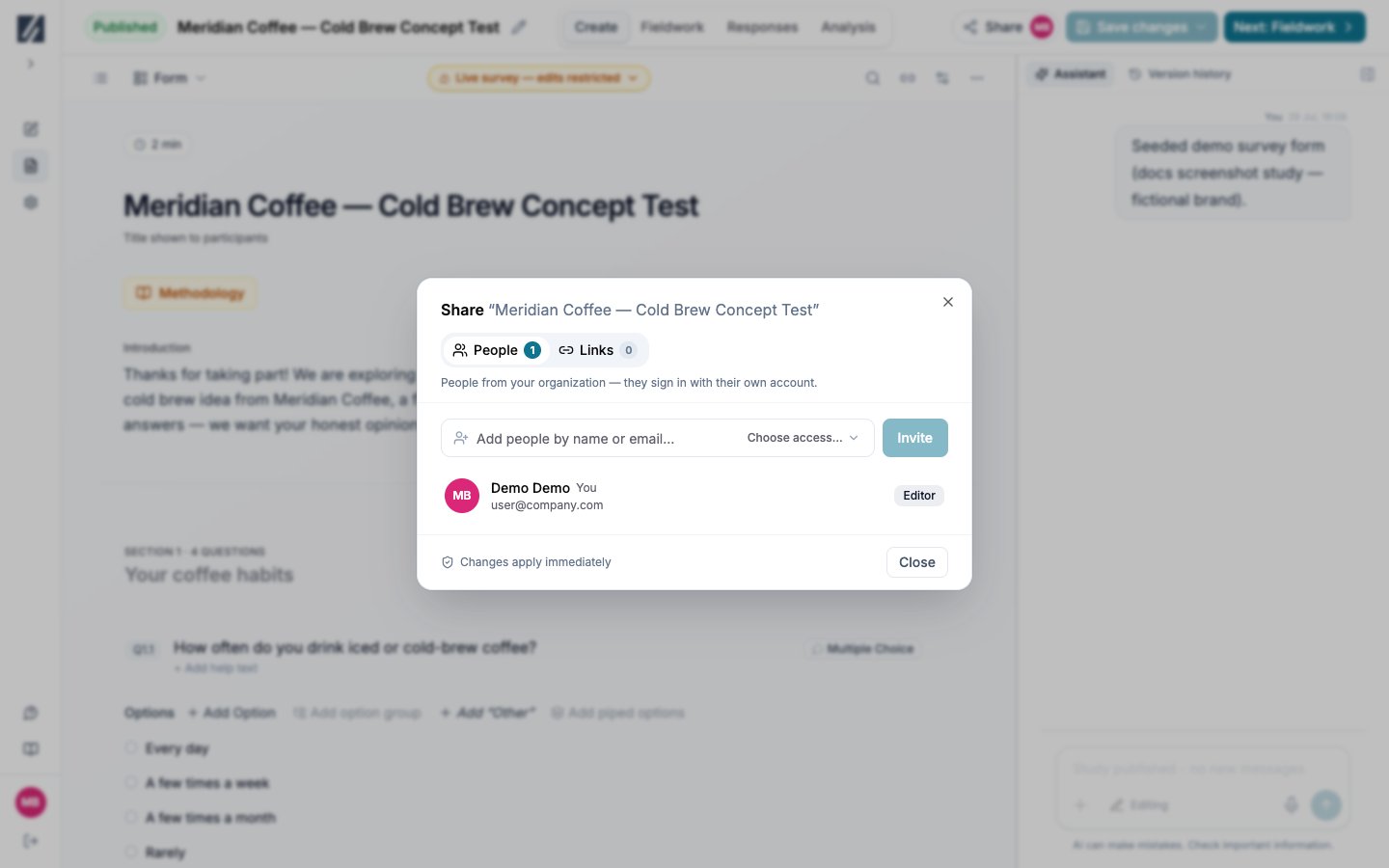
Use People for signed-in collaborators and Links for controlled guest access.
Give a teammate access
1
Open People
Select Share → People, then enter the person’s name or email address.
2
Choose an access level
Select the lowest level that supports their task, then choose Invite.
3
Send the invitation link if prompted
For a new account, copy the one-time invitation link and send it to the recipient before closing the confirmation.
Only an Owner can grant Owner or change an existing person’s level. A Collaborator account is limited to Commenter, even if a higher study level is selected. Folder access can also set a minimum inherited level for a study.
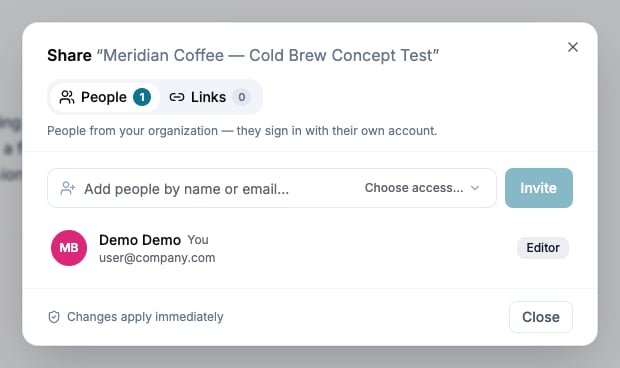
The People tab lists direct and inherited access and lets permitted users invite teammates.