
Add concepts to a section
1
Define the concepts
Open the section’s settings and select Add concepts. Name the loop and each concept distinctly. Attach the stimulus each concept needs. A variant group presents one version of its idea to each respondent.
2
Choose who sees what
Set Concepts per respondent and the rotation. Balanced balances exposure and position; Random draws a random order; Fixed order keeps the authored order. Balance within an earlier single-choice answer or categorical variable when the design requires it.
3
Set exposure
Choose whether the concept appears on every question, on the first then through a button, through a button only, on click, or as a timed first impression. Timed exposure requires media. Check video playback requirements separately.
4
Add the repeated questions
Write the questions in the looping section. Each repeats for the concepts assigned to that respondent. Use a question’s concept-visibility setting when its stimulus needs different treatment.
Show the concept at once or on a click
A question’s Concept on this question setting offers, among others, Show, As a button and On a click:- Show: the concept is visible above the question as soon as the page opens. The respondent has nothing to do.
- As a button: a View again button under the question opens the concept in a window. Opening it is optional: the respondent can answer and continue without it.
- On a click: the concept stays hidden behind a Show button above the question. The respondent cannot continue until they select it, even after answering.
Compare concepts directly
Use the side-by-side concept display on a matrix when the participant should rate concepts together. Use an A vs B task for head-to-head choices. Picture cards change how choices are presented; they do not turn an ordinary selection into a concept loop. A later question can take a loop’s concepts as its options. Check that its source actually supplies the items the comparison needs, especially after filters and conditional assignment.Test the design
Save and test the assigned concepts, their order, conditional images, exposure and repeated questions. Exercise each cell of a monadic design, in which a respondent sees one concept, and more than one route through a sequential design. Test Back and translated concept names. Inspect the recorded concept order and the answers in Responses. Balanced rotation aims to distribute exposure; it does not guarantee identical completed sample sizes. Screen-outs, conditions and incomplete responses can change the achieved bases. In a monadic design with quotas, balance the rotation within the quota questions so that each profile is split evenly across the concepts. See Set quotas for a monadic or split test.Read the comparisons
In Charts, a repeated question is read by concept. Check the base for each concept, the filters and weighting before comparing it. A monadic assignment variable that simply repeats the concept columns is omitted from the plan’s comparison table. When one respondent contributes several concept answers to a table axis, the table distinguishes answer counts from respondent counts. These repeated answers are not independent people: significance tests and confidence intervals are not computed for that repeated-record table. See Read statistical significance.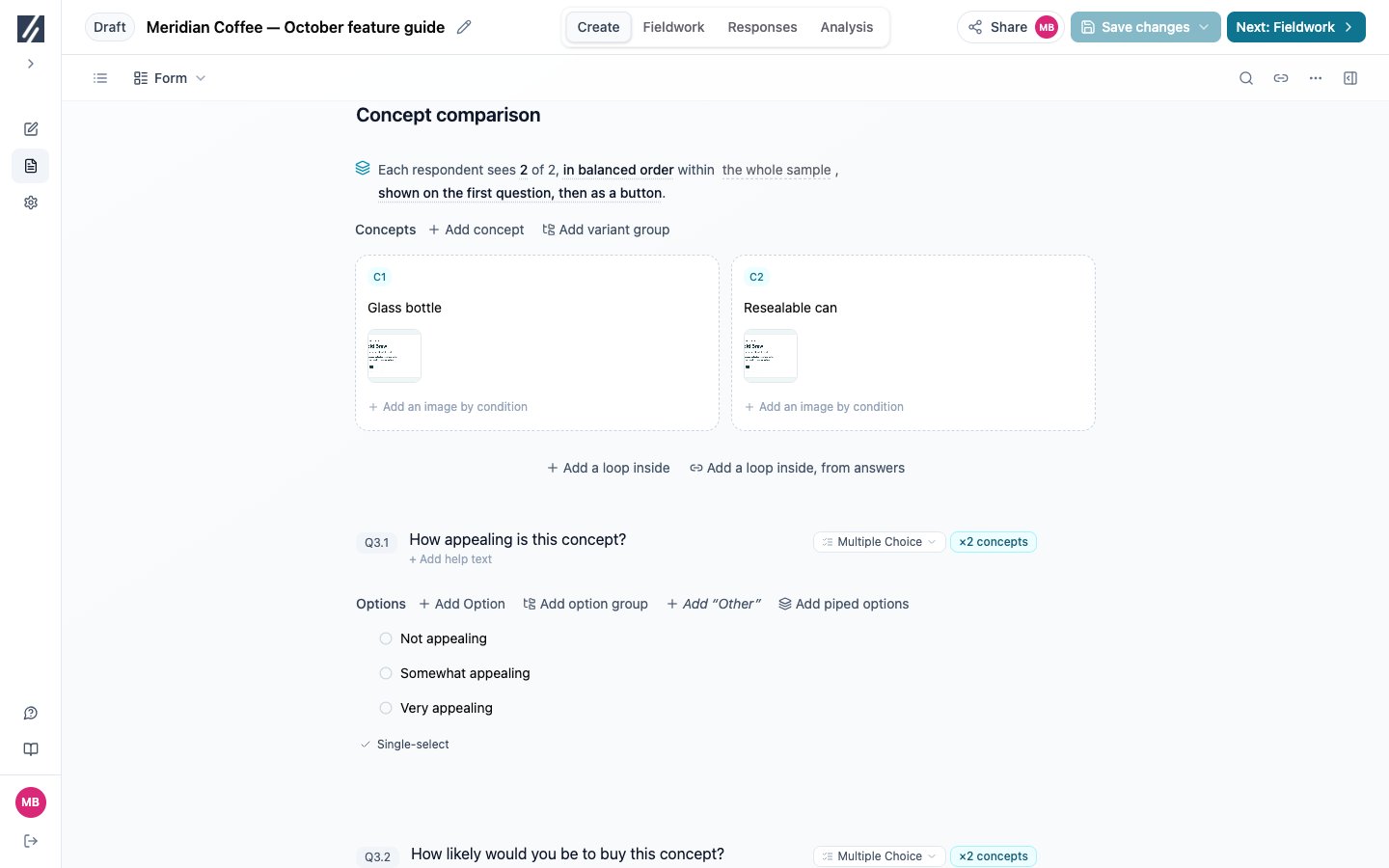
Review each concept, the rotation and the questions repeated for it.