
Before you start
Confirm the required account type and studies for the member. Administrator permissions are needed to change existing account types or deactivate members.Distinguish account type from study access
Changing a person to Researcher does not automatically share existing studies with them. After inviting or updating a member, grant the required study access separately.
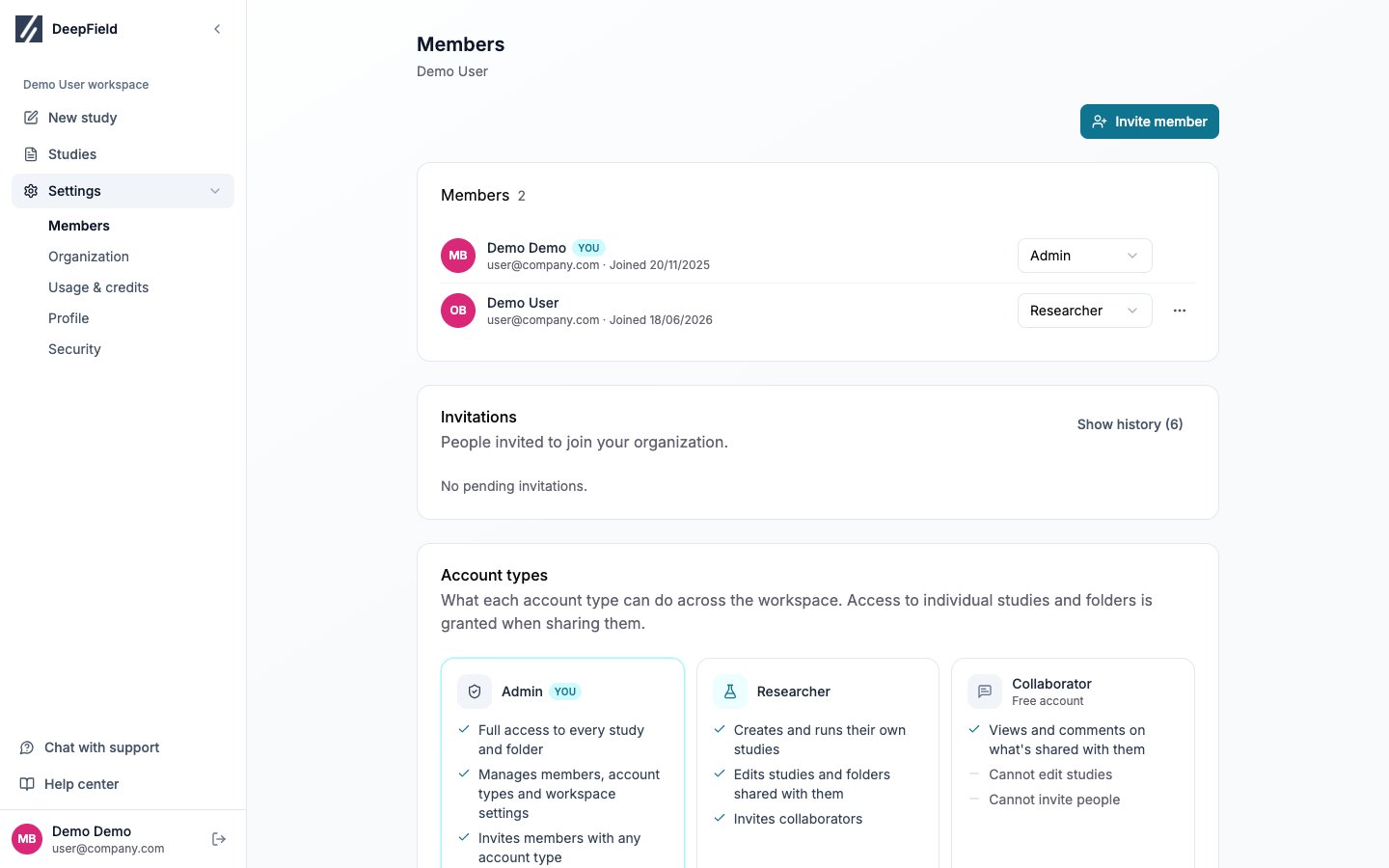
The Members page lists active accounts and summarizes the available account types.
Account types
Admins have Owner-level access to every study automatically. This is why they do not need a separate row in each study’s access list.
Invite a member
1
Open the invitation
Select Invite member on the Members page.
2
Enter an email and account type
Admins can select any account type. Researchers can invite Collaborators, so the account-type field is fixed for them.
3
Create the invitation
Select Send invitation, then copy the displayed invitation link.
4
Send the link securely
Send it directly to the intended person. After they create their account, share the relevant studies or folders with them.
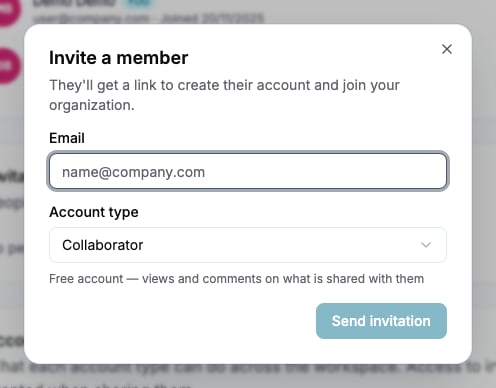
The invitation dialog creates a one-time account setup link for the new member.
Restrict member email domains
Admins can use Allowed invitation domains in Organization settings to restrict Admin and Researcher invitations. Add a bare domain such asexample.com, without @. Collaborator invitations remain available for external recipients.
Change or deactivate a member
Admins can use a member row to:- Change the account type
- Select ⋯ → Deactivate to stop sign-in and end active sessions
- Show deactivated members and select Reactivate when access should return