
Before you start
Save the source questions and place them before the questions that depend on them. Write the expected route for a matching and a non-matching answer.Show content conditionally
1
Open the condition builder
Open the question’s ⋯ menu and select Show only if…. For an entire section, use its Show section when control instead.
2
Add the rule
Select Add condition, then choose an earlier question, an operator, and the value to match.
3
Combine conditions
Conditions use AND by default. Change the connector to OR or select Add condition group when the logic requires grouped conditions.
4
Review the summary
The card displays a Show if summary. Read it as a sentence and confirm it matches the intended participant route.
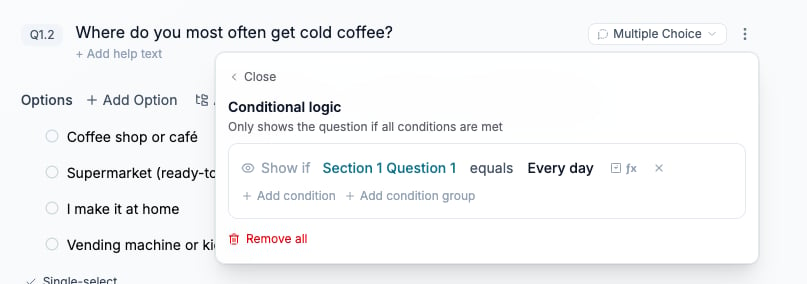
Show the purchase-location question only when the earlier frequency answer is Every day.
Jump to a later question or section
Open ⋯ → Jump to…, select a destination later in the questionnaire, and add the condition that activates the jump. The question card shows a Jump to … if … summary. Jumps only move forward. A destination inside a randomized block is not accepted because its position can differ between participant routes. Select a destination outside the block or remove that block’s randomization. Use conditional display when the requirement is to hide a set of questions without moving to a named destination.End the survey after a qualifying route
Use ⋯ → End survey when… to complete the response when a condition is met at that point. This records an early completion rather than a screen-out. Screening questions use Screening rule instead. A screen-out identifies a participant as outside the required audience and can send them to the configured screen-out redirect.Insert an earlier answer into text
Type @ in question text, help text, or an option label. Select an earlier question or variable, then test the substituted text.Reuse earlier selections as options
Use Options source → Pipe from question on the target question. See Reuse earlier answers for selected, unselected, ranked, and numeric sources.Randomize options, rows, blocks, or sections
Test rules that enter or leave a randomized area. Do not use a jump destination inside a randomized block.
Create a derived variable
Open Variables → Add variable in the builder. Follow Create a derived variable to define cases or a calculation, test the result, and verify stored values.Use a formula in a rule
Select ƒx or Use a formula instead on a condition row. Insert numeric references with @ or{, then build the comparison. A formula can only use numeric questions or variables available before the point where it runs.