
1
Open Variables
In Create, scroll to Variables below the questionnaire, then select Add variable. If the section is hidden, select Add variable section.
2
Choose the result type
Name the variable and choose Categories or Number. For a category result, define the categories before assigning cases.
3
Define the derivation
Enter a formula for a numeric variable. To use ordered cases, open Variable settings → Set with rules and define the conditions and Otherwise result. Category variables use rules to assign categories.
4
Test sample answers
Save the questionnaire and generate a participant test link from Test. Repeat the test with inputs for each case, values at boundaries, and a missing source where skipping is allowed. Compare the variable column in Responses with the expected result.
5
Save and verify
Save the questionnaire, complete a participant test, and enable the variable column in Responses. Confirm that the saved value matches the source answers.
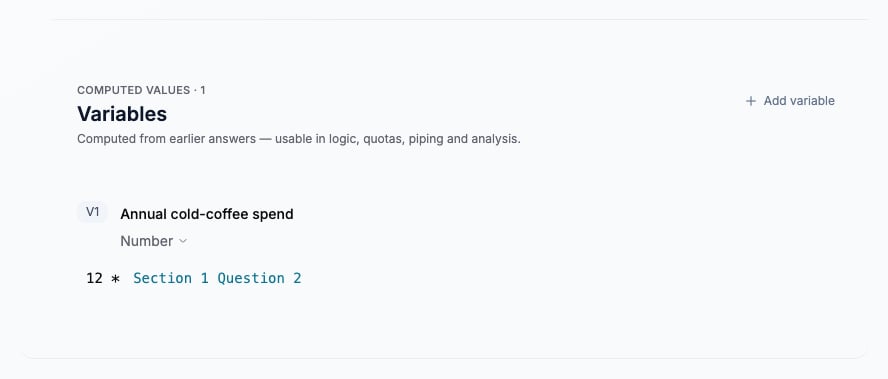
Annual cold-coffee spend multiplies the earlier monthly spend by 12.
Order cases deliberately
For a frequency segment, define regular cold-coffee drinkers from the saved frequency choices and use Otherwise for the remaining cases. Put more specific cases before broader cases that would also match. Do not label an unanswered source as a substantive answer without an explicit rule.Use the variable in the study
Select the variable where the relevant condition, piping, or analysis control offers it. Its inputs must be available before participant-facing logic uses it. Quota controls enforce their own eligibility restrictions; a variable appearing in analysis does not make it a valid quota source. If you add a Screening through Variable settings, screening waits until the required inputs have been answered. Test both an excluded case and a case that continues.
Show the source and variable together: the completed test stores 30 per month and 360 per year.