
Before you start
Have a signed-in account and a study you can open.Use the main navigation
The left sidebar contains:- New study, where you can create with the assistant, recreate or adapt an uploaded questionnaire, or start with a blank questionnaire.
- Studies, where you can search, filter, organize, and open existing studies.
- Settings, where you manage members, organization settings, usage, your profile, and security.
- Log out, at the bottom of the sidebar.
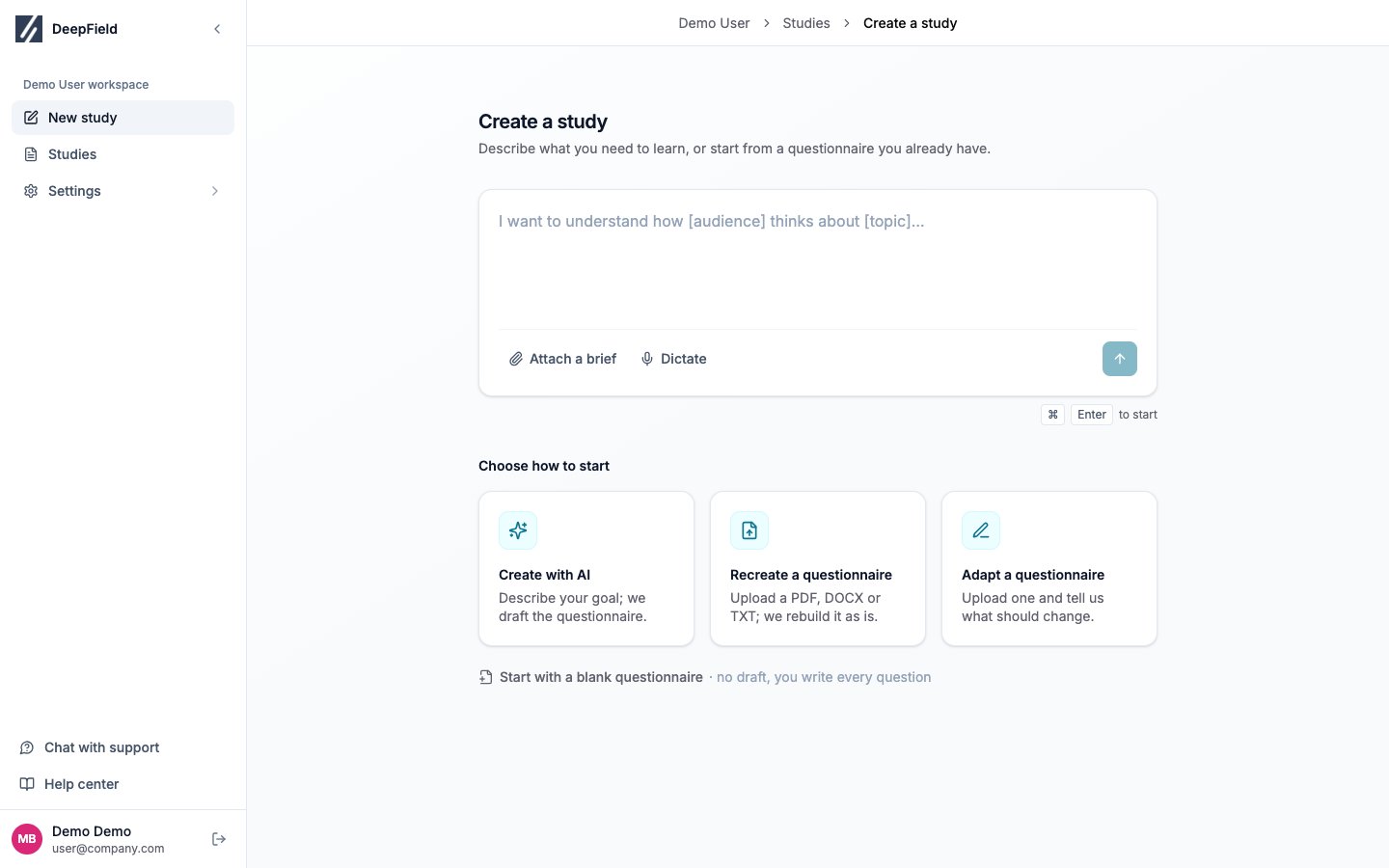
New study provides an objective composer, file attachments, and four creation paths.
Find and open a study
Open Studies. Search matches study titles, internal names, descriptions, and folder names. Status filters narrow the list to Live, Draft, In setup, or Completed studies. Use My studies to show work associated with your account. Switch between List view and Grid view depending on whether you want to browse the folder tree or folder tiles.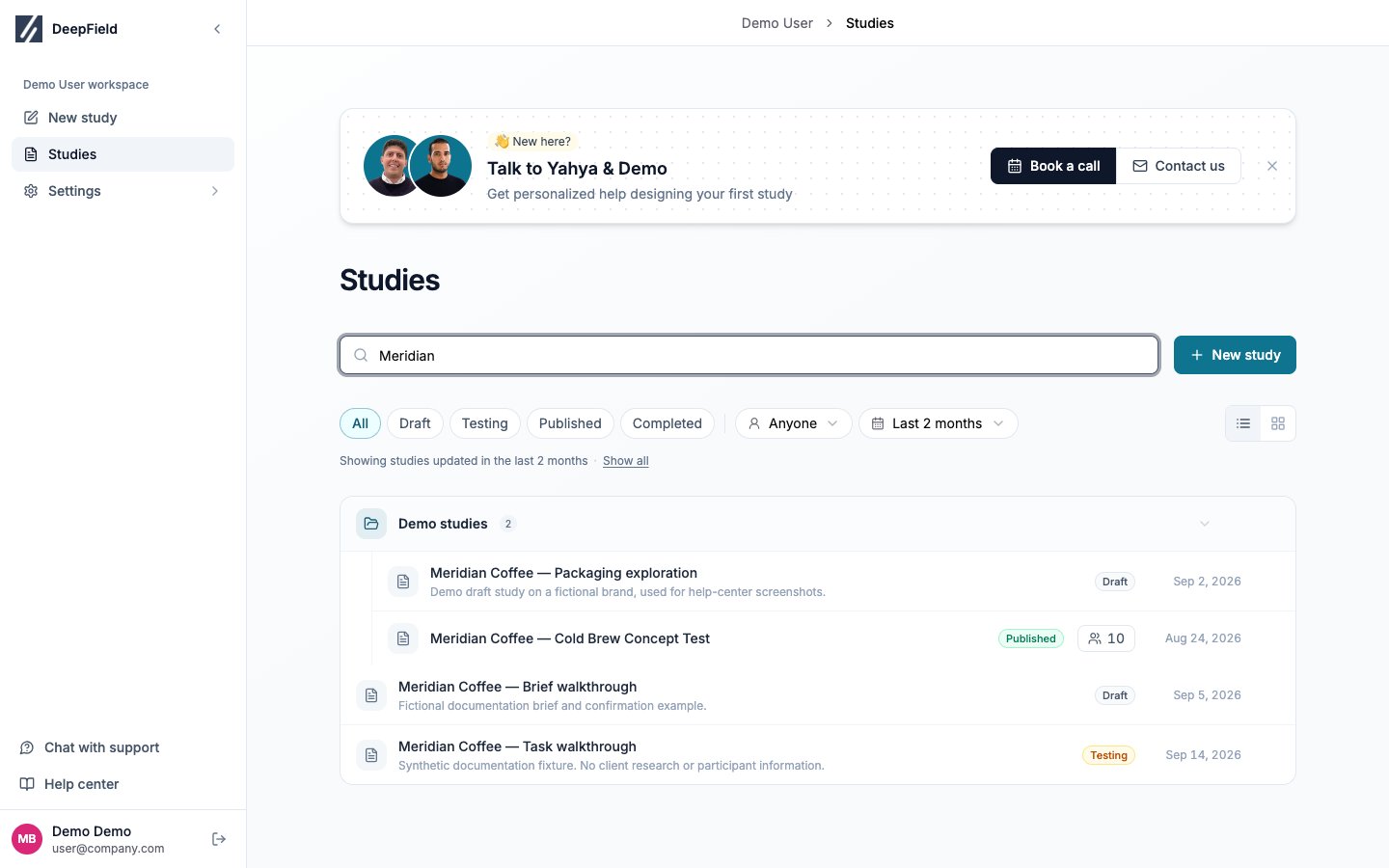
Use search and status filters together to reduce a long study list before opening a result.
Organize studies in folders
Select New Folder to create a top-level folder. To create a nested folder, open the parent folder’s menu and select New subfolder. Rename a folder from its ⋮ menu or by editing its name inline. Move a study by dragging it onto a folder or by selecting Move to folder… from the study menu. Permissions inherited from the destination folder may change who can open the study. Deleting a folder does not delete the studies and subfolders inside it. The confirmation dialog asks whether to move its contents to the top level or to another folder.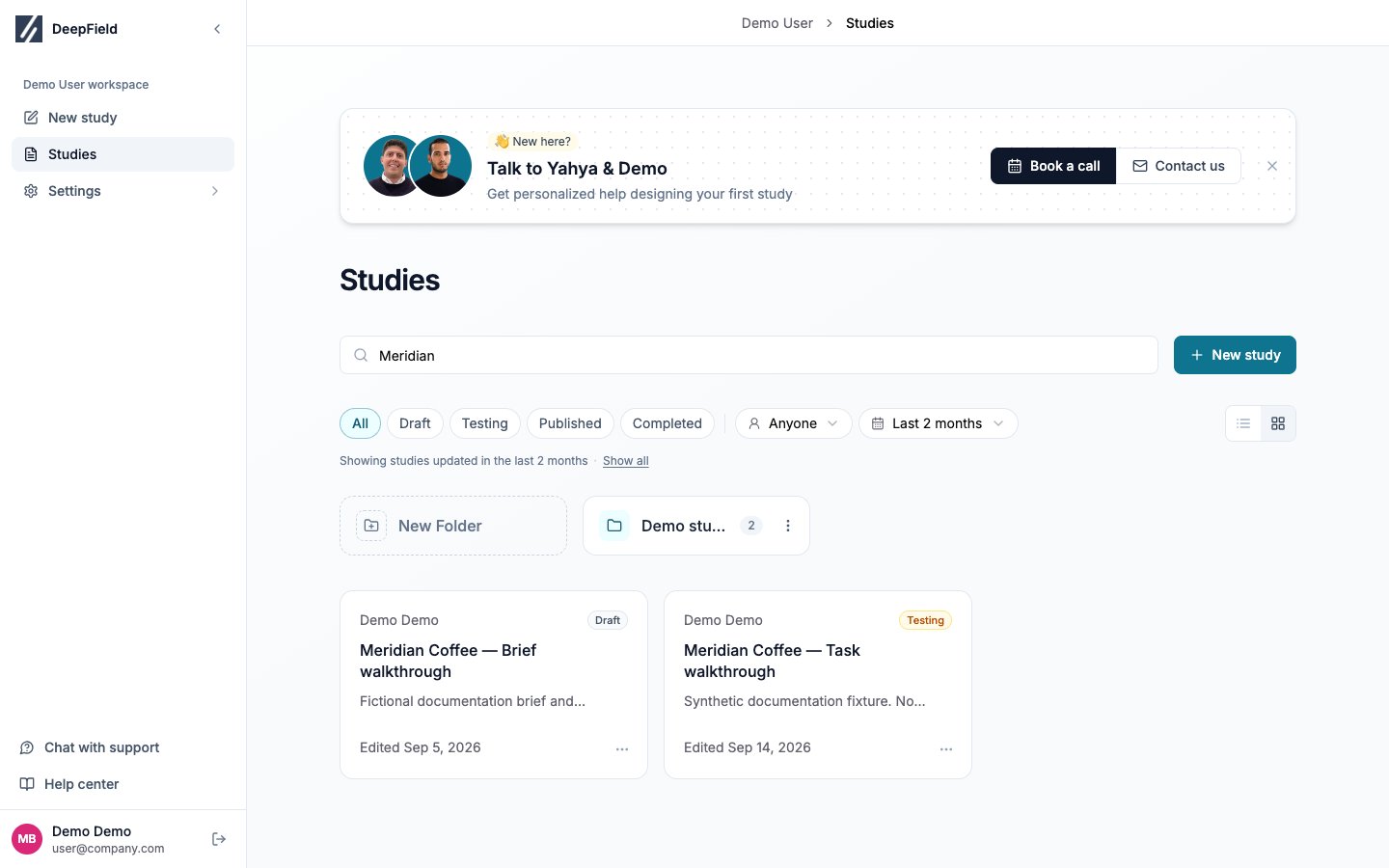
Grid view displays each folder as a tile and shows how many studies it contains.
Use the views inside a study
The builder view menu inside Create provides Form, Flow, Variables, Test, Quotas, panels & links, and Translations.
Understand study statuses
Confirming Publish moves a Draft or Testing study directly to Published. Unsaved questionnaire changes or an out-of-date translation can block publication.