
Use comments to keep a review request attached to the slide or block it concerns. You need a completed report, a saved deck, and permission to comment.
1

Save the deck

Open Analysis → Slides and select Save Changes if edits are pending. Comments require a saved version with no local changes.
2

Choose the anchor

Select the comment button on the relevant slide or block. Write a specific request, such as “Check the base behind this purchase-intent percentage.”
3

Send the comment

Select Send. Confirm the numbered pin appears beside the intended element, then select the thread to check that it returns to that element.
4

Review and resolve

Read replies, verify the revised claim against its chart or source answers, save the deck, and resolve the thread. Confirm it appears under Resolved.
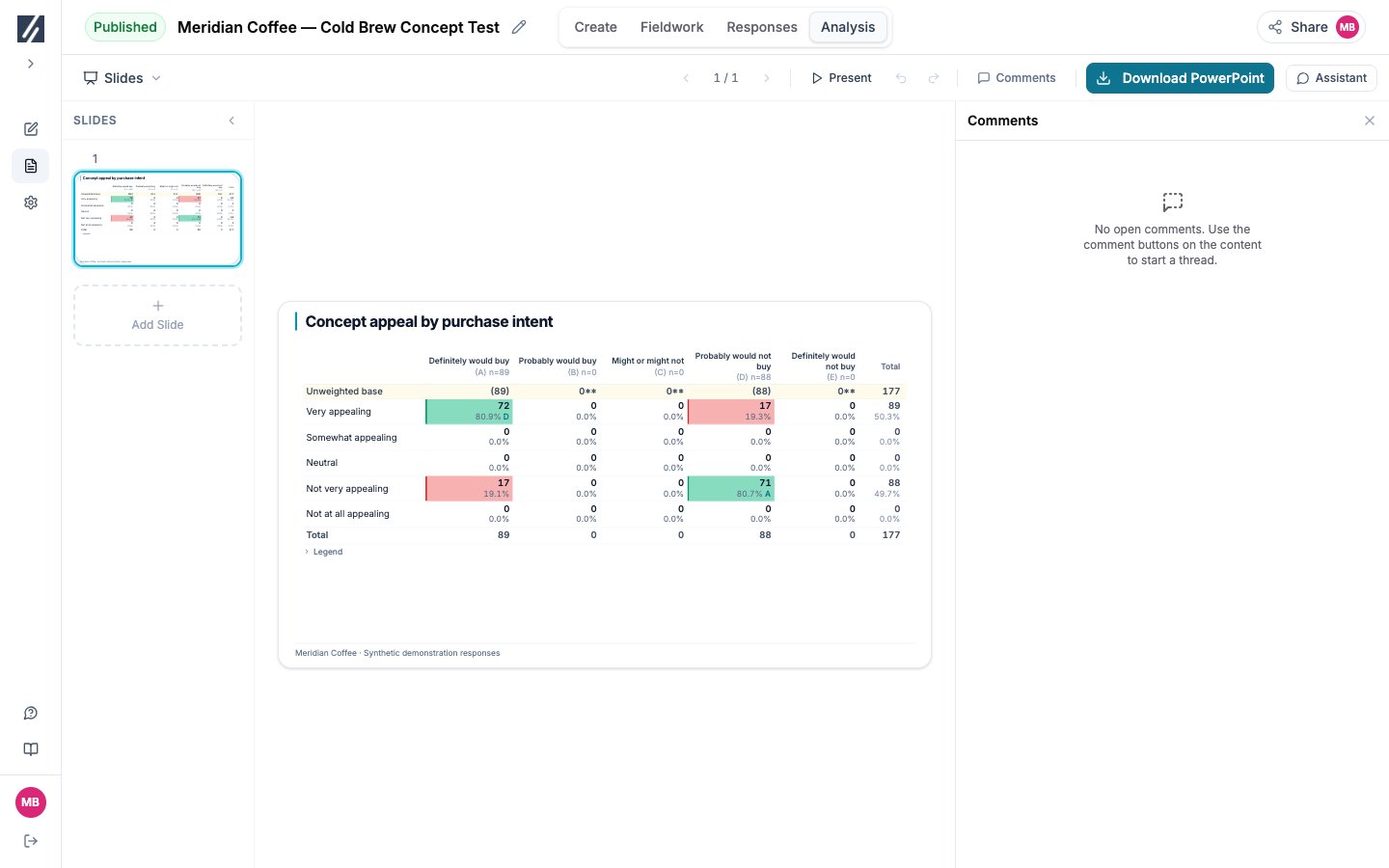
Comments panel opened beside the saved Meridian comparison slide

Open Comments beside the saved slide to start or review its anchored threads.

Process several threads

Select the relevant threads in Comments and choose Ask AI to process. Review the assistant’s changes on the canvas, check the supporting evidence, and save before resolving the requests. Processing a request is not evidence that the revised claim is correct.

Reopen or correct feedback

Use Open and Resolved to find threads. Reopen a resolved request when more work remains. You can edit or delete your own comments; keep the review explanation clear for the next reader. The link must include the deck and have Allow comments enabled. Open the URL in a private window and check its content before sending it. A deck link also grants the dependent questionnaire and result access described in Manage guest links.

Fix an unavailable comment control

Save pending changes first. If the message says the element changed, reload the deck before commenting so the new thread attaches to the current element.