> ## Documentation Index
> Fetch the complete documentation index at: https://support.deepfield-ai.com/llms.txt
> Use this file to discover all available pages before exploring further.
# Share a study
> Give teammates access or create a controlled guest link for an external reviewer.
Use **Share** in the study header to control who can open a study. Add a person when they should sign in and work with your team. Create a guest link when an external recipient needs a limited, no-sign-in view.
## Before you start
Identify the recipient and the work they need to do. Check both their organization account type and the study-level access you can grant.
## Choose how to share
The Share dialog has two tabs:
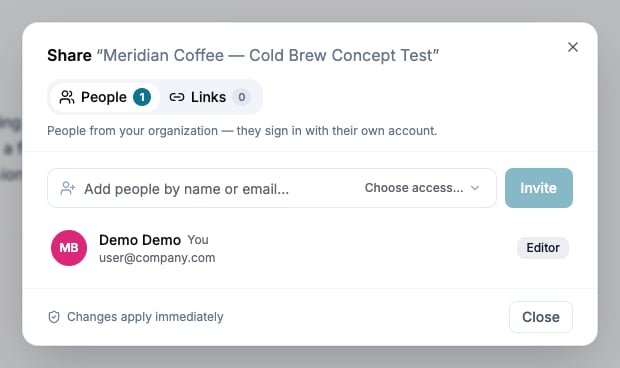
* **People** grants access to a member of your organization or invites a new member.
* **Links** creates a guest view with selected content, an optional expiry, and optional commenting.
Changes take effect immediately. You can return to the same dialog from any study tab; contextual actions such as **Share form** or **Share progress** open it with the relevant content selected.
 ## Give a teammate access
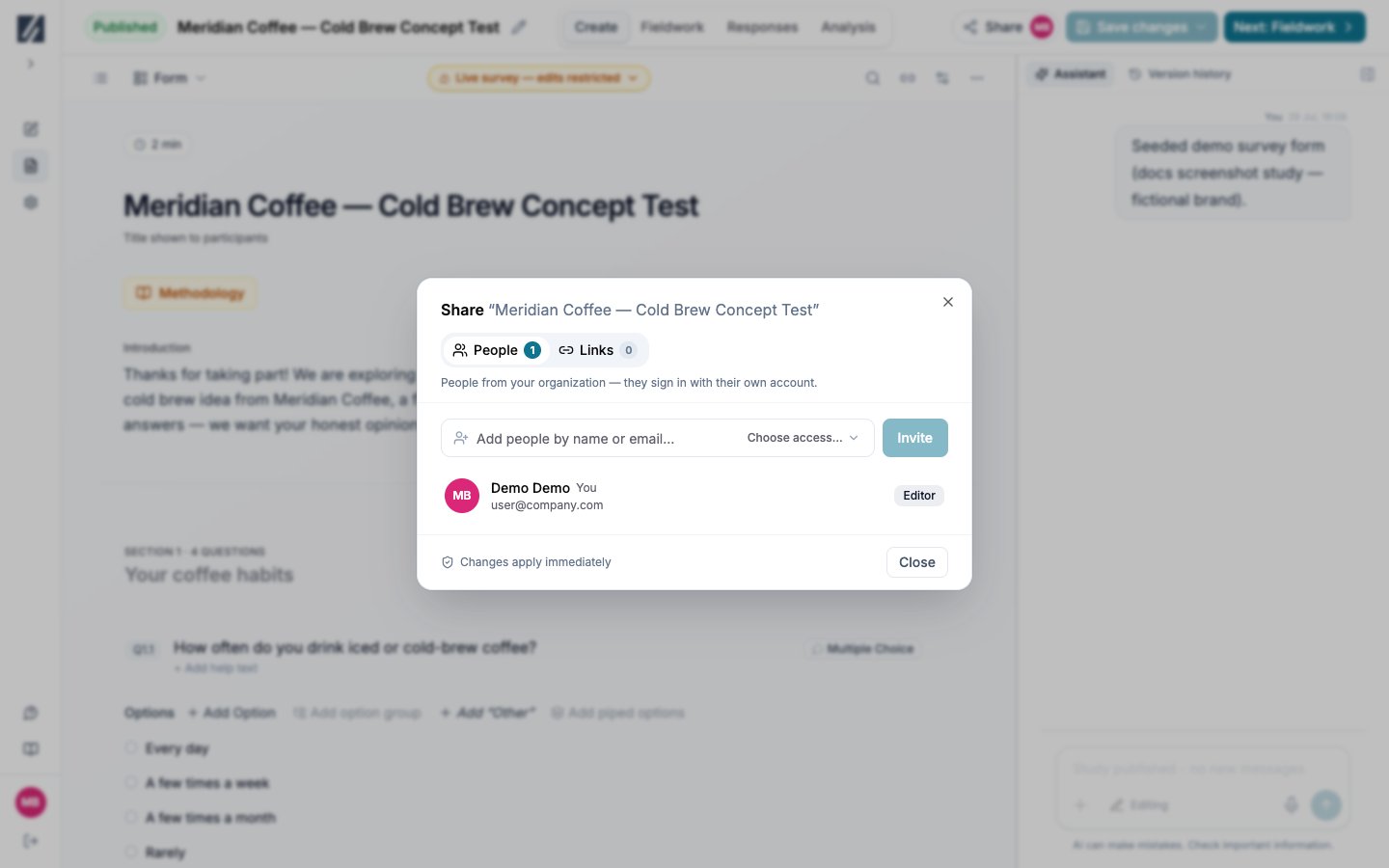
Select **Share → People**, then enter the person's name or email address.
Select the lowest level that supports their task, then choose **Invite**.
For a new account, copy the one-time invitation link and send it to the recipient before closing the confirmation.
| Access level | What it allows |
| ------------- | --------------------------------------------------------------------------------------------- |
| **Viewer** | Read the study's responses and analysis. |
| **Commenter** | View the study and participate in comments. |
| **Editor** | Edit and run the study, use its assistant, create share links, and grant access up to Editor. |
| **Owner** | Full control, including changing access levels and deleting the study. |
Only an Owner can grant Owner or change an existing person's level. A Collaborator account is limited to Commenter, even if a higher study level is selected. Folder access can also set a minimum inherited level for a study.
A new member's invitation link is shown once. If it is lost, remove the pending invitation and invite the person again.
## Give a teammate access
Select **Share → People**, then enter the person's name or email address.
Select the lowest level that supports their task, then choose **Invite**.
For a new account, copy the one-time invitation link and send it to the recipient before closing the confirmation.
| Access level | What it allows |
| ------------- | --------------------------------------------------------------------------------------------- |
| **Viewer** | Read the study's responses and analysis. |
| **Commenter** | View the study and participate in comments. |
| **Editor** | Edit and run the study, use its assistant, create share links, and grant access up to Editor. |
| **Owner** | Full control, including changing access levels and deleting the study. |
Only an Owner can grant Owner or change an existing person's level. A Collaborator account is limited to Commenter, even if a higher study level is selected. Folder access can also set a minimum inherited level for a study.
A new member's invitation link is shown once. If it is lost, remove the pending invitation and invite the person again.
 ## Create a guest link
See [Manage guest links](/sharing/guest-links#create-a-guest-link).
## Results access levels
See [Manage guest links](/sharing/guest-links#results-access-levels).
## Content that is included automatically
See [Manage guest links](/sharing/guest-links#content-that-is-included-automatically).
## What a guest can do
See [Manage guest links](/sharing/guest-links#what-a-guest-can-do).
## Update or revoke access
See [Manage guest links](/sharing/guest-links#update-or-revoke-access).
## If a recipient cannot open the link
See [Manage guest links](/sharing/guest-links#if-a-recipient-cannot-open-the-link).
## Check the result
The recipient can open the study while signed in and sees the actions required by their role. If access remains after a direct grant is removed, check inherited folder access.
## Related
* [Manage workspace members](/account-settings/team-workspace)
* [Build and review a slide deck](/analysis/slides)
* [Export your results](/analysis/exports)
* [Troubleshooting and FAQ](/troubleshooting)
## Create a guest link
See [Manage guest links](/sharing/guest-links#create-a-guest-link).
## Results access levels
See [Manage guest links](/sharing/guest-links#results-access-levels).
## Content that is included automatically
See [Manage guest links](/sharing/guest-links#content-that-is-included-automatically).
## What a guest can do
See [Manage guest links](/sharing/guest-links#what-a-guest-can-do).
## Update or revoke access
See [Manage guest links](/sharing/guest-links#update-or-revoke-access).
## If a recipient cannot open the link
See [Manage guest links](/sharing/guest-links#if-a-recipient-cannot-open-the-link).
## Check the result
The recipient can open the study while signed in and sees the actions required by their role. If access remains after a direct grant is removed, check inherited folder access.
## Related
* [Manage workspace members](/account-settings/team-workspace)
* [Build and review a slide deck](/analysis/slides)
* [Export your results](/analysis/exports)
* [Troubleshooting and FAQ](/troubleshooting)