> ## Documentation Index
> Fetch the complete documentation index at: https://support.deepfield-ai.com/llms.txt
> Use this file to discover all available pages before exploring further.
# Review response quality
> Understand each quality result, configure study-level checks, and include or exclude responses from analysis.
Quality checks evaluate live recruited responses and determine whether a completed record is included in the study's completed count and analysis. The Responses view shows the result for each participant.
## Before you start
Agree the study’s quality policy before excluding records. Read each response’s available checks and answers rather than using the score alone.
## Open a quality result
On **Responses**, select a row's Rating or Status. The participant detail displays the available checks and their result: Passed, Failed, or Not evaluated.
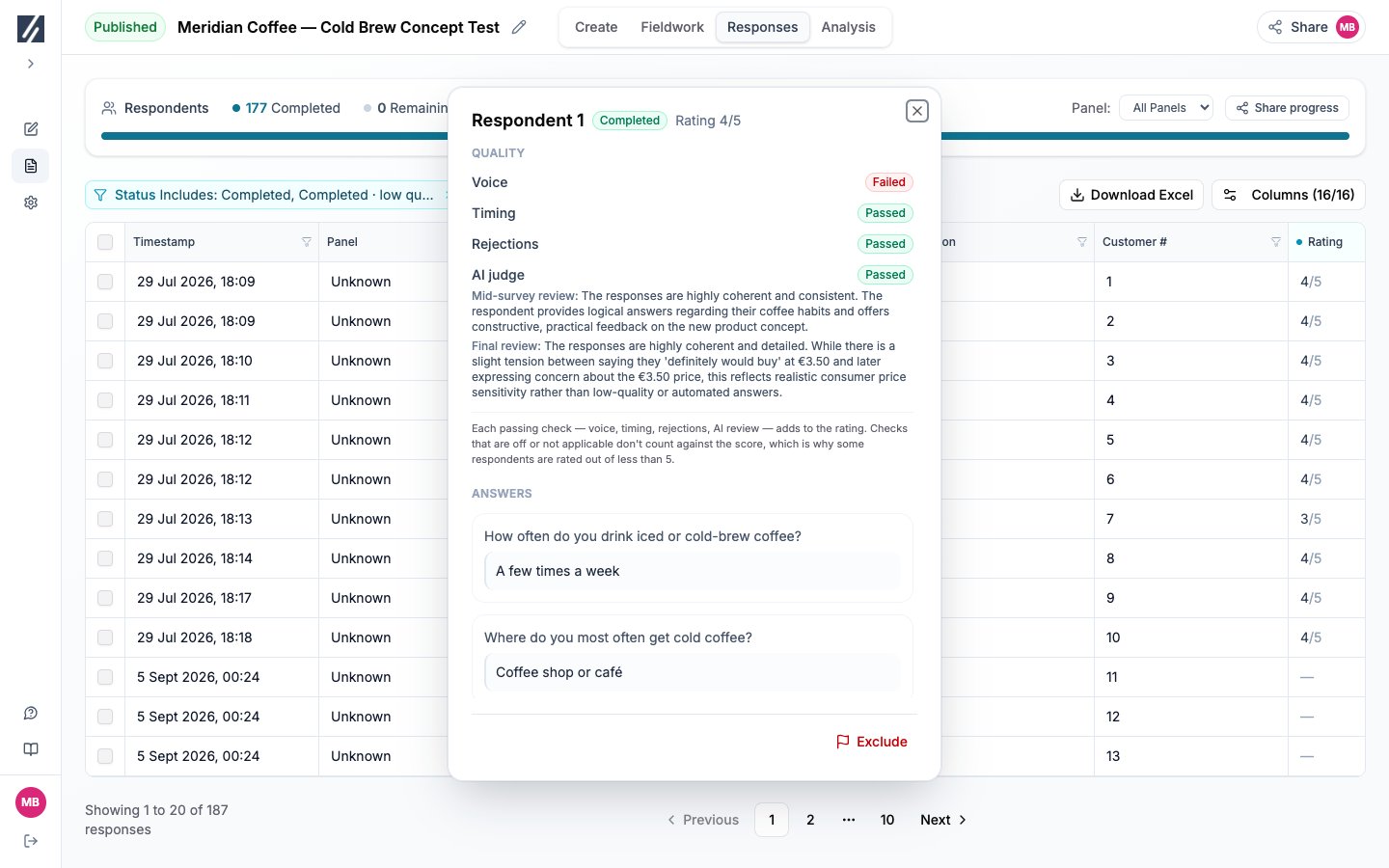 | Check | Information shown |
| -------------- | -------------------------------------------------------------------------------- |
| **Voice** | Whether an audio or video response was used where relevant |
| **Timing** | Speeding and other behavioral timing signals, with details for flagged questions |
| **Rejections** | Answers rejected during the participant session and the stated reason |
| **AI judge** | The mid-survey and final coherence-review result where enabled |
Only applicable, enabled checks contribute to the displayed maximum. With all checks active, a response requires three of five points. A hard failure from the coherence review can set the response aside independently of the total score.
A low-quality completion remains available for review but is excluded from completed totals, charts, crosstabs, weighting, and reports. It does not consume a quota cell.
## Read a quality stop
For **Stopped for quality**, open the status to read **Why they were stopped**. This shows the recorded mid-survey review explanation or rejected answers, rather than a completed-response score. A missing explanation is reported explicitly; do not infer a reason from a blank rating.
For completed responses, **AI judge** can be **Partial** as well as Passed or Failed. Open the available mid-survey and final review explanations and compare them with the actual answers. Manual exclusion and restoration apply to completed records; they do not turn a stopped session into a completion.
## Configure quality controls
Open **Create → Quotas, panels & links → Quality control**. This configuration remains available during live fieldwork.
| Check | Information shown |
| -------------- | -------------------------------------------------------------------------------- |
| **Voice** | Whether an audio or video response was used where relevant |
| **Timing** | Speeding and other behavioral timing signals, with details for flagged questions |
| **Rejections** | Answers rejected during the participant session and the stated reason |
| **AI judge** | The mid-survey and final coherence-review result where enabled |
Only applicable, enabled checks contribute to the displayed maximum. With all checks active, a response requires three of five points. A hard failure from the coherence review can set the response aside independently of the total score.
A low-quality completion remains available for review but is excluded from completed totals, charts, crosstabs, weighting, and reports. It does not consume a quota cell.
## Read a quality stop
For **Stopped for quality**, open the status to read **Why they were stopped**. This shows the recorded mid-survey review explanation or rejected answers, rather than a completed-response score. A missing explanation is reported explicitly; do not infer a reason from a blank rating.
For completed responses, **AI judge** can be **Partial** as well as Passed or Failed. Open the available mid-survey and final review explanations and compare them with the actual answers. Manual exclusion and restoration apply to completed records; they do not turn a stopped session into a completion.
## Configure quality controls
Open **Create → Quotas, panels & links → Quality control**. This configuration remains available during live fieldwork.
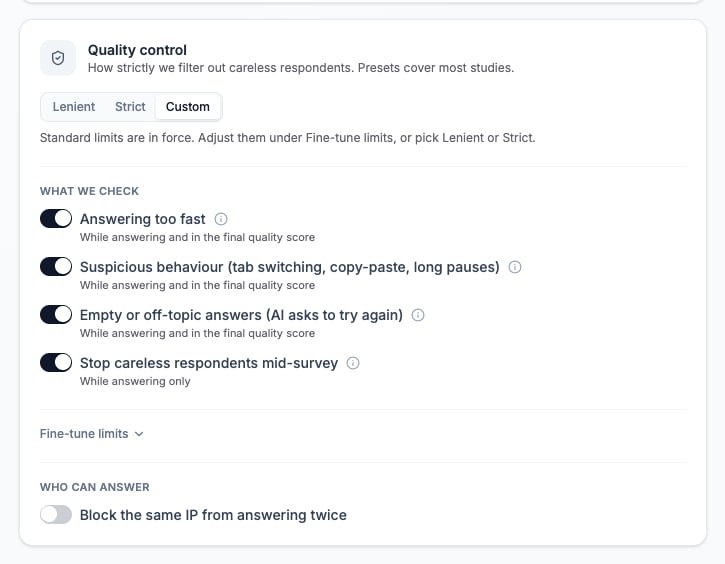 * **Lenient** uses passive signals and more permissive thresholds.
* **Strict** enables the full set with tighter thresholds.
* **Custom** reflects the current combination of checks and values.
Individual controls include speeding detection, behavioral signals, answer checking, mid-survey review, accepted timing or rejection thresholds, and **Block the same IP from answering twice**.
Review these choices before launch and after the first live responses. A stricter setup can stop or exclude more sessions, which affects recruitment pace.
## Know which sessions are rated
Test-link sessions and direct invites not associated with a live panel are not given a quality rating or quality stop. A blank Rating for those modes is expected. Live recruited responses are evaluated using the saved quality configuration.
## Exclude or restore a response
Open the quality detail and read the check results and answers.
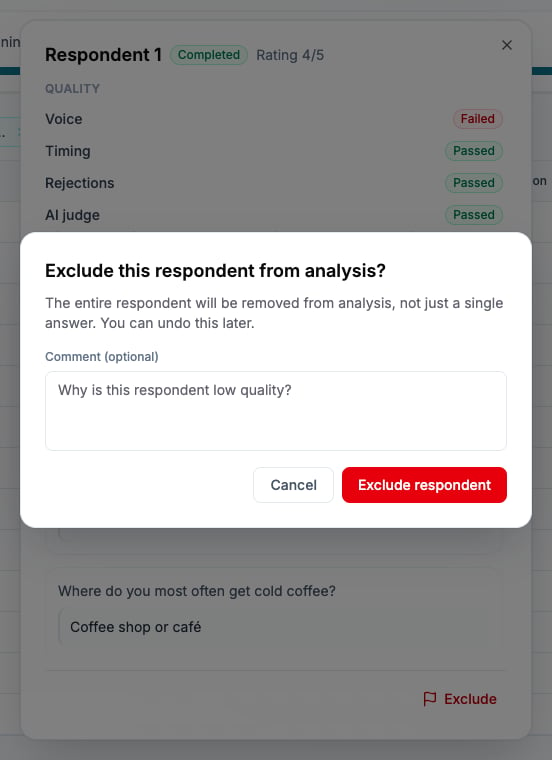
Select **Exclude**, confirm that the entire response should be removed from analysis, and add a reason when needed.
The response displays an **Excluded** indicator and is removed from the analysis population.
Reopen the detail and select **Restore respondent**.
* **Lenient** uses passive signals and more permissive thresholds.
* **Strict** enables the full set with tighter thresholds.
* **Custom** reflects the current combination of checks and values.
Individual controls include speeding detection, behavioral signals, answer checking, mid-survey review, accepted timing or rejection thresholds, and **Block the same IP from answering twice**.
Review these choices before launch and after the first live responses. A stricter setup can stop or exclude more sessions, which affects recruitment pace.
## Know which sessions are rated
Test-link sessions and direct invites not associated with a live panel are not given a quality rating or quality stop. A blank Rating for those modes is expected. Live recruited responses are evaluated using the saved quality configuration.
## Exclude or restore a response
Open the quality detail and read the check results and answers.
Select **Exclude**, confirm that the entire response should be removed from analysis, and add a reason when needed.
The response displays an **Excluded** indicator and is removed from the analysis population.
Reopen the detail and select **Restore respondent**.
 Use chart filters when the requirement is to analyze a defined subset rather than exclude a participant from the study's analysis generally.
## Understand participant-facing checks
An answer submitted below the active speed threshold can be rejected with **You answered too fast**. The participant remains on the question and can answer again. The rejection contributes to the Rejections result.
When mid-survey review is enabled and the available answers meet its stop condition, the session ends with Stopped for quality. Configure **Quality Stopped Redirect URL** when provider traffic must return to a specific outcome page.
## Review quality during fieldwork
During the first live responses:
1. Compare completion, screen-out, and quality-stop counts by panel.
2. Sort completed responses by Rating and Duration.
3. Read a selection of open-ended answers and recordings.
4. Check whether one question produces repeated rejections or abandonment.
5. Adjust only settings that reflect the agreed quality policy and document any live change.
## Check the result
The response’s inclusion indicator matches your decision and the analysis base reflects it. Record the reason for manual decisions and regenerate the affected analysis outputs before reusing affected conclusions.
## Related
* [Monitor responses](/responses/monitoring-responses)
* [Play recordings and read transcripts](/responses/media-transcripts)
* [Screen participants](/recruiting/screening-questions)
* [Configure a panel-provider link](/recruiting/panel-links)
Use chart filters when the requirement is to analyze a defined subset rather than exclude a participant from the study's analysis generally.
## Understand participant-facing checks
An answer submitted below the active speed threshold can be rejected with **You answered too fast**. The participant remains on the question and can answer again. The rejection contributes to the Rejections result.
When mid-survey review is enabled and the available answers meet its stop condition, the session ends with Stopped for quality. Configure **Quality Stopped Redirect URL** when provider traffic must return to a specific outcome page.
## Review quality during fieldwork
During the first live responses:
1. Compare completion, screen-out, and quality-stop counts by panel.
2. Sort completed responses by Rating and Duration.
3. Read a selection of open-ended answers and recordings.
4. Check whether one question produces repeated rejections or abandonment.
5. Adjust only settings that reflect the agreed quality policy and document any live change.
## Check the result
The response’s inclusion indicator matches your decision and the analysis base reflects it. Record the reason for manual decisions and regenerate the affected analysis outputs before reusing affected conclusions.
## Related
* [Monitor responses](/responses/monitoring-responses)
* [Play recordings and read transcripts](/responses/media-transcripts)
* [Screen participants](/recruiting/screening-questions)
* [Configure a panel-provider link](/recruiting/panel-links)