> ## Documentation Index
> Fetch the complete documentation index at: https://support.deepfield-ai.com/llms.txt
> Use this file to discover all available pages before exploring further.
# Monitor responses
> Follow progress toward the panel target, filter response records, and inspect or correct individual answers.
The **Responses** view combines fieldwork totals with one row for every participant record. Use it to review progress, isolate a panel or status, and inspect the answers behind the summary counts.
## Before you start
Open the intended study and identify the panel, statuses, and question values needed for the review. Editor access is required for answer corrections.
## Read fieldwork progress
The Respondents summary displays:
| Figure | Meaning |
| ------------- | --------------------------------------------------------------------------- |
| **Completed** | Responses that reached completion and passed the active quality threshold |
| **Remaining** | Panel target minus Completed |
| **Total** | The combined panel target, or Completed when completions exceed that target |
| **Rate** | Completed divided by Total |
These figures measure progress toward the target. They do not count every response row. Screened-out, partial, abandoned, and low-quality records remain available in the table.
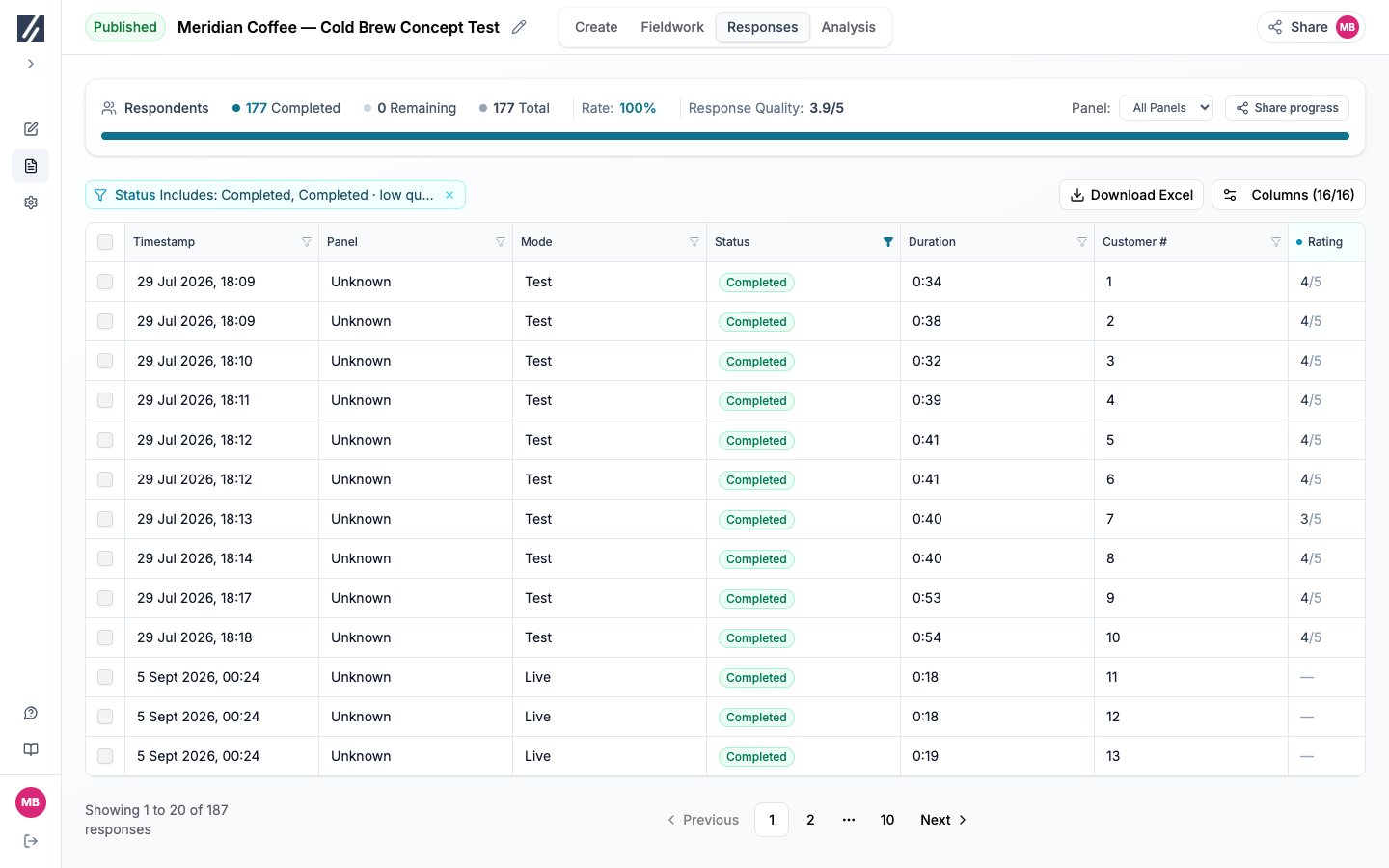 Use the **Panel** selector to apply one panel to both the summary and the table. When quality ratings are available, the summary also displays their average for completed responses.
**Share progress** opens a new guest-link setup for results. Review the selected result depth before creating the link.
## Choose table columns
Select **Columns** and enable the fields required for the current review. Columns are grouped into respondent information, answers, variables, and computed fields.
The table can include Timestamp, Panel, Mode, Status, Duration, Rating, Persona, question answers and labels, response metadata, variables, saved weights, and Tags when a response has one.
Use the **Panel** selector to apply one panel to both the summary and the table. When quality ratings are available, the summary also displays their average for completed responses.
**Share progress** opens a new guest-link setup for results. Review the selected result depth before creating the link.
## Choose table columns
Select **Columns** and enable the fields required for the current review. Columns are grouped into respondent information, answers, variables, and computed fields.
The table can include Timestamp, Panel, Mode, Status, Duration, Rating, Persona, question answers and labels, response metadata, variables, saved weights, and Tags when a response has one.
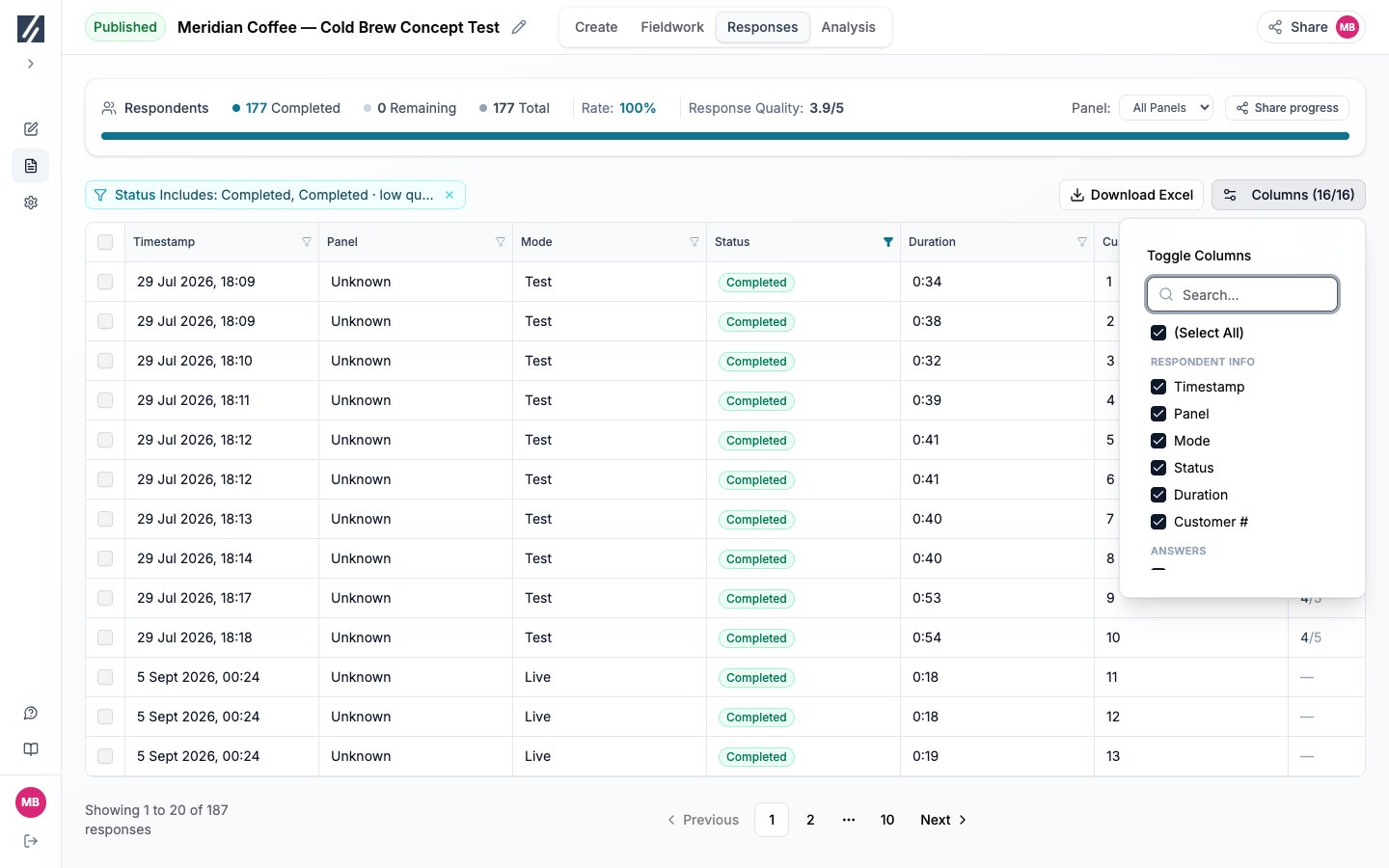 Resize a column from its boundary. Open a column menu to sort in ascending or descending order.
## Filter response records
Each column menu contains a value list or an operator and input. Filters on different columns apply together.
| Operator | Use |
| ----------------------------------- | ------------------------------------ |
| **Equals** / **Not Equals** | Exact values |
| **Greater Than** / **Less Than** | Numbers, durations, or dates |
| **Contains** / **Does Not Contain** | Text inside an answer |
| **Includes** / **Excludes** | Options inside a multi-select answer |
| **Is Empty** / **Is Not Empty** | Missing or present answers |
The initial Status filter includes Completed and Completed · low quality. Open it when you need Screened out, In progress, Abandoned, Not started, quota-full, or quality-stopped records.
Resize a column from its boundary. Open a column menu to sort in ascending or descending order.
## Filter response records
Each column menu contains a value list or an operator and input. Filters on different columns apply together.
| Operator | Use |
| ----------------------------------- | ------------------------------------ |
| **Equals** / **Not Equals** | Exact values |
| **Greater Than** / **Less Than** | Numbers, durations, or dates |
| **Contains** / **Does Not Contain** | Text inside an answer |
| **Includes** / **Excludes** | Options inside a multi-select answer |
| **Is Empty** / **Is Not Empty** | Missing or present answers |
The initial Status filter includes Completed and Completed · low quality. Open it when you need Screened out, In progress, Abandoned, Not started, quota-full, or quality-stopped records.
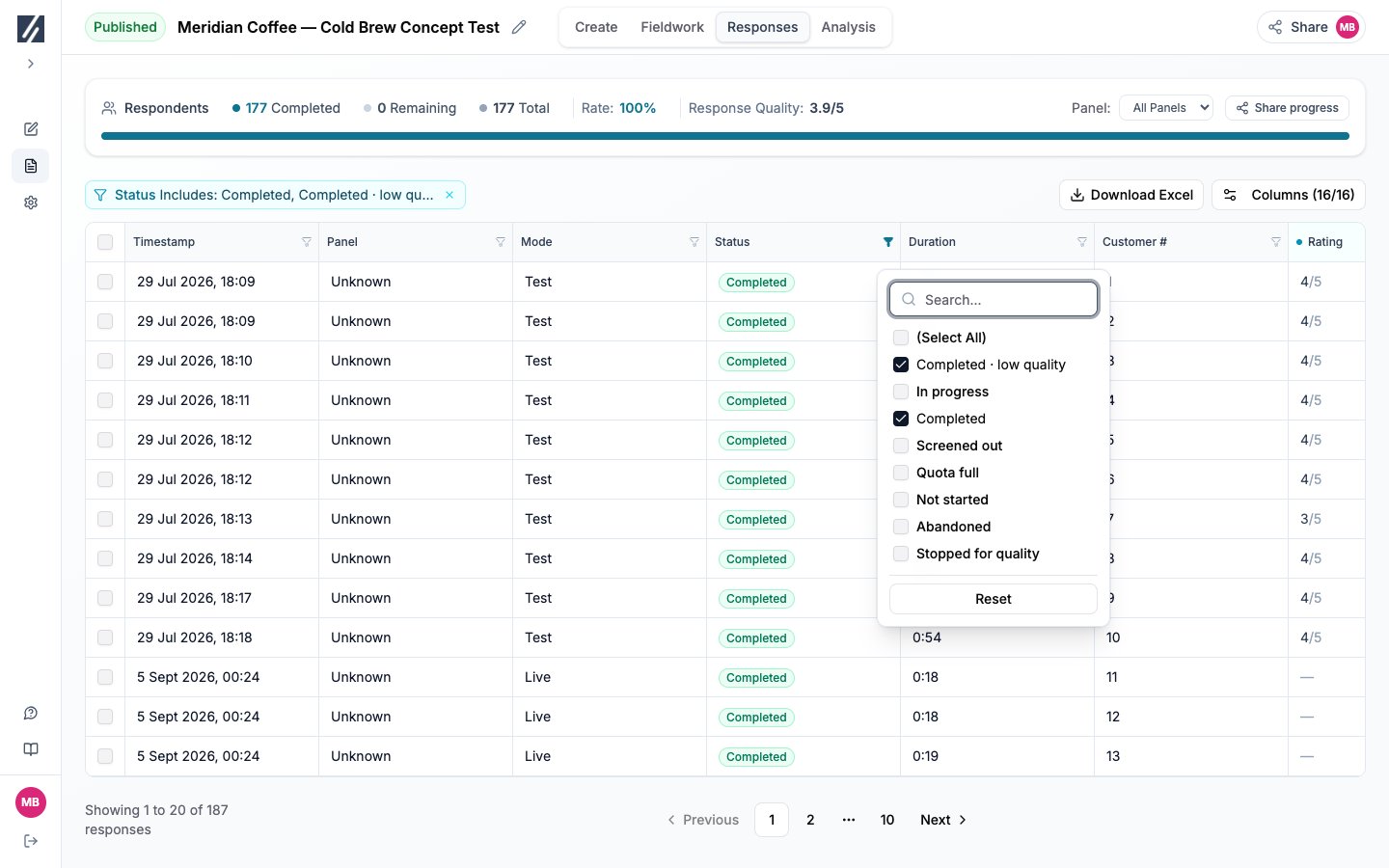 Negative filters also include records where the question was not answered. Combine a negative condition with **Is Not Empty** when the analysis requires an answered value that differs from the filter.
The table renders visible rows as you scroll, so browser Find does not search records currently off screen. Use a column filter instead.
Negative filters also include records where the question was not answered. Combine a negative condition with **Is Not Empty** when the analysis requires an answered value that differs from the filter.
The table renders visible rows as you scroll, so browser Find does not search records currently off screen. Use a column filter instead.
 ## Understand statuses
| Status | Meaning |
| --------------------------- | ----------------------------------------------------------------------------------------- |
| **Completed** | The participant completed the survey and passed the quality threshold. |
| **Completed · low quality** | The participant completed, but the response did not pass the threshold used for analysis. |
| **In progress** | The session is active or unfinished and has not reached an end state. |
| **Screened out** | A screening rule ended the session. |
| **Quota full** | A quota or panel cap prevented entry. |
| **Stopped for quality** | An active quality control ended the session. |
| **Abandoned** | The participant left before an end state. |
| **Not started** | A participant record exists without an answer. |
Use the panel and Status filters to compare entry, screen-out, completion, and quality outcomes during fieldwork.
## Open an answer or recording
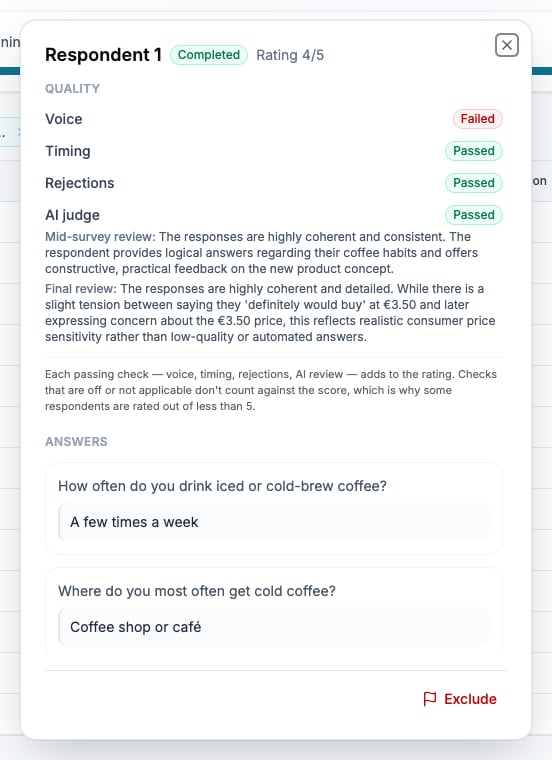
Select an answer cell to view its full value. A play control beside an open-ended answer indicates an available recording. Select it to open the media and transcript for that question.
## Understand statuses
| Status | Meaning |
| --------------------------- | ----------------------------------------------------------------------------------------- |
| **Completed** | The participant completed the survey and passed the quality threshold. |
| **Completed · low quality** | The participant completed, but the response did not pass the threshold used for analysis. |
| **In progress** | The session is active or unfinished and has not reached an end state. |
| **Screened out** | A screening rule ended the session. |
| **Quota full** | A quota or panel cap prevented entry. |
| **Stopped for quality** | An active quality control ended the session. |
| **Abandoned** | The participant left before an end state. |
| **Not started** | A participant record exists without an answer. |
Use the panel and Status filters to compare entry, screen-out, completion, and quality outcomes during fieldwork.
## Open an answer or recording
Select an answer cell to view its full value. A play control beside an open-ended answer indicates an available recording. Select it to open the media and transcript for that question.
 ## Correct an answer
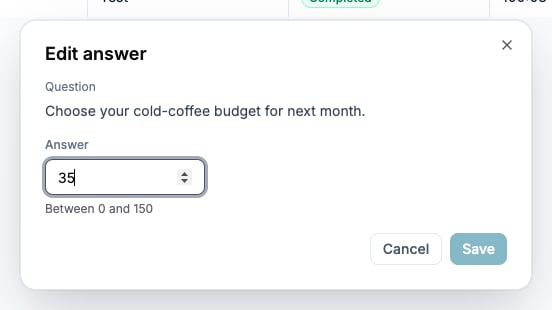
Editors can select **Edit answer** in the answer detail. The editor follows the question type and validates numeric ranges or available choices.
After confirmation, analysis and exports use the corrected value. The detail keeps the original value and displays an **Edited** badge. Select **Restore original** to return analysis to the submitted value.
Corrections do not recalculate the participant's original screening, quota assignment, or journey.
## Correct an answer
Editors can select **Edit answer** in the answer detail. The editor follows the question type and validates numeric ranges or available choices.
After confirmation, analysis and exports use the corrected value. The detail keeps the original value and displays an **Edited** badge. Select **Restore original** to return analysis to the submitted value.
Corrections do not recalculate the participant's original screening, quota assignment, or journey.
 ## Read translated or converted values
Completed open-text responses in another language can display a **Translated** badge with the submitted wording available in the detail. Currency responses can display **Converted** with the original amount and currency. When no conversion rate is available, the original currency remains identified.
## Add and filter tags
Open a Tags cell and select **Add tag**. Choose a type or create a lowercase custom type using letters, numbers, and underscores. Add a comment when the reason should be retained.
Manual tags can be edited or removed. Automatic tags, including pharmacovigilance results where configured, are read-only. The Tags column appears after at least one response has a tag.
## Troubleshooting
Reset the Status and other column filters, then set Panel to **All Panels**. Use a Customer number or known answer as a column filter when available.
Filter Status to **Completed · low quality** and **Excluded** records. The summary counts completed responses that qualify for the target and analysis.
Min is the target rather than the cap. Add or lower **Max** for any cell that must stop intake at a specific count.
## Check the result
The filtered row count and records match the requested panel and statuses. After a correction, reopen the answer to confirm both the corrected value and retained original, then refresh any report that relies on it.
## Related
* [Review response quality](/responses/response-quality)
* [Play recordings and read transcripts](/responses/media-transcripts)
* [Export response data](/responses/exporting-data)
* [Set quotas](/recruiting/quota-management)
## Read translated or converted values
Completed open-text responses in another language can display a **Translated** badge with the submitted wording available in the detail. Currency responses can display **Converted** with the original amount and currency. When no conversion rate is available, the original currency remains identified.
## Add and filter tags
Open a Tags cell and select **Add tag**. Choose a type or create a lowercase custom type using letters, numbers, and underscores. Add a comment when the reason should be retained.
Manual tags can be edited or removed. Automatic tags, including pharmacovigilance results where configured, are read-only. The Tags column appears after at least one response has a tag.
## Troubleshooting
Reset the Status and other column filters, then set Panel to **All Panels**. Use a Customer number or known answer as a column filter when available.
Filter Status to **Completed · low quality** and **Excluded** records. The summary counts completed responses that qualify for the target and analysis.
Min is the target rather than the cap. Add or lower **Max** for any cell that must stop intake at a specific count.
## Check the result
The filtered row count and records match the requested panel and statuses. After a correction, reopen the answer to confirm both the corrected value and retained original, then refresh any report that relies on it.
## Related
* [Review response quality](/responses/response-quality)
* [Play recordings and read transcripts](/responses/media-transcripts)
* [Export response data](/responses/exporting-data)
* [Set quotas](/recruiting/quota-management)