> ## Documentation Index
> Fetch the complete documentation index at: https://support.deepfield-ai.com/llms.txt
> Use this file to discover all available pages before exploring further.
# Play recordings and read transcripts
> Open an audio or video answer, navigate its transcript, and diagnose missing or unavailable media.
Open-ended answers can include audio or video when the study and question settings allow recording. Each recording is attached to the answer for one question and can be opened from that answer's table cell.
## Before you start
Use a response with a stored audio or video file. A typed answer has no recording to play.
## Open a recording
On **Responses**, use column filters or the Panel selector to locate the record.
Open **Columns** and enable the relevant open-ended question if it is hidden.
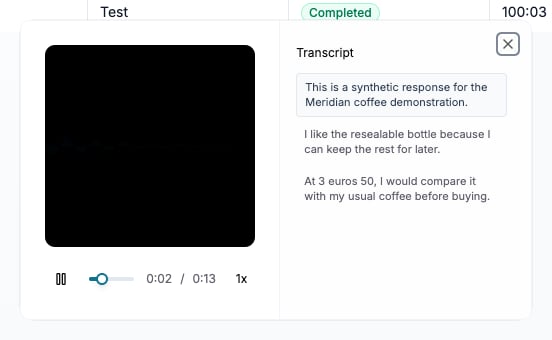
Select the play control beside the answer text. The media player and transcript open for that question.
 ## Navigate the transcript
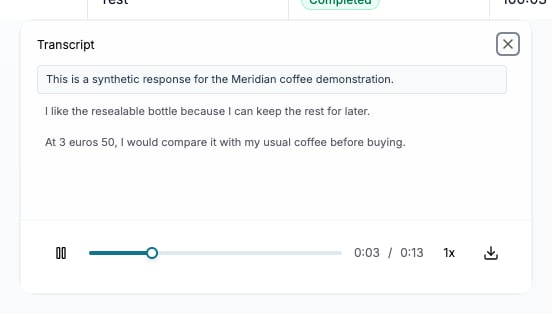
The transcript is divided into timestamped segments. During playback, the current segment is highlighted. Select a segment to move playback to its start.
Use the transcript to locate a relevant passage, then listen around that timestamp to verify wording and context before using it as a quotation.
Select **Download audio** when the underlying answer contains an audio file. The downloaded format matches the stored recording.
## Navigate the transcript
The transcript is divided into timestamped segments. During playback, the current segment is highlighted. Select a segment to move playback to its start.
Use the transcript to locate a relevant passage, then listen around that timestamp to verify wording and context before using it as a quotation.
Select **Download audio** when the underlying answer contains an audio file. The downloaded format matches the stored recording.
 ## Understand why media is absent
Only Open-ended questions can produce recordings. A transcript or play control may be absent when:
* The study uses **Text Only** response mode.
* **Audio Optional** was available and the participant chose **Type Responses**.
* The participant switched from recording to typing.
* The question's **Preferred input type** is Text.
* Video was optional and the participant continued without camera input.
* The media upload did not complete from the participant's device.
Open the answer detail to distinguish a typed response from an answer that expected media but has none.
## Configure recording behavior before fieldwork
The study-level **Response Mode** determines the available participant paths. A question-level **Preferred input type** can follow that setting or request Audio, Video, or Text where compatible.
Use a test link on the target browsers and devices to check permissions, recording, playback, transcription, and switching to text. Audio Required prevents a participant from continuing without the required microphone route, so include that constraint in fieldwork planning.
## Troubleshooting
Close and reopen the answer, then test another recording. If several fail, try another network or browser. If one file consistently fails, contact support with the study and respondent identifiers.
The transcription may have completed while the recording file is unavailable. Preserve the transcript and report the specific answer to support.
Confirm the question column is visible and the answer was recorded rather than typed. Only cells with stored media display the control.
## Check the result
Play the correct question’s recording, select a transcript segment, and confirm playback reaches that passage. Listen around any quotation before using it in a report.
## Related
* [Monitor responses](/responses/monitoring-responses)
* [Choose and configure question types](/building-your-study/question-types)
* [Verify analysis results](/analysis/report-sections)
* [Troubleshooting and FAQ](/troubleshooting)
## Understand why media is absent
Only Open-ended questions can produce recordings. A transcript or play control may be absent when:
* The study uses **Text Only** response mode.
* **Audio Optional** was available and the participant chose **Type Responses**.
* The participant switched from recording to typing.
* The question's **Preferred input type** is Text.
* Video was optional and the participant continued without camera input.
* The media upload did not complete from the participant's device.
Open the answer detail to distinguish a typed response from an answer that expected media but has none.
## Configure recording behavior before fieldwork
The study-level **Response Mode** determines the available participant paths. A question-level **Preferred input type** can follow that setting or request Audio, Video, or Text where compatible.
Use a test link on the target browsers and devices to check permissions, recording, playback, transcription, and switching to text. Audio Required prevents a participant from continuing without the required microphone route, so include that constraint in fieldwork planning.
## Troubleshooting
Close and reopen the answer, then test another recording. If several fail, try another network or browser. If one file consistently fails, contact support with the study and respondent identifiers.
The transcription may have completed while the recording file is unavailable. Preserve the transcript and report the specific answer to support.
Confirm the question column is visible and the answer was recorded rather than typed. Only cells with stored media display the control.
## Check the result
Play the correct question’s recording, select a transcript segment, and confirm playback reaches that passage. Listen around any quotation before using it in a report.
## Related
* [Monitor responses](/responses/monitoring-responses)
* [Choose and configure question types](/building-your-study/question-types)
* [Verify analysis results](/analysis/report-sections)
* [Troubleshooting and FAQ](/troubleshooting)