> ## Documentation Index
> Fetch the complete documentation index at: https://support.deepfield-ai.com/llms.txt
> Use this file to discover all available pages before exploring further.
# Screen participants
> Place qualification questions before the main survey and define the answers that end an ineligible session.
Screening questions appear before the main questionnaire. A screening rule identifies the answers that should end the session because the participant is outside the required audience.
## Before you start
Define who qualifies and which answers exclude a participant. Put eligibility questions before the main questionnaire.
## Add a screening question
Select **Add screening questions** at the top of the builder, or open an existing question's **⋯** menu and choose **Send to screening**. The Screening section remains ahead of the main study sections.
MaxDiff and the standard **End survey when…** action are not available in Screening. Use **Screening rule** to define the screen-out behavior.
## Create a screen-out rule
Open the screening question's **⋯** menu and select **Screening rule**.
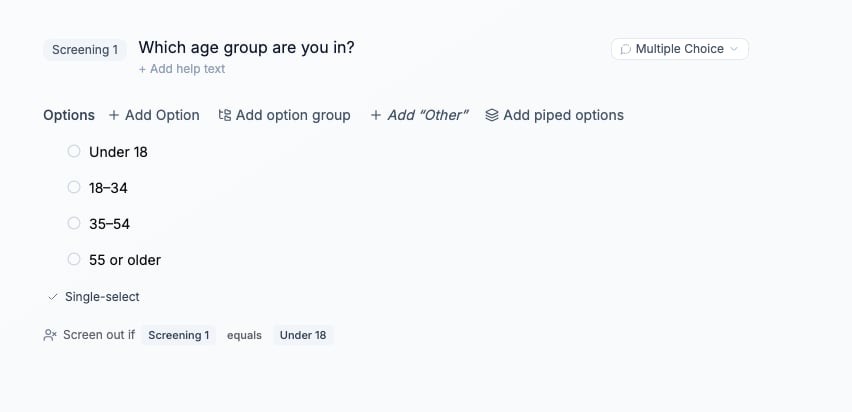
Under **Screen out when**, choose the answer, comparison operator, and value that identify an ineligible participant.
Add conditions and switch the connector between **AND** and **OR**. Use a grouped rule when both connectors are required.
The card displays **Screen out if** followed by the saved rule. Confirm that the sentence describes exclusion rather than qualification.
Available operators include exact matches, exclusions, numeric comparisons, membership in a set, and **AI checks** for an open-text condition described in words.
Place broad eligibility checks before narrower category or behavior questions. This shortens the route for participants who do not qualify.
 ## Test qualifying and screen-out routes
Generate a test link and complete the screener with:
* One combination that should continue into the main questionnaire.
* Every distinct screen-out route.
* Boundary numeric values used by greater-than or less-than rules.
* Open-text examples that should and should not satisfy an **AI checks** instruction.
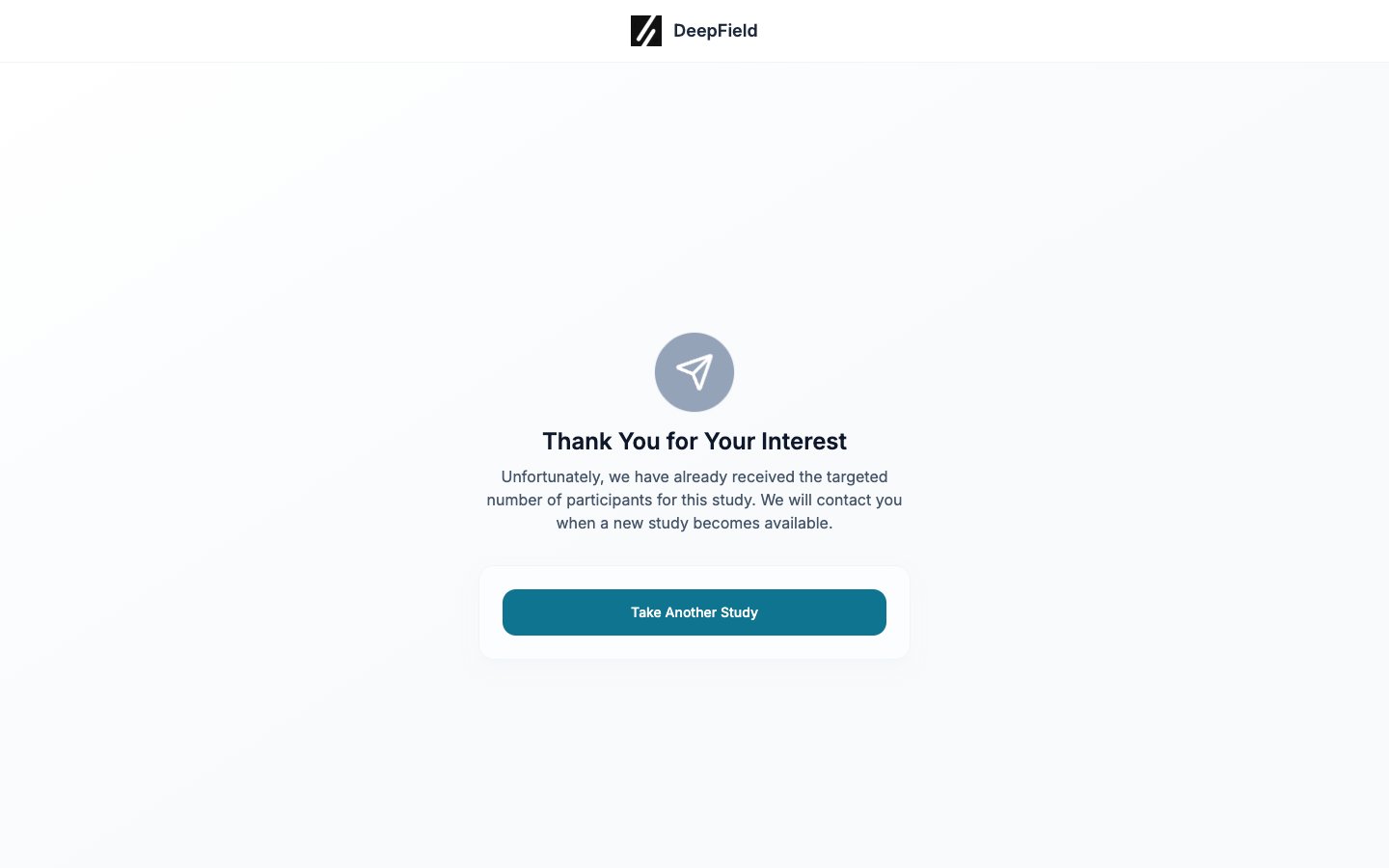
A screen-out session shows the built-in end screen unless the panel has a **Screen Out Redirect URL**, in which case the participant is sent to that URL.
## Test qualifying and screen-out routes
Generate a test link and complete the screener with:
* One combination that should continue into the main questionnaire.
* Every distinct screen-out route.
* Boundary numeric values used by greater-than or less-than rules.
* Open-text examples that should and should not satisfy an **AI checks** instruction.
A screen-out session shows the built-in end screen unless the panel has a **Screen Out Redirect URL**, in which case the participant is sent to that URL.
 ## Understand pricing and quotas
Screening rules contribute to the expected incidence used for consumer-panel pricing. Review the **Summary** card on **Fieldwork** after the final rules are saved.
Quotas can be built from eligible Multiple Choice screening questions. If a quota includes an option that its screening rule always excludes, **Quotas, panels & links** marks the conflict. Change the rule or remove that quota segment.
## Troubleshooting
Read each saved summary beginning with **Screen out if**. Check the AND or OR connector and confirm that the listed values are the excluded answers.
Quotas use Multiple Choice screening questions with answer options. Confirm the question is in Screening, has the required options, and has been saved.
Open **Fix problems** and complete or remove any empty condition row. Each rule needs a question, operator, and value.
## Check the result
A qualifying test enters the main questionnaire; each excluded case reaches the intended end screen or provider redirect. Confirm each test session’s recorded outcome in Responses.
## Related
* [Configure your audience](/recruiting/panels-demographics)
* [Set quotas](/recruiting/quota-management)
* [Configure logic and piping](/building-your-study/advanced-logic)
* [Test and publish a study](/recruiting/testing-publishing)
## Understand pricing and quotas
Screening rules contribute to the expected incidence used for consumer-panel pricing. Review the **Summary** card on **Fieldwork** after the final rules are saved.
Quotas can be built from eligible Multiple Choice screening questions. If a quota includes an option that its screening rule always excludes, **Quotas, panels & links** marks the conflict. Change the rule or remove that quota segment.
## Troubleshooting
Read each saved summary beginning with **Screen out if**. Check the AND or OR connector and confirm that the listed values are the excluded answers.
Quotas use Multiple Choice screening questions with answer options. Confirm the question is in Screening, has the required options, and has been saved.
Open **Fix problems** and complete or remove any empty condition row. Each rule needs a question, operator, and value.
## Check the result
A qualifying test enters the main questionnaire; each excluded case reaches the intended end screen or provider redirect. Confirm each test session’s recorded outcome in Responses.
## Related
* [Configure your audience](/recruiting/panels-demographics)
* [Set quotas](/recruiting/quota-management)
* [Configure logic and piping](/building-your-study/advanced-logic)
* [Test and publish a study](/recruiting/testing-publishing)