> ## Documentation Index
> Fetch the complete documentation index at: https://support.deepfield-ai.com/llms.txt
> Use this file to discover all available pages before exploring further.
# Configure your audience
> Set panel targets, recruitment, quotas, consent, and quality controls before reviewing launch costs.
A panel defines a recruitment audience and its response target. Configure it in **Create → Quotas, panels & links**; use Fieldwork to review progress, distribution, live results, and cost.
## Before you start
Save the questionnaire and agree the audience, target sample, provider requirements, and consent wording. Define geographic eligibility through the brief, provider specification, and applicable screening questions.
## Open the audience settings
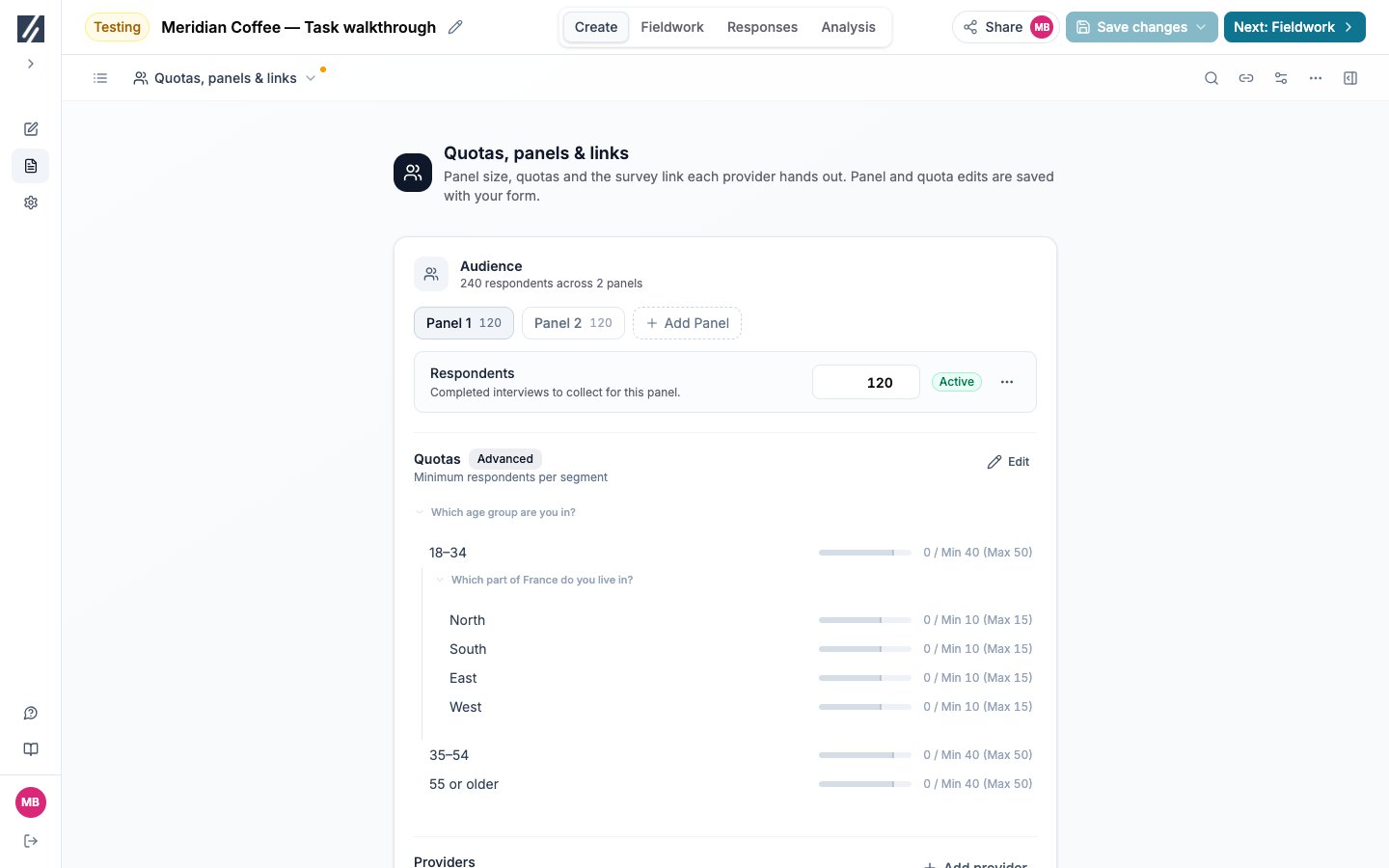
Open the builder view menu and select **Quotas, panels & links**. Select the relevant panel. A new study starts with an editable target of 50 respondents; this initial setup is not an order.
 ## Set the panel target
Select a panel tab or **Add Panel** for a separate audience.
Set **Respondents** to the number of completed responses required from that panel. The target is the denominator for progress.
Use screening rules to define eligibility and quotas to distribute qualifying completions across the required groups.
Select a save action from **Save changes** before reviewing or distributing links.
## Choose how the panel is recruited
**Recruitment** sets who supplies the respondents for the selected panel. The rest of the panel settings follow from that choice.
Keep this option when you or your provider supplies the respondents. Configure at least one provider to obtain an invitation link, and set the outcome redirects that return each respondent to it. See [Configure provider links](/recruiting/panel-links).
Choose this option to buy the fieldwork. Enter the **Incidence rate** — the share of the general population that qualifies for the study — then add one row per country under **Countries**, each with the language it is fielded in and the number of respondents wanted.
When DeepField recruits, **Respondents** is the sum of the country rows and cannot be edited on its own; provider and link settings do not apply and are not shown.
### Request a feasibility check and a price
Save the panel, then select **Request feasibility & estimate**. The estimate reports what the fieldwork costs and how much of the requested sample is reachable in the fielding window:
| Result | Meaning |
| --------------------------------- | ------------------------------------------------------------------ |
| **Fully reachable** | The requested number of respondents can be collected as specified. |
| **Tight to fill** | Most of the sample is reachable; expect a longer field period. |
| **Cannot be filled as specified** | Relax the incidence assumption, the target, or the country split. |
The recruiting fee is the panel cost plus the DeepField service fee, quoted in euros and billed separately from credits. Changing the incidence rate, a country row, or the questionnaire length marks the estimate outdated — select **Refresh estimate** to price the audience you now have.
Some audiences are estimated by the DeepField team rather than priced on the spot. The panel then shows that the estimate has been requested, and the price and feasibility appear once the team answers.
## Add consent text
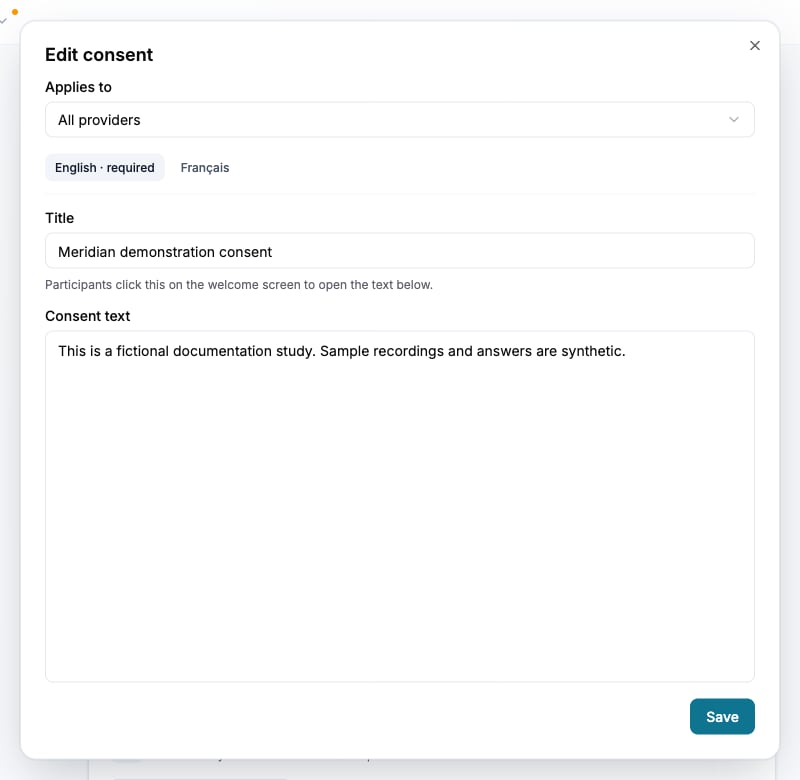
The welcome screen includes the built-in informed-consent and data-privacy agreement. Add study- or provider-specific text under **Consent forms**.
Select **Add consent** and choose **All providers** or a particular provider.
The title becomes a link on the welcome screen. Participants open it to read the complete text.
Enter each required translation; the source-language text is required.
Check the expected links and acceptance control in each language before sending traffic.
The consent accepted by a participant is retained with the session. Updating active consent can require unfinished sessions to accept the current wording before continuing.
## Set the panel target
Select a panel tab or **Add Panel** for a separate audience.
Set **Respondents** to the number of completed responses required from that panel. The target is the denominator for progress.
Use screening rules to define eligibility and quotas to distribute qualifying completions across the required groups.
Select a save action from **Save changes** before reviewing or distributing links.
## Choose how the panel is recruited
**Recruitment** sets who supplies the respondents for the selected panel. The rest of the panel settings follow from that choice.
Keep this option when you or your provider supplies the respondents. Configure at least one provider to obtain an invitation link, and set the outcome redirects that return each respondent to it. See [Configure provider links](/recruiting/panel-links).
Choose this option to buy the fieldwork. Enter the **Incidence rate** — the share of the general population that qualifies for the study — then add one row per country under **Countries**, each with the language it is fielded in and the number of respondents wanted.
When DeepField recruits, **Respondents** is the sum of the country rows and cannot be edited on its own; provider and link settings do not apply and are not shown.
### Request a feasibility check and a price
Save the panel, then select **Request feasibility & estimate**. The estimate reports what the fieldwork costs and how much of the requested sample is reachable in the fielding window:
| Result | Meaning |
| --------------------------------- | ------------------------------------------------------------------ |
| **Fully reachable** | The requested number of respondents can be collected as specified. |
| **Tight to fill** | Most of the sample is reachable; expect a longer field period. |
| **Cannot be filled as specified** | Relax the incidence assumption, the target, or the country split. |
The recruiting fee is the panel cost plus the DeepField service fee, quoted in euros and billed separately from credits. Changing the incidence rate, a country row, or the questionnaire length marks the estimate outdated — select **Refresh estimate** to price the audience you now have.
Some audiences are estimated by the DeepField team rather than priced on the spot. The panel then shows that the estimate has been requested, and the price and feasibility appear once the team answers.
## Add consent text
The welcome screen includes the built-in informed-consent and data-privacy agreement. Add study- or provider-specific text under **Consent forms**.
Select **Add consent** and choose **All providers** or a particular provider.
The title becomes a link on the welcome screen. Participants open it to read the complete text.
Enter each required translation; the source-language text is required.
Check the expected links and acceptance control in each language before sending traffic.
The consent accepted by a participant is retained with the session. Updating active consent can require unfinished sessions to accept the current wording before continuing.
 ## Review sample-size estimates
The sample-size area in **Quotas, panels & links** places the combined target within the bands calculated for the saved questionnaire. It refreshes when this view opens. If the form has no questions, save the questionnaire first.
Use the bands alongside the smallest planned reporting group, incidence, budget, and required precision. They do not replace a sample design. See [Choose a sample size](/recruiting/choosing-a-sample-size).
## Review the price
On **Fieldwork**, **Summary** separates the two things a study is billed for.
**Coding fees**, charged in credits:
| Line | What it covers |
| ------------------------ | ----------------------------------------------------------------------------------------------------------------------------------------------------------------------- |
| **Coding price** | Charged once for the study: programming, analysis where it is part of your plan, every field in the questionnaire, additional languages, and any module the study uses. |
| **Price per respondent** | Charged for every completed response: the licence, plus each open-ended question and follow-up the respondent answers. |
| **Coding total** | The coding price plus the price per respondent across the whole target. |
**Recruiting**, charged in euros, appears only for panels DeepField recruits. Each panel shows its fee and how much of its sample is reachable, and flags an estimate whose audience has since changed.
The coding price follows the questionnaire, so review it again after saving final screening rules and translations. A price agreed with DeepField for a study, or for a set of studies, replaces the calculated coding price and is shown in its place.
## Monitor recruitment
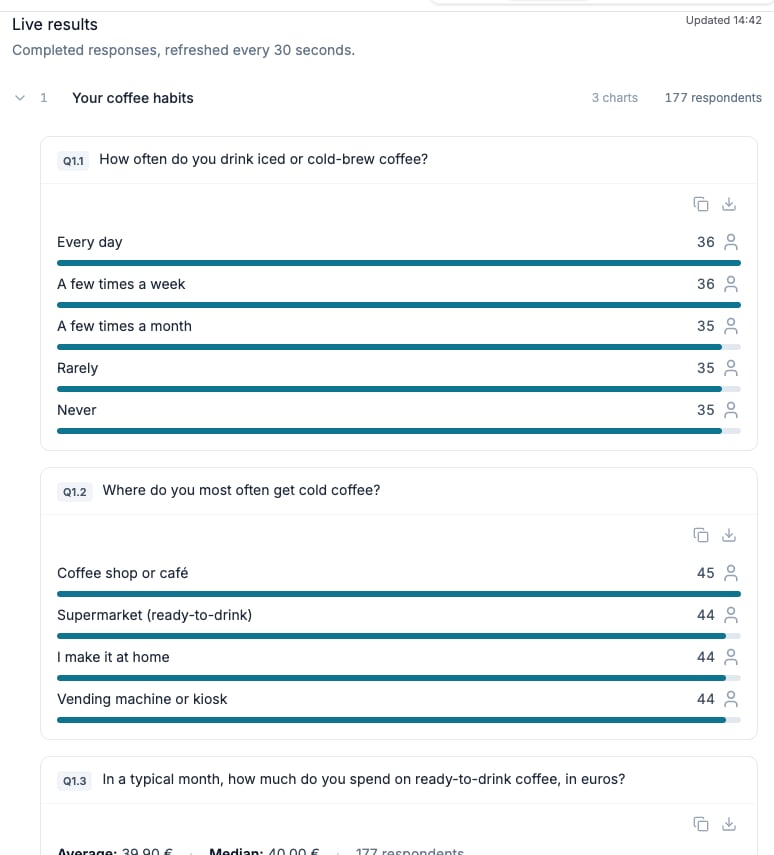
Fieldwork displays completed responses against each panel target and the quota-cell counts. **Configure link** takes you to the corresponding panel settings in Create. Its live-results area shows completed-answer charts and refreshes regularly.
A panel with associated participant sessions cannot be deleted. Live edits must follow the restrictions shown by the application; changing a panel target or provider redirect does not make structural questionnaire edits available.
## Review sample-size estimates
The sample-size area in **Quotas, panels & links** places the combined target within the bands calculated for the saved questionnaire. It refreshes when this view opens. If the form has no questions, save the questionnaire first.
Use the bands alongside the smallest planned reporting group, incidence, budget, and required precision. They do not replace a sample design. See [Choose a sample size](/recruiting/choosing-a-sample-size).
## Review the price
On **Fieldwork**, **Summary** separates the two things a study is billed for.
**Coding fees**, charged in credits:
| Line | What it covers |
| ------------------------ | ----------------------------------------------------------------------------------------------------------------------------------------------------------------------- |
| **Coding price** | Charged once for the study: programming, analysis where it is part of your plan, every field in the questionnaire, additional languages, and any module the study uses. |
| **Price per respondent** | Charged for every completed response: the licence, plus each open-ended question and follow-up the respondent answers. |
| **Coding total** | The coding price plus the price per respondent across the whole target. |
**Recruiting**, charged in euros, appears only for panels DeepField recruits. Each panel shows its fee and how much of its sample is reachable, and flags an estimate whose audience has since changed.
The coding price follows the questionnaire, so review it again after saving final screening rules and translations. A price agreed with DeepField for a study, or for a set of studies, replaces the calculated coding price and is shown in its place.
## Monitor recruitment
Fieldwork displays completed responses against each panel target and the quota-cell counts. **Configure link** takes you to the corresponding panel settings in Create. Its live-results area shows completed-answer charts and refreshes regularly.
A panel with associated participant sessions cannot be deleted. Live edits must follow the restrictions shown by the application; changing a panel target or provider redirect does not make structural questionnaire edits available.
 ## Check the result
Confirm the saved targets, provider links, quotas, and consent languages. Check that Fieldwork reflects the intended sample and cost before [publishing](/recruiting/testing-publishing).
## Related
* [Choose a sample size](/recruiting/choosing-a-sample-size)
* [Screen participants](/recruiting/screening-questions)
* [Set quotas](/recruiting/quota-management)
* [Configure provider links](/recruiting/panel-links)
## Check the result
Confirm the saved targets, provider links, quotas, and consent languages. Check that Fieldwork reflects the intended sample and cost before [publishing](/recruiting/testing-publishing).
## Related
* [Choose a sample size](/recruiting/choosing-a-sample-size)
* [Screen participants](/recruiting/screening-questions)
* [Set quotas](/recruiting/quota-management)
* [Configure provider links](/recruiting/panel-links)