> ## Documentation Index
> Fetch the complete documentation index at: https://support.deepfield-ai.com/llms.txt
> Use this file to discover all available pages before exploring further.
# Configure participant consent
> Set consent wording, provider and link conditions, translations, and check what each participant accepts.
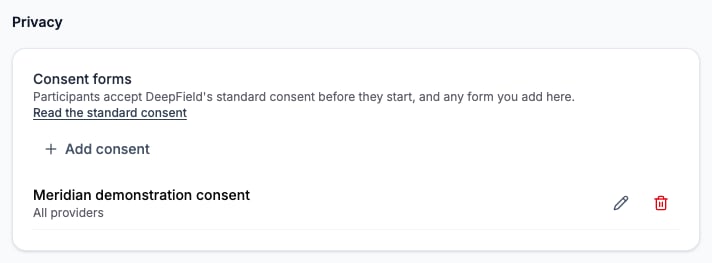
Open the Create view menu, choose Settings, then **Privacy**. Review the standard wording and add any study-specific forms under **Consent forms**. Prepare approved wording for every fielded language before launch.
## Add a form
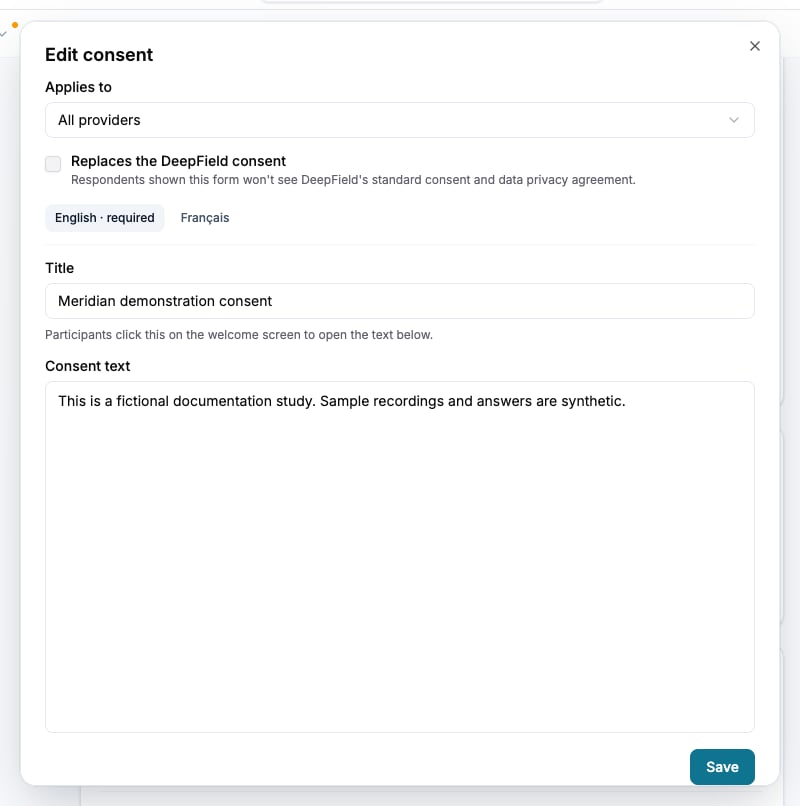
Select **Add consent**. Choose all providers or a specific provider. Add link-attribute conditions if the form applies only to certain entrants.
Enter a title and the complete consent text. The participant opens the title to read the wording. Supply the source-language text and review each translation.
Select **Replaces the DeepField consent** only if this form should replace the standard agreement for participants who see it. Otherwise both apply.
Save the form, then open the relevant participant routes. Verify the forms shown for each provider, link value and language.
Every link condition must match. Within one condition, any listed value can match; matching ignores letter case and surrounding spaces. A missing attribute does not match. Test both matching and non-matching links.
 ## Understand acceptance
Participants must accept the applicable forms before answering a live session. The session records the accepted forms, standard-agreement version when applicable, language and time. Editing a form retains the earlier wording in its acceptance history. Unfinished sessions can be asked to accept again when the applicable set changes; switching language alone does not require a new acceptance.
Test sessions let you inspect the presentation but do not enforce live consent acceptance. Do not treat a test response as proof of a live acceptance record.
## Verify the record
The response workbook includes consent records and the wording of the accepted forms. Check it when you need to establish what the participant accepted. See [Export response data](/responses/exporting-data).
## Check the result
Confirm that each intended route shows the correct forms and translations, that replacement of the standard agreement is deliberate, and that live acceptance records correspond to the wording shown.
## Understand acceptance
Participants must accept the applicable forms before answering a live session. The session records the accepted forms, standard-agreement version when applicable, language and time. Editing a form retains the earlier wording in its acceptance history. Unfinished sessions can be asked to accept again when the applicable set changes; switching language alone does not require a new acceptance.
Test sessions let you inspect the presentation but do not enforce live consent acceptance. Do not treat a test response as proof of a live acceptance record.
## Verify the record
The response workbook includes consent records and the wording of the accepted forms. Check it when you need to establish what the participant accepted. See [Export response data](/responses/exporting-data).
## Check the result
Confirm that each intended route shows the correct forms and translations, that replacement of the standard agreement is deliberate, and that live acceptance records correspond to the wording shown.
 ## Related
* [Use customer files and link attributes](/building-your-study/data-sources)
* [Invite participants by email](/recruiting/email-campaigns)
* [Test and publish a study](/recruiting/testing-publishing)
* [Manage personal data](/account-settings/privacy-data)
## Related
* [Use customer files and link attributes](/building-your-study/data-sources)
* [Invite participants by email](/recruiting/email-campaigns)
* [Test and publish a study](/recruiting/testing-publishing)
* [Manage personal data](/account-settings/privacy-data)