> ## Documentation Index
> Fetch the complete documentation index at: https://support.deepfield-ai.com/llms.txt
> Use this file to discover all available pages before exploring further.
# Prepare for your kickoff session
> Bring a real research decision and leave with a reviewed, tested first study.
The kickoff session takes one study from a research brief to a participant test. Bring a current decision, the audience you need to understand, and any source material that should shape the questionnaire.
 ## Before you start
Prepare the research decision, audience, source material, and the colleague who will operate the study after onboarding.
## Before the session
Prepare:
* The decision the research will inform
* The people you need to hear from
* The main questions or hypotheses to test
* Any brief, questionnaire, discussion guide, or stimulus material
* The colleague who will operate DeepField after onboarding
Study creation accepts PDF, DOCX, TXT, PNG, JPG/JPEG, GIF, and WebP files, up to ten files and 32 MB each. Remove confidential information that the questionnaire does not need.
## What you will do
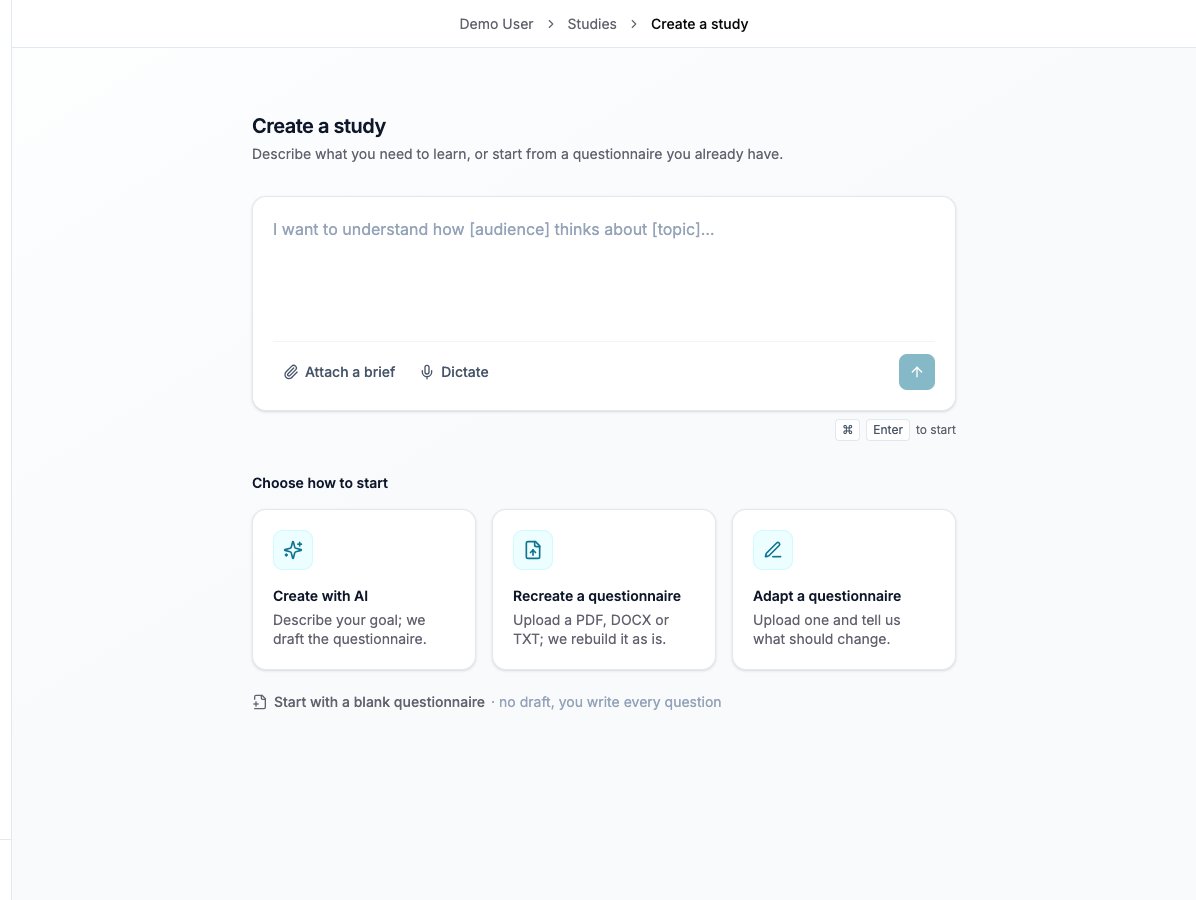
From **New study**, describe the objective, audience, constraints, and existing knowledge. Attach source files if useful, then review the brief the assistant proposes before generation.
Read the draft as a researcher and as a participant. Edit unclear wording, remove duplication, check response options, and use chat for broader restructuring.
Set the panel target, define geographic eligibility in the brief and provider instructions, add screening rules, and use quotas for subgroups that need a specific representation. Review the fieldwork estimate.
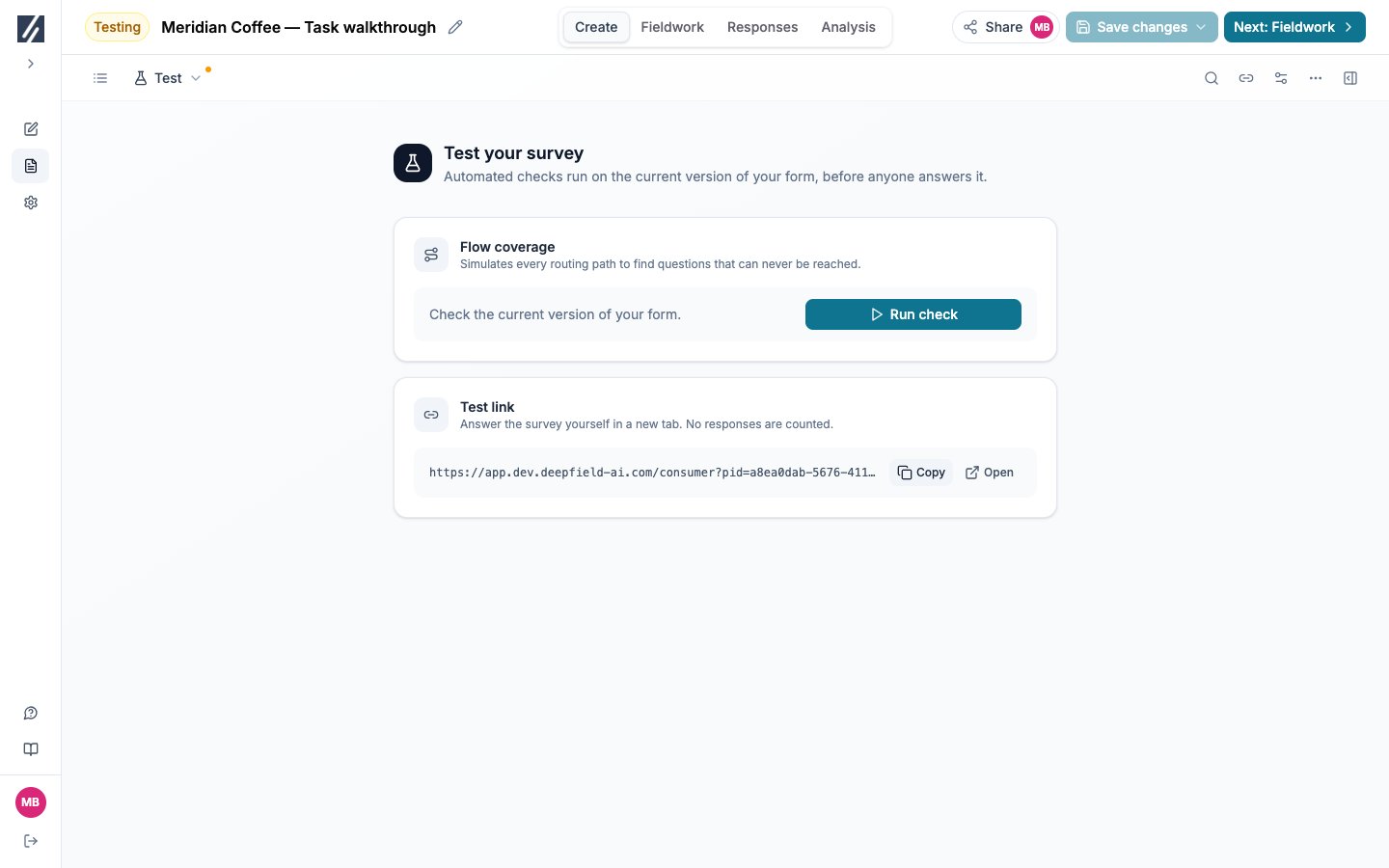
Open the problems panel and fix every blocking issue. Run flow coverage to check whether routing leaves questions or sections unreachable.
Generate a test link and answer the full survey on the devices participants are likely to use. Test more than one route when the study contains branching.
## What to verify in the test
* Consent text and introductory instructions are complete.
* Every answer option fits the question and uses the intended order.
* Logic sends each test persona to the expected next question.
* Stimulus files load and remain readable on a small screen.
* Custom question interfaces store the intended answer shape.
* Required audio or video permissions have a workable participant path.
* The completion and screen-out messages are appropriate.
Saving questionnaire changes while the study is in Testing returns it to Draft and invalidates existing test links. Finish the edit, then generate and redistribute a fresh test link.
## After the session
Apply any remaining revisions, repeat the affected routes, and complete the publish checklist. Publishing commits the configured fieldwork, so launch only after the questionnaire, recruitment setup, and participant experience have been approved.
For later studies, follow the same sequence: define the decision, review the instrument, configure the sample, resolve validation, then test every material route.
## Check the result
The saved questionnaire matches the brief and the important routes have been tested. Record remaining corrections and their owners before launch.
## Before you start
Prepare the research decision, audience, source material, and the colleague who will operate the study after onboarding.
## Before the session
Prepare:
* The decision the research will inform
* The people you need to hear from
* The main questions or hypotheses to test
* Any brief, questionnaire, discussion guide, or stimulus material
* The colleague who will operate DeepField after onboarding
Study creation accepts PDF, DOCX, TXT, PNG, JPG/JPEG, GIF, and WebP files, up to ten files and 32 MB each. Remove confidential information that the questionnaire does not need.
## What you will do
From **New study**, describe the objective, audience, constraints, and existing knowledge. Attach source files if useful, then review the brief the assistant proposes before generation.
Read the draft as a researcher and as a participant. Edit unclear wording, remove duplication, check response options, and use chat for broader restructuring.
Set the panel target, define geographic eligibility in the brief and provider instructions, add screening rules, and use quotas for subgroups that need a specific representation. Review the fieldwork estimate.
Open the problems panel and fix every blocking issue. Run flow coverage to check whether routing leaves questions or sections unreachable.
Generate a test link and answer the full survey on the devices participants are likely to use. Test more than one route when the study contains branching.
## What to verify in the test
* Consent text and introductory instructions are complete.
* Every answer option fits the question and uses the intended order.
* Logic sends each test persona to the expected next question.
* Stimulus files load and remain readable on a small screen.
* Custom question interfaces store the intended answer shape.
* Required audio or video permissions have a workable participant path.
* The completion and screen-out messages are appropriate.
Saving questionnaire changes while the study is in Testing returns it to Draft and invalidates existing test links. Finish the edit, then generate and redistribute a fresh test link.
## After the session
Apply any remaining revisions, repeat the affected routes, and complete the publish checklist. Publishing commits the configured fieldwork, so launch only after the questionnaire, recruitment setup, and participant experience have been approved.
For later studies, follow the same sequence: define the decision, review the instrument, configure the sample, resolve validation, then test every material route.
## Check the result
The saved questionnaire matches the brief and the important routes have been tested. Record remaining corrections and their owners before launch.
 ## Related
* [Create your first study](/getting-started/quick-start-guide)
* [Create a study](/building-your-study/creating-a-study)
* [Fix survey problems](/building-your-study/survey-validation)
* [Test and publish your study](/recruiting/testing-publishing)
## Related
* [Create your first study](/getting-started/quick-start-guide)
* [Create a study](/building-your-study/creating-a-study)
* [Fix survey problems](/building-your-study/survey-validation)
* [Test and publish your study](/recruiting/testing-publishing)