> ## Documentation Index
> Fetch the complete documentation index at: https://support.deepfield-ai.com/llms.txt
> Use this file to discover all available pages before exploring further.
# Find your way around DeepField
> Locate studies and settings, organize work in folders, and understand the views and statuses inside a study.
DeepField separates organization-level settings from the work inside an individual study. Use this guide to identify where a task belongs and which actions are available at each study status.
## Before you start
Have a signed-in account and a study you can open.
## Use the main navigation
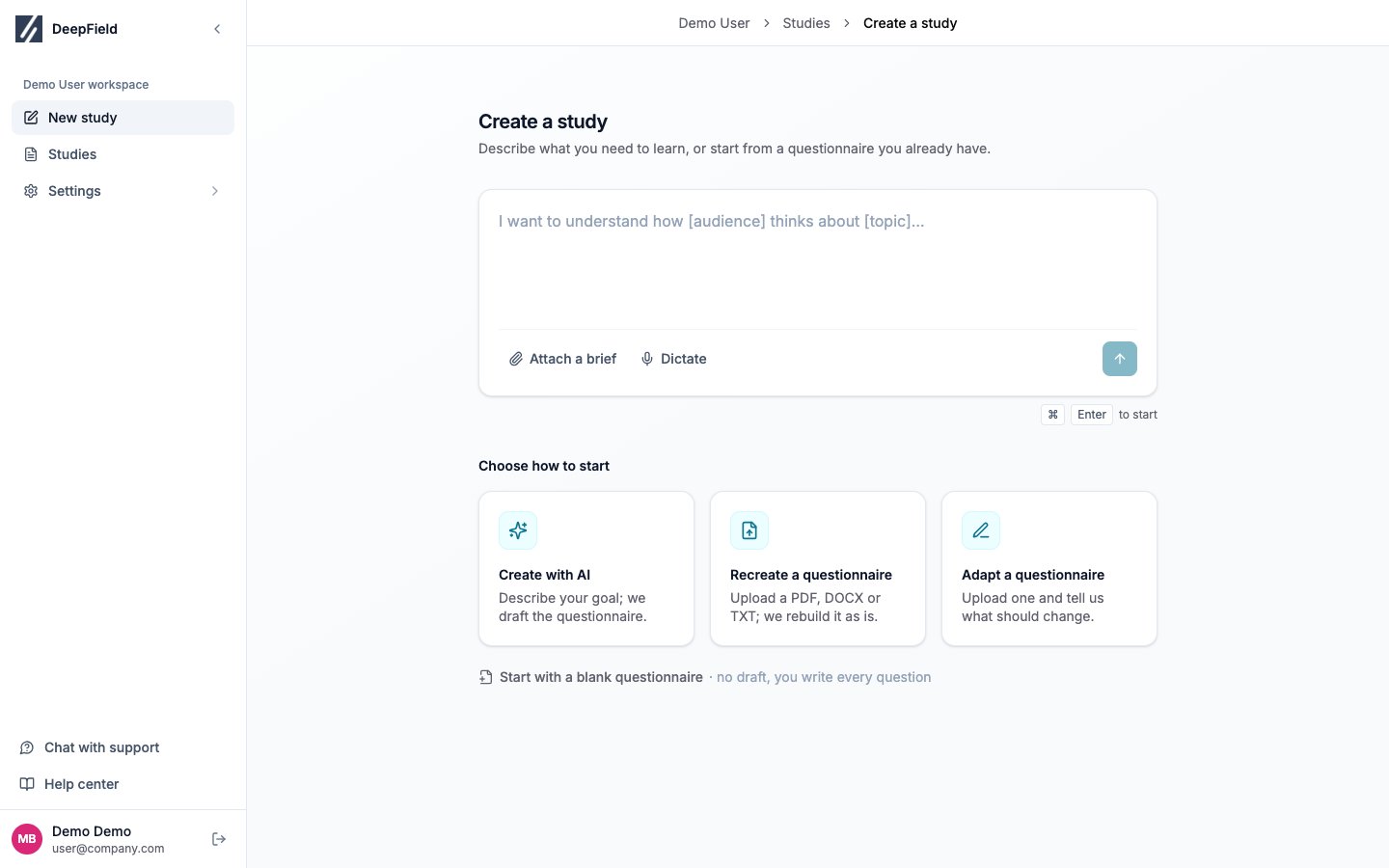
The left sidebar contains:
* **New study**, where you can create with the assistant, recreate or adapt an uploaded questionnaire, or start with a blank questionnaire.
* **Studies**, where you can search, filter, organize, and open existing studies.
* **Settings**, where you manage members, organization settings, usage, your profile, and security.
* **Log out**, at the bottom of the sidebar.
The support messenger appears in the lower-right corner when it is available. See [Get help](/account-settings/getting-help) if it does not appear.
 ## Find and open a study
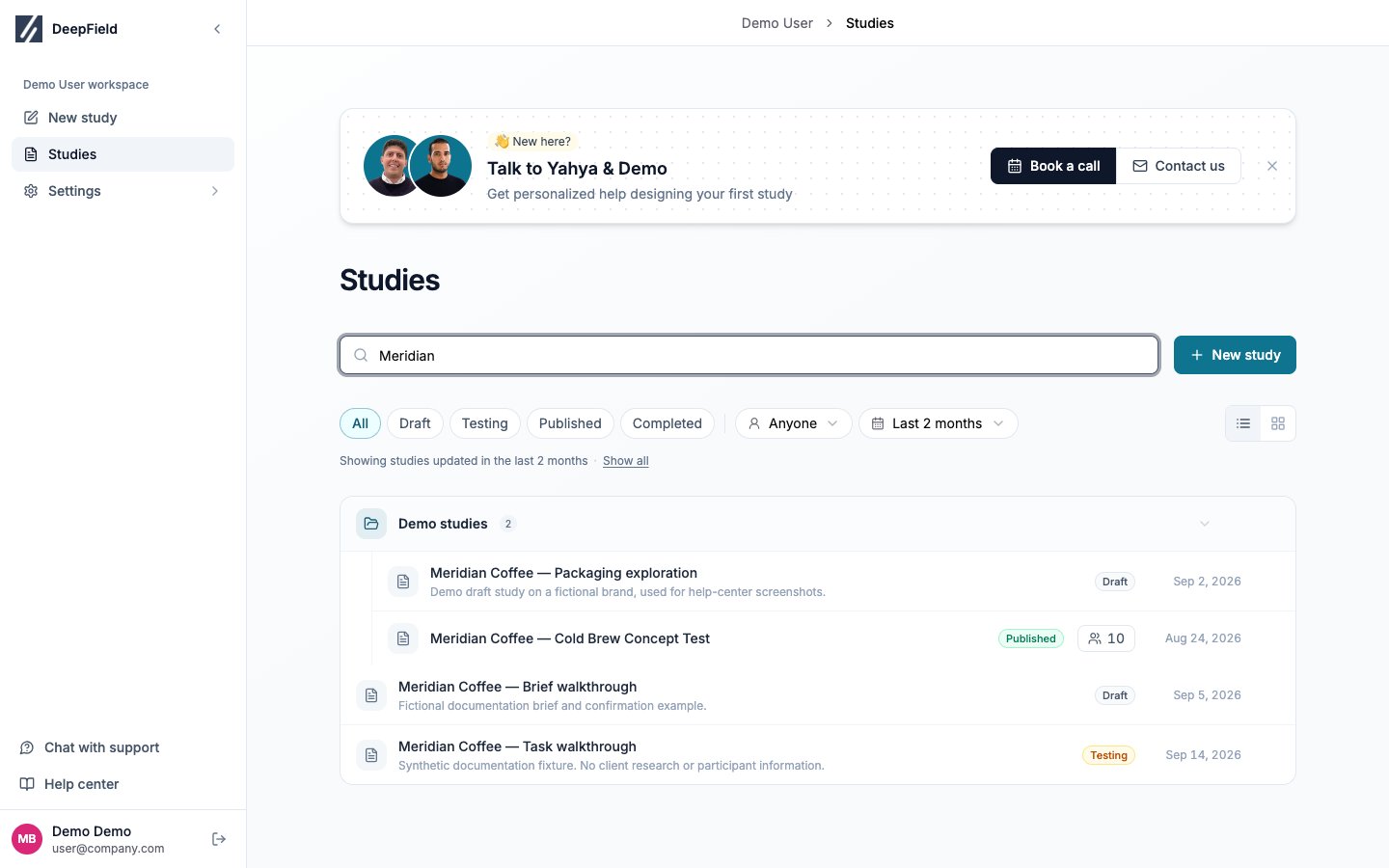
Open **Studies**. Search matches study titles, internal names, descriptions, and folder names. Status filters narrow the list to **Live**, **Draft**, **In setup**, or **Completed** studies. Use **My studies** to show work associated with your account.
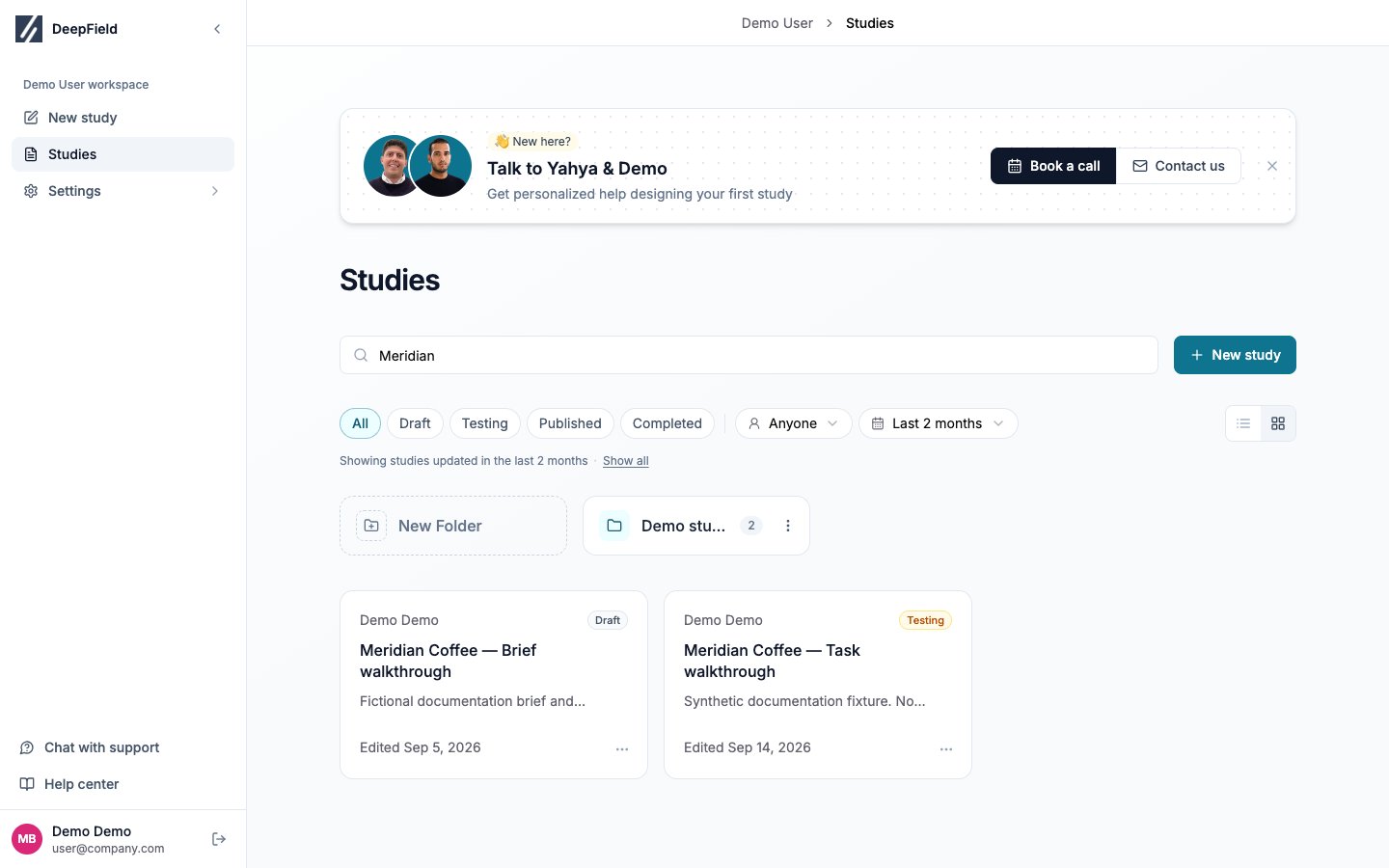
Switch between **List view** and **Grid view** depending on whether you want to browse the folder tree or folder tiles.
## Find and open a study
Open **Studies**. Search matches study titles, internal names, descriptions, and folder names. Status filters narrow the list to **Live**, **Draft**, **In setup**, or **Completed** studies. Use **My studies** to show work associated with your account.
Switch between **List view** and **Grid view** depending on whether you want to browse the folder tree or folder tiles.
 Open a study's **⋮** menu to access **Settings**, **Move to folder…**, **Duplicate**, or **Delete**. Study settings include its internal name and description. The B2C or B2B respondent type can be changed while the study is a draft and affects how recruitment is priced.
Deleting a study permanently removes its questionnaire, responses, reports, and other study content. Confirm the study name and intended deletion before continuing.
## Organize studies in folders
Select **New Folder** to create a top-level folder. To create a nested folder, open the parent folder's menu and select **New subfolder**. Rename a folder from its **⋮** menu or by editing its name inline.
Move a study by dragging it onto a folder or by selecting **Move to folder…** from the study menu. Permissions inherited from the destination folder may change who can open the study.
Deleting a folder does not delete the studies and subfolders inside it. The confirmation dialog asks whether to move its contents to the top level or to another folder.
Open a study's **⋮** menu to access **Settings**, **Move to folder…**, **Duplicate**, or **Delete**. Study settings include its internal name and description. The B2C or B2B respondent type can be changed while the study is a draft and affects how recruitment is priced.
Deleting a study permanently removes its questionnaire, responses, reports, and other study content. Confirm the study name and intended deletion before continuing.
## Organize studies in folders
Select **New Folder** to create a top-level folder. To create a nested folder, open the parent folder's menu and select **New subfolder**. Rename a folder from its **⋮** menu or by editing its name inline.
Move a study by dragging it onto a folder or by selecting **Move to folder…** from the study menu. Permissions inherited from the destination folder may change who can open the study.
Deleting a folder does not delete the studies and subfolders inside it. The confirmation dialog asks whether to move its contents to the top level or to another folder.
 ## Use the views inside a study
| View | Main tasks |
| ------------- | --------------------------------------------------------------------------------------------------------------------------------------------- |
| **Create** | Edit the questionnaire, configure question behavior, define panels and quotas, translate, test, comment, and review saved versions. |
| **Fieldwork** | Review price and distribution, publish, and follow recruitment progress. Configure links in the panel view. |
| **Responses** | Review counts and statuses, filter individual submissions, inspect quality, play recordings, and export response data. |
| **Analysis** | Prepare the analysis plan, explore the plan folder's charts and crosstabs, build decks from chart folders, and ask questions about responses. |
The builder view menu inside **Create** provides **Form**, **Flow**, **Variables**, **Test**, **Quotas, panels & links**, and **Translations**.
## Understand study statuses
| Status | Meaning and available work |
| ------------- | ------------------------------------------------------------------------------------------------------------------------------------------------- |
| **Draft** | The questionnaire and setup can be edited. You can use the assistant and generate a test link. |
| **Testing** | Test links are active. Editing, restoring a version, or using the assistant requires returning the study to Draft, which invalidates those links. |
| **Published** | Live participants can enter. Safe changes remain available, but structural changes that could invalidate collected data are restricted. |
| **Completed** | Fieldwork has ended. Responses and analysis remain available, but new live responses are not collected. |
Confirming **Publish** moves a Draft or Testing study directly to Published. Unsaved questionnaire changes or an out-of-date translation can block publication.
## Check the result
Open the intended study, confirm its title and status, and select the view for your task. If an action is missing, check study access and status before changing the setup.
## Related
* [Create your first study](/getting-started/quick-start-guide)
* [Edit your survey](/building-your-study/survey-editor)
* [Test and publish a study](/recruiting/testing-publishing)
* [Share a study](/sharing/share-your-work)
## Use the views inside a study
| View | Main tasks |
| ------------- | --------------------------------------------------------------------------------------------------------------------------------------------- |
| **Create** | Edit the questionnaire, configure question behavior, define panels and quotas, translate, test, comment, and review saved versions. |
| **Fieldwork** | Review price and distribution, publish, and follow recruitment progress. Configure links in the panel view. |
| **Responses** | Review counts and statuses, filter individual submissions, inspect quality, play recordings, and export response data. |
| **Analysis** | Prepare the analysis plan, explore the plan folder's charts and crosstabs, build decks from chart folders, and ask questions about responses. |
The builder view menu inside **Create** provides **Form**, **Flow**, **Variables**, **Test**, **Quotas, panels & links**, and **Translations**.
## Understand study statuses
| Status | Meaning and available work |
| ------------- | ------------------------------------------------------------------------------------------------------------------------------------------------- |
| **Draft** | The questionnaire and setup can be edited. You can use the assistant and generate a test link. |
| **Testing** | Test links are active. Editing, restoring a version, or using the assistant requires returning the study to Draft, which invalidates those links. |
| **Published** | Live participants can enter. Safe changes remain available, but structural changes that could invalidate collected data are restricted. |
| **Completed** | Fieldwork has ended. Responses and analysis remain available, but new live responses are not collected. |
Confirming **Publish** moves a Draft or Testing study directly to Published. Unsaved questionnaire changes or an out-of-date translation can block publication.
## Check the result
Open the intended study, confirm its title and status, and select the view for your task. If an action is missing, check study access and status before changing the setup.
## Related
* [Create your first study](/getting-started/quick-start-guide)
* [Edit your survey](/building-your-study/survey-editor)
* [Test and publish a study](/recruiting/testing-publishing)
* [Share a study](/sharing/share-your-work)