> ## Documentation Index
> Fetch the complete documentation index at: https://support.deepfield-ai.com/llms.txt
> Use this file to discover all available pages before exploring further.
# Configure study appearance and behavior
> Set participant response modes, navigation, branding and a saved study theme, and review email appearance separately.
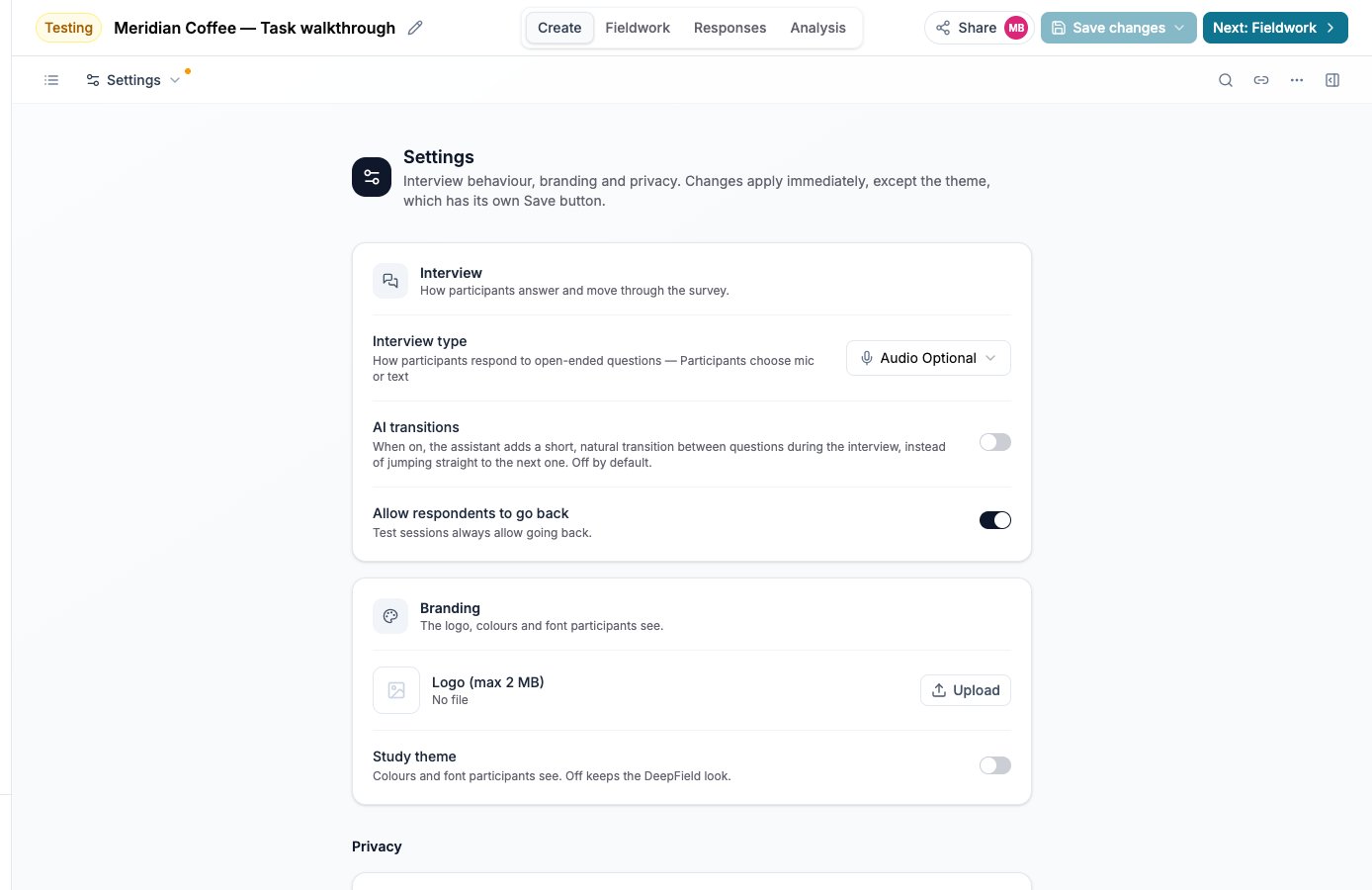
Open Settings from the Create view menu. This view brings together participant behavior, branding and privacy. You need edit access for editable settings; live-study restrictions still apply.
## Configure the participant journey
Review the study's response mode, transitions and backward navigation. The response mode governs open-ended questions: test the allowed audio, video or typing route on the devices participants will use. Turning on backward navigation lets participants revisit earlier answers and can cause dependent questions to be asked again.
Behavior settings apply when changed. Check the saved state after an error rather than assuming a switch stayed on.
## Save the study theme
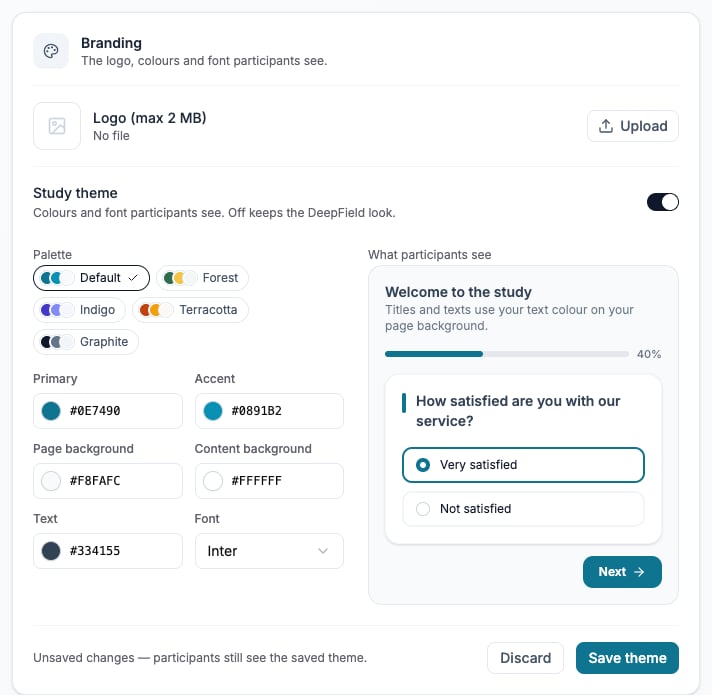
In **Study theme**, choose the available colors and font, then inspect the preview. Branding also provides the participant-facing logo. Test contrast, long question text and selection states on mobile.
The theme has its own **Save theme** action. Until you save it, participants see the previously saved theme. A pending theme is retained when you switch builder views in the same session; return and save or discard it deliberately. Theme changes can be saved while fieldwork is live.
## Check campaign appearance separately
An email campaign can use the study theme or its own email theme. Its displayed sender name and email logo are configured in the campaign. Inspect the full email preview for every message language; a correct questionnaire preview does not verify an email layout.
Follow [Invite participants by email](/recruiting/email-campaigns) for the audience, message and sender steps.
## Review privacy settings
**Privacy** contains consent forms and personal-data retention information. Follow [Configure participant consent](/recruiting/consent-forms) and [Manage personal data](/account-settings/privacy-data) for those tasks.
## Check the result
Reopen Settings to confirm the saved theme, then open a participant test on desktop and mobile. Check branding, response mode and back navigation, and inspect campaign email previews independently.
 ## Related
* [Edit and save your survey](/building-your-study/survey-editor)
* [Configure participant consent](/recruiting/consent-forms)
* [Invite participants by email](/recruiting/email-campaigns)
## Related
* [Edit and save your survey](/building-your-study/survey-editor)
* [Configure participant consent](/recruiting/consent-forms)
* [Invite participants by email](/recruiting/email-campaigns)