> ## Documentation Index
> Fetch the complete documentation index at: https://support.deepfield-ai.com/llms.txt
> Use this file to discover all available pages before exploring further.
# Add stimuli and concepts
> Show images, documents, videos, or repeated concepts to participants.
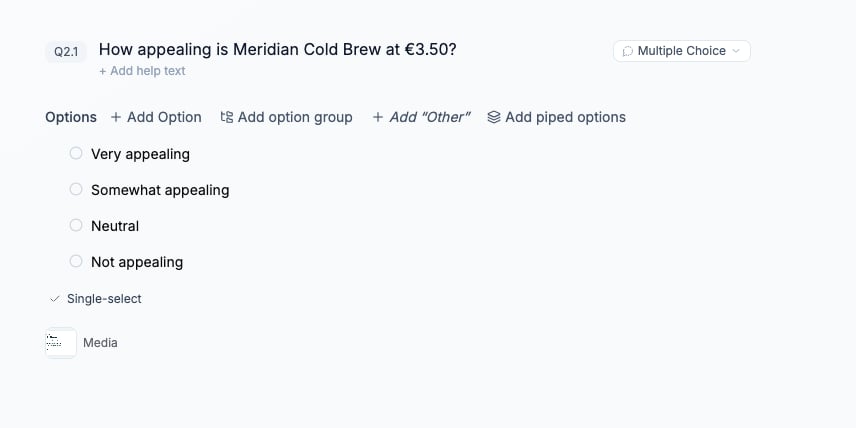
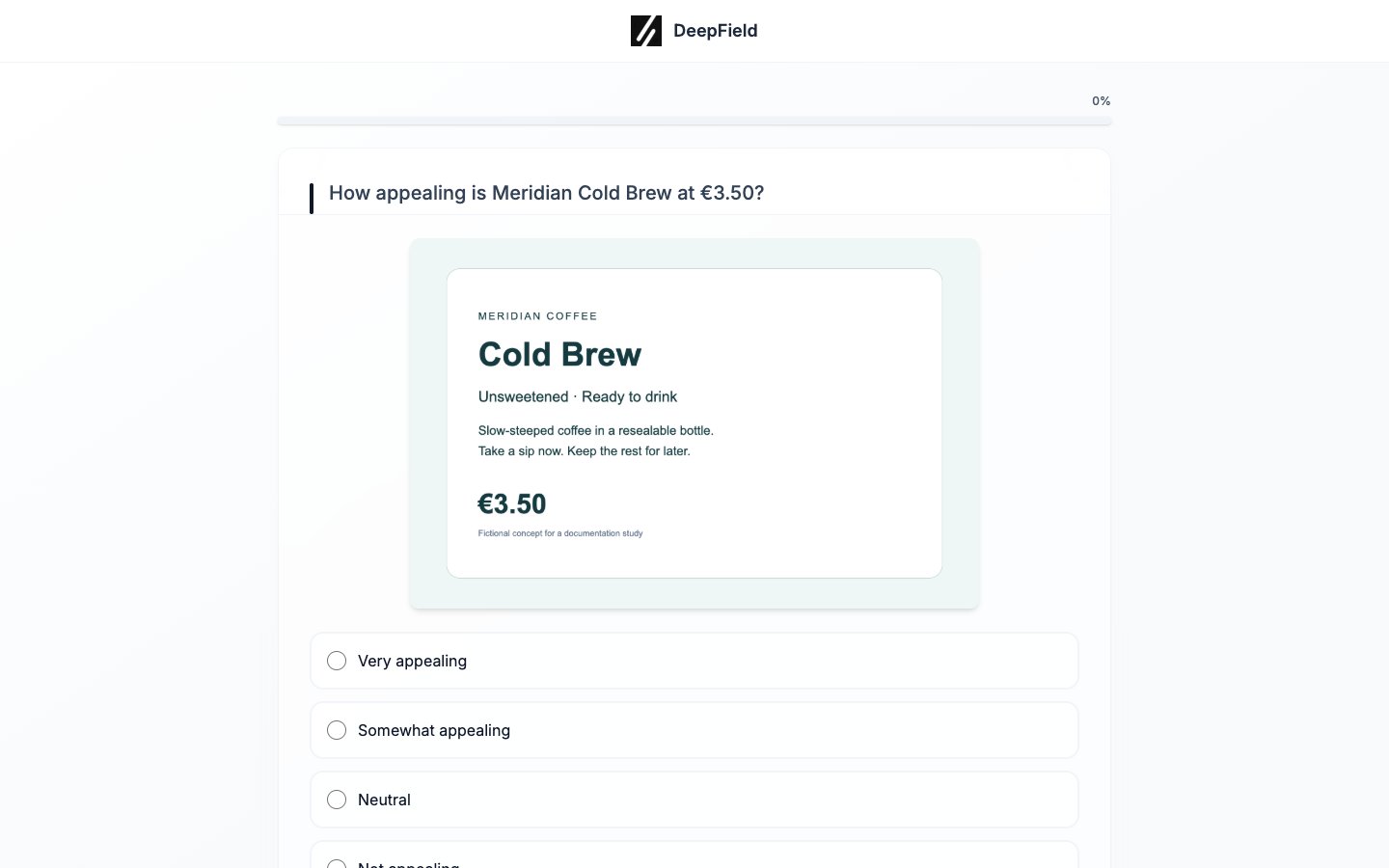
Media can be attached to a question, an answer option, or a concept. Concepts belong to a section and repeat that section's questions for each concept assigned to the participant.
Supported participant-facing files are JPG, PNG, GIF, WebP, and PDF up to 25 MB, plus MP4 and WebM video up to 100 MB.
## Before you start
Prepare the participant-facing files in a supported format and size. Decide whether each belongs to a question, option, or repeated concept.
## Attach media to a question
Open the question's **⋯** menu and select **Add media**. When the question already has media, the label changes to **Replace media**.
Select the upload area or drop a supported file into it.
Enter a description that identifies what the file shows and why it belongs with the question. The assistant uses this description when working with the questionnaire.
Confirm the media preview, save the form, and open a test link to check the participant view.
Participants can enlarge images, play supported videos inline, and view PDFs in the embedded reader or through **Open PDF**.
 ## Upload several stimuli
Select **Add Stimuli** to upload up to ten supported files in one batch. Add a description to every file before confirming the batch.
The limits in other upload locations are separate:
| Location | Files accepted |
| ---------------------------------- | ---------------------------------------------------------------------- |
| Study creation | Up to 10 PDF, DOCX, TXT, PNG, JPG/JPEG, GIF, or WebP files; 32 MB each |
| Study assistant chat | Up to 10 files; 32 MB each |
| Analysis and Plan chat | Up to 5 PDF, DOCX, TXT, CSV, or XLSX files; 32 MB each |
| Question, option, or concept media | Images and PDFs up to 25 MB; MP4 or WebM up to 100 MB |
Attaching a document to a chat gives the assistant reference material. It does not add images inside that document to the participant survey. Upload participant-facing material separately.
## Add media to an answer option
For a Multiple Choice question, open the option's settings and select **Add media**. Use this when each option is a stimulus, such as a pack design, logo, or advertising frame.
Test option media on both desktop and a narrow mobile viewport. Confirm that the option text, selection state, and media controls remain usable together.
## Repeat a section for concepts
Open the section controls and select **Add concepts**. Add a title and media for each concept. The section's questions run once for every concept assigned to that participant.
Configure the assignment with:
* **Max per respondent**, to limit how many concepts one person evaluates.
* **Show concept when**, to make an individual concept conditional.
* **Loop from question**, to build the concepts from an earlier answer, optionally using **Keep top** or **Greater than**.
Open **Section flow** to confirm where the concept loop starts and ends. Complete several test sessions when assignments are randomized or conditional.
## Export considerations
**Download Word** embeds JPG, PNG, and GIF stimuli. WebP, PDF, and video are represented by an attachment note rather than embedded media. Use the test link to review the participant experience for every format.
## Troubleshooting
Check the file type, extension, and size. Re-export the asset in a supported format and reduce its resolution or duration if it exceeds the relevant limit.
Add a description to every file in the batch, including files whose names already describe their contents.
Review **Max per respondent**, each **Show concept when** condition, and any **Loop from question** filter. These controls determine the assigned subset for that participant.
## Check the result
In a test link, open each assigned stimulus on desktop and mobile. Check the full concept loop, the selection controls beside option media, and the final stored answers.
## Related
* [Choose a question type](/building-your-study/question-types)
* [Configure logic and piping](/building-your-study/advanced-logic)
* [Edit and save your survey](/building-your-study/survey-editor)
* [Test and publish a study](/recruiting/testing-publishing)
## Upload several stimuli
Select **Add Stimuli** to upload up to ten supported files in one batch. Add a description to every file before confirming the batch.
The limits in other upload locations are separate:
| Location | Files accepted |
| ---------------------------------- | ---------------------------------------------------------------------- |
| Study creation | Up to 10 PDF, DOCX, TXT, PNG, JPG/JPEG, GIF, or WebP files; 32 MB each |
| Study assistant chat | Up to 10 files; 32 MB each |
| Analysis and Plan chat | Up to 5 PDF, DOCX, TXT, CSV, or XLSX files; 32 MB each |
| Question, option, or concept media | Images and PDFs up to 25 MB; MP4 or WebM up to 100 MB |
Attaching a document to a chat gives the assistant reference material. It does not add images inside that document to the participant survey. Upload participant-facing material separately.
## Add media to an answer option
For a Multiple Choice question, open the option's settings and select **Add media**. Use this when each option is a stimulus, such as a pack design, logo, or advertising frame.
Test option media on both desktop and a narrow mobile viewport. Confirm that the option text, selection state, and media controls remain usable together.
## Repeat a section for concepts
Open the section controls and select **Add concepts**. Add a title and media for each concept. The section's questions run once for every concept assigned to that participant.
Configure the assignment with:
* **Max per respondent**, to limit how many concepts one person evaluates.
* **Show concept when**, to make an individual concept conditional.
* **Loop from question**, to build the concepts from an earlier answer, optionally using **Keep top** or **Greater than**.
Open **Section flow** to confirm where the concept loop starts and ends. Complete several test sessions when assignments are randomized or conditional.
## Export considerations
**Download Word** embeds JPG, PNG, and GIF stimuli. WebP, PDF, and video are represented by an attachment note rather than embedded media. Use the test link to review the participant experience for every format.
## Troubleshooting
Check the file type, extension, and size. Re-export the asset in a supported format and reduce its resolution or duration if it exceeds the relevant limit.
Add a description to every file in the batch, including files whose names already describe their contents.
Review **Max per respondent**, each **Show concept when** condition, and any **Loop from question** filter. These controls determine the assigned subset for that participant.
## Check the result
In a test link, open each assigned stimulus on desktop and mobile. Check the full concept loop, the selection controls beside option media, and the final stored answers.
## Related
* [Choose a question type](/building-your-study/question-types)
* [Configure logic and piping](/building-your-study/advanced-logic)
* [Edit and save your survey](/building-your-study/survey-editor)
* [Test and publish a study](/recruiting/testing-publishing)