> ## Documentation Index
> Fetch the complete documentation index at: https://support.deepfield-ai.com/llms.txt
> Use this file to discover all available pages before exploring further.
# Build a custom question interface
> Create, validate, translate, and test a custom interface while preserving the question’s stored answer type.
A custom code renderer changes how one question is presented and answered. The question keeps its built-in type, so its stored value, server validation, charts, and typed exports continue to follow that type.
Use custom code when the participant needs an interaction that cannot be represented by the built-in settings, such as a constrained price ladder, a content-dependent allocation, a click-to-reveal task, or a custom arrangement of values from earlier answers.
Keep routing, conditions, section assignment, screening, and quotas in their native controls. A renderer governs one question screen; it does not control the rest of the participant journey. Custom-code questions cannot be used as quota variables.
## Ask the assistant to build the renderer
You do not need to write the component yourself. In the **Assistant** panel, name the question and describe:
1. What the participant sees and does.
2. Which earlier answers the interaction needs.
3. What value the question must store.
4. The condition that makes the answer complete.
5. Any mobile, translation, or accessibility requirement.
For example:
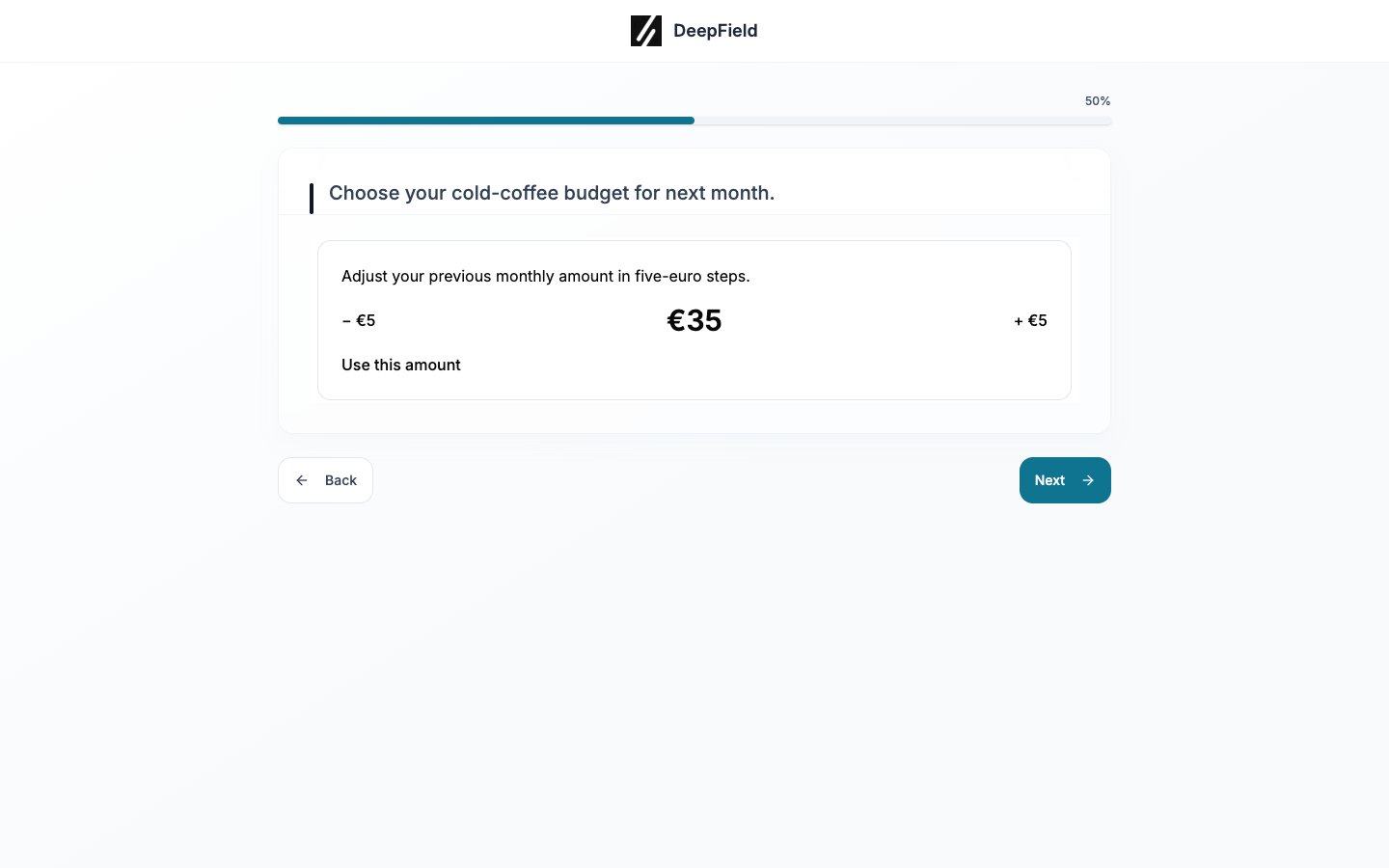
> On “Choose your cold-coffee budget for next month,” create a custom interface that starts from the earlier monthly-spend answer. Increase or decrease it in €5 steps, show the current amount at all times, and store one numeric answer. The participant can continue after selecting an amount between €0 and €150. Keep it usable on mobile.
After the assistant updates the form, open the renderer and complete the preview checks below before saving the questionnaire.
## Open the renderer editor
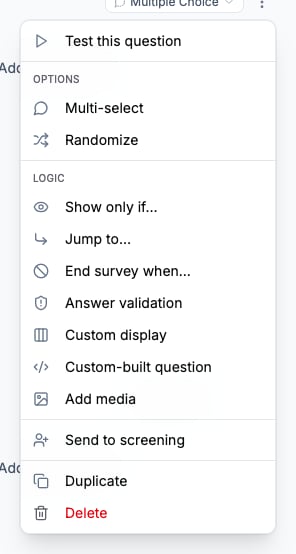
Open the question's **⋯** menu and select **Custom-built question**. If the question already uses one, select **Edit** in its custom-question strip. **Test** in that strip opens a participant test of the question; it does not open the editor preview.
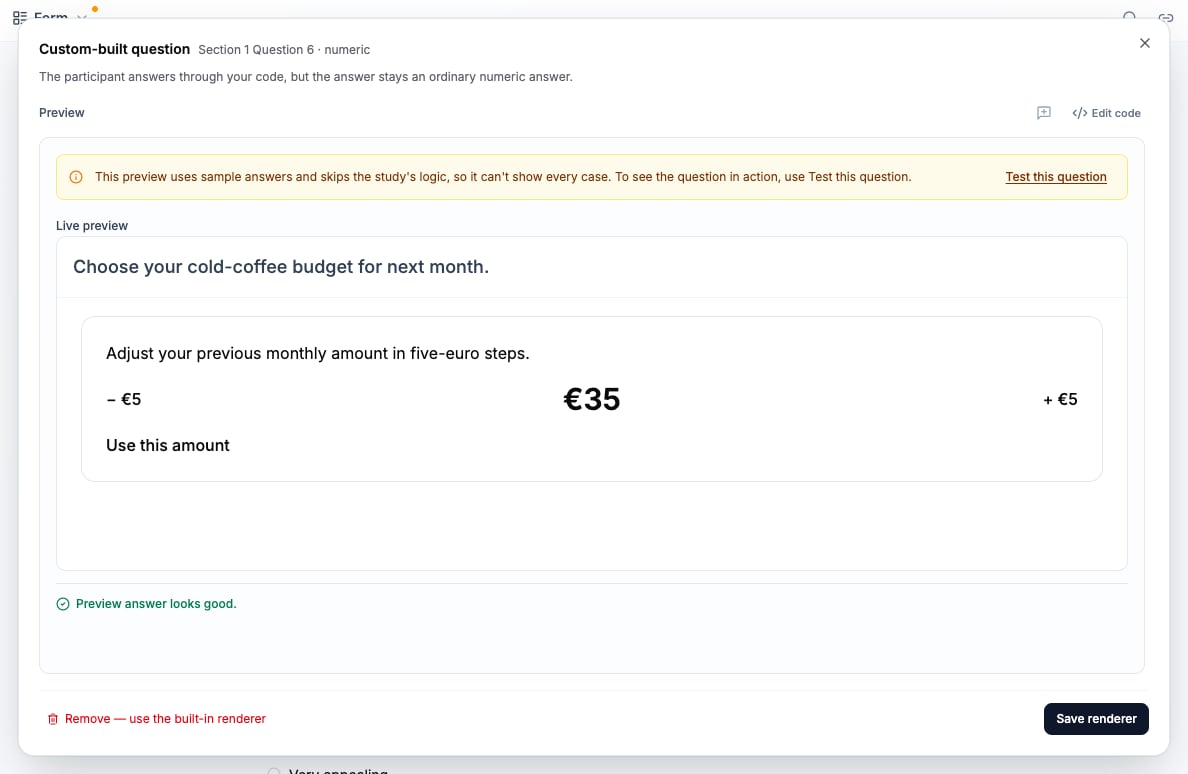
 The dialog opens on **Preview**. Interact with the component until it produces an answer. The status beneath the preview reports whether that answer matches the question type.
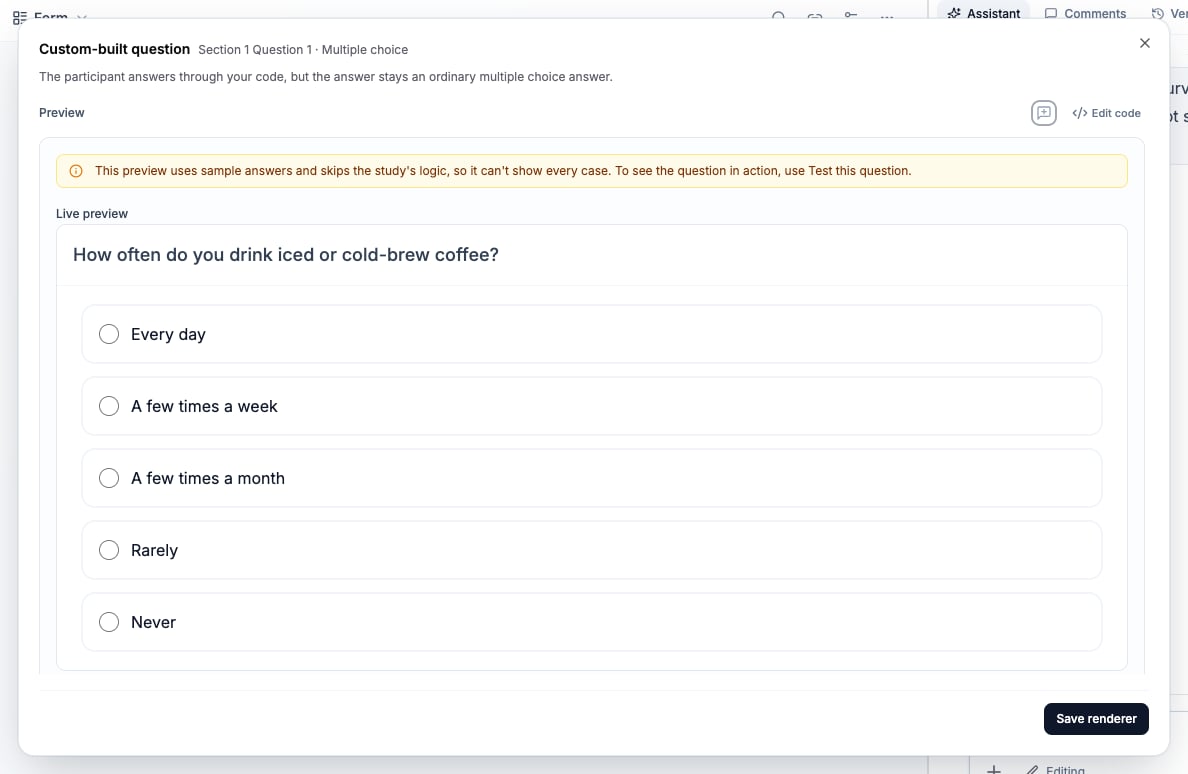 Preview uses sample inputs and does not run the study's routing. Use **Test this question** to check the saved renderer in the participant journey. Save renderer changes first if that action is disabled. After changing an earlier answer, test that a dependent custom question receives the new inputs and asks for a fresh answer.
## Edit the component
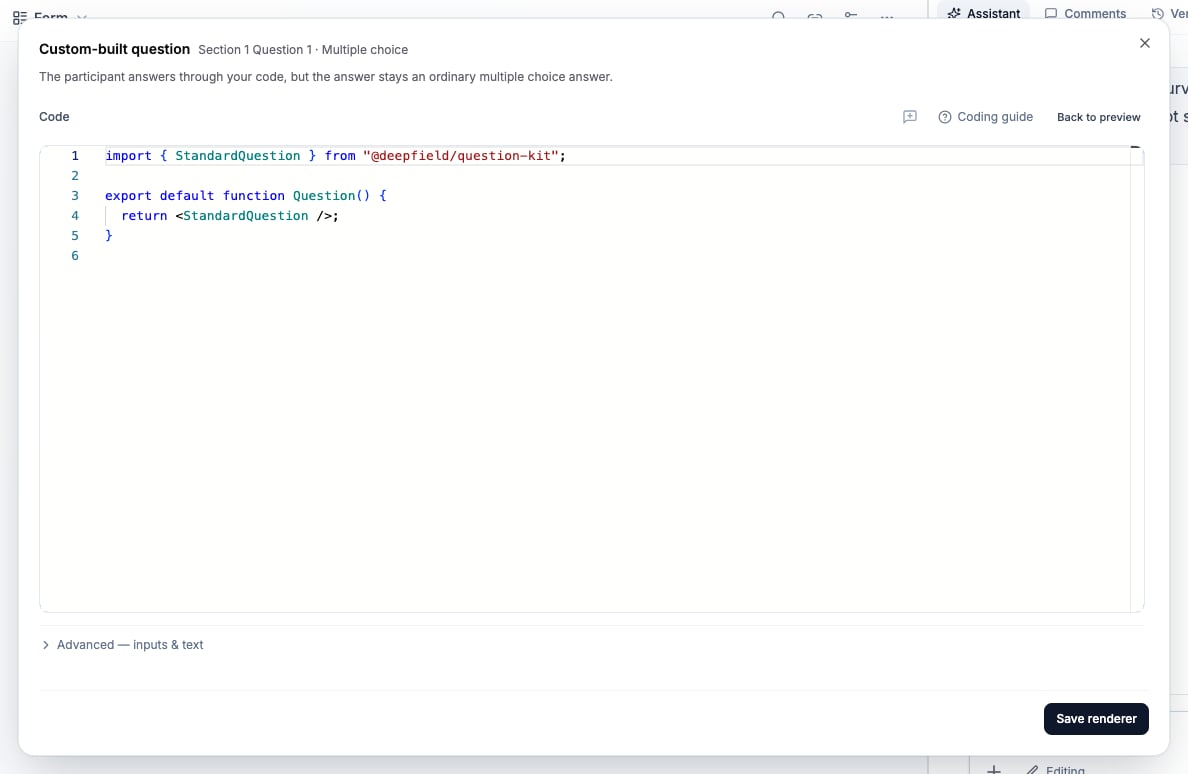
Select **Edit code** to open the TSX editor. Select **Back to preview** to return to the interaction. It must export one React component. Imports are limited to `react` and `@deepfield/question-kit`.
The question kit provides the question definition, declared earlier answers, translatable parameters, locale, current answer, and answer controls:
```tsx theme={null}
import { OptionRow, useQuestion } from "@deepfield/question-kit";
export default function Question() {
const { question, answer, setAnswer, setValid } = useQuestion();
const selected = Array.isArray(answer) ? answer : [];
return question.options.filter((option) => !option.is_group).map((option) => (
{
setAnswer([option.id]);
setValid(true);
}}
>
{option.text}
));
}
```
Use the **Coding guide** in the dialog for the components and answer contract available to the selected question. The component runs without access to the network, the DeepField page, browser cookies, or browser storage. It can use React, HTML, SVG, canvas, Tailwind utilities, theme colors, and components exported by the question kit.
Preview uses sample inputs and does not run the study's routing. Use **Test this question** to check the saved renderer in the participant journey. Save renderer changes first if that action is disabled. After changing an earlier answer, test that a dependent custom question receives the new inputs and asks for a fresh answer.
## Edit the component
Select **Edit code** to open the TSX editor. Select **Back to preview** to return to the interaction. It must export one React component. Imports are limited to `react` and `@deepfield/question-kit`.
The question kit provides the question definition, declared earlier answers, translatable parameters, locale, current answer, and answer controls:
```tsx theme={null}
import { OptionRow, useQuestion } from "@deepfield/question-kit";
export default function Question() {
const { question, answer, setAnswer, setValid } = useQuestion();
const selected = Array.isArray(answer) ? answer : [];
return question.options.filter((option) => !option.is_group).map((option) => (
{
setAnswer([option.id]);
setValid(true);
}}
>
{option.text}
));
}
```
Use the **Coding guide** in the dialog for the components and answer contract available to the selected question. The component runs without access to the network, the DeepField page, browser cookies, or browser storage. It can use React, HTML, SVG, canvas, Tailwind utilities, theme colors, and components exported by the question kit.
 ## Match the answer contract
`setAnswer` must use the value shape of the underlying type:
| Question type | Stored value |
| --------------------------- | ---------------------------------------------------------------------------------- |
| Numeric | A number |
| Open-ended | A string |
| Multiple Choice or Ranking | An array of option IDs |
| Allocation or Multi-Numeric | An object mapping option IDs to numbers |
| Categorical Matrix | An object mapping row IDs to one column ID, or arrays when multi-select is enabled |
| Numeric Matrix | An object mapping row IDs and column IDs to numbers |
| MaxDiff | An object with `best` and `worst` option IDs |
Use IDs from `question.options` and `question.matrix_rows`. `setValid(false, message)` keeps **Next** unavailable and can show the participant what remains to be completed. The server validates the submitted value and the question's configured validation rules.
The current `answer` already contains restored progress. Use it as the submitted state so a participant who reloads can see and change the saved answer.
For a currency question, call `setCurrency("EUR")` (or the selected currency code) as well as `setAnswer(...)`. A numeric value alone does not pass the preview’s currency check.
## Add earlier answers and translatable text
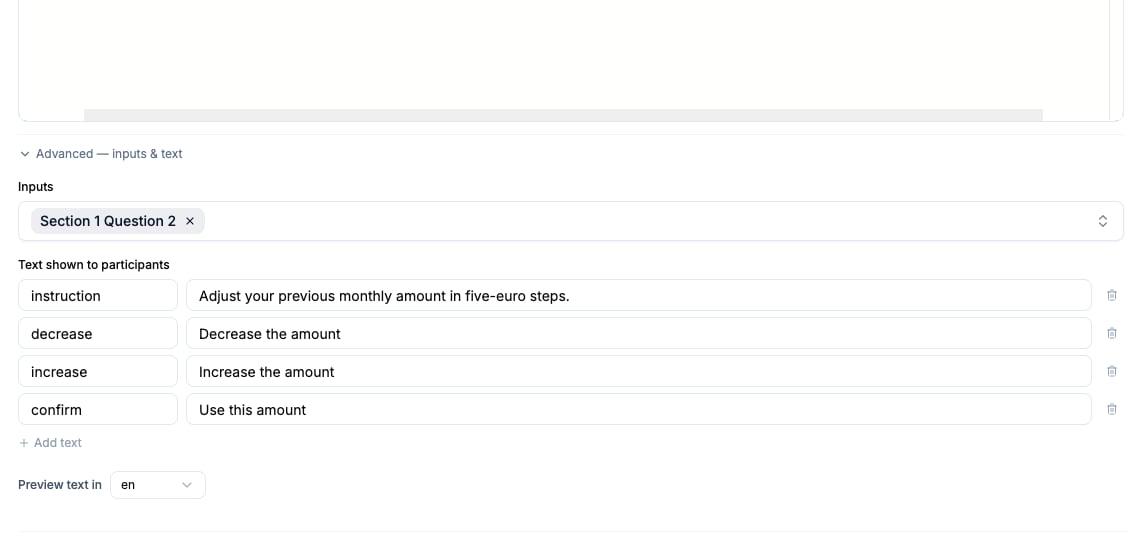
Open **Advanced — inputs & text**.
* **Inputs** declares earlier questions. The renderer can access only those selected inputs.
* **Text shown to participants** stores named values that enter the standard translation workflow. Keys must be unique and non-empty.
* **Preview text in** switches among available runtime locales.
* **Sample inputs** lets you test Answered, Unanswered, and Skipped states for each declared input.
Participant-facing strings in the source are included in translation when they can be extracted. Use named text values for short labels or text that must be managed explicitly. The source code itself is not translated.
## Match the answer contract
`setAnswer` must use the value shape of the underlying type:
| Question type | Stored value |
| --------------------------- | ---------------------------------------------------------------------------------- |
| Numeric | A number |
| Open-ended | A string |
| Multiple Choice or Ranking | An array of option IDs |
| Allocation or Multi-Numeric | An object mapping option IDs to numbers |
| Categorical Matrix | An object mapping row IDs to one column ID, or arrays when multi-select is enabled |
| Numeric Matrix | An object mapping row IDs and column IDs to numbers |
| MaxDiff | An object with `best` and `worst` option IDs |
Use IDs from `question.options` and `question.matrix_rows`. `setValid(false, message)` keeps **Next** unavailable and can show the participant what remains to be completed. The server validates the submitted value and the question's configured validation rules.
The current `answer` already contains restored progress. Use it as the submitted state so a participant who reloads can see and change the saved answer.
For a currency question, call `setCurrency("EUR")` (or the selected currency code) as well as `setAnswer(...)`. A numeric value alone does not pass the preview’s currency check.
## Add earlier answers and translatable text
Open **Advanced — inputs & text**.
* **Inputs** declares earlier questions. The renderer can access only those selected inputs.
* **Text shown to participants** stores named values that enter the standard translation workflow. Keys must be unique and non-empty.
* **Preview text in** switches among available runtime locales.
* **Sample inputs** lets you test Answered, Unanswered, and Skipped states for each declared input.
Participant-facing strings in the source are included in translation when they can be extracted. Use named text values for short labels or text that must be managed explicitly. The source code itself is not translated.
 ## Test and save the renderer
Before selecting **Save renderer**:
1. Complete the Preview with typical, boundary, and incomplete values.
2. Test each state of every earlier-answer input.
3. Switch the preview locale when the study is multilingual.
4. Confirm the answer status matches the underlying type.
5. Save the renderer, then save the questionnaire.
6. Open a test link and repeat the task on desktop and mobile widths.
7. Reload during the task and confirm the saved answer is restored correctly.
Compile errors and invalid text keys prevent the renderer from being saved. An invalid preview answer is a signal to correct the component before testing the study; the server will still reject a submitted value that does not match the question contract.
## Test and save the renderer
Before selecting **Save renderer**:
1. Complete the Preview with typical, boundary, and incomplete values.
2. Test each state of every earlier-answer input.
3. Switch the preview locale when the study is multilingual.
4. Confirm the answer status matches the underlying type.
5. Save the renderer, then save the questionnaire.
6. Open a test link and repeat the task on desktop and mobile widths.
7. Reload during the task and confirm the saved answer is restored correctly.
Compile errors and invalid text keys prevent the renderer from being saved. An invalid preview answer is a signal to correct the component before testing the study; the server will still reject a submitted value that does not match the question contract.
 ## Understand analysis and export behavior
Charts read the typed answer defined by the question type. Analysis shows a notice when a question uses custom code because the chart may not represent every detail of the interaction.
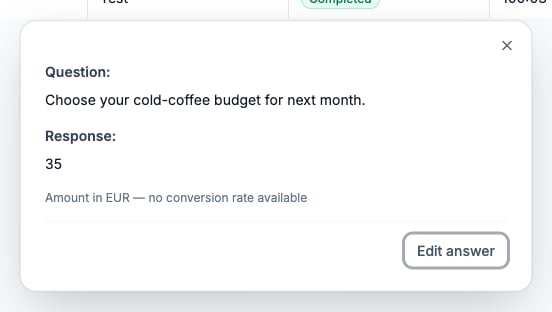
The response Excel workbook and raw CSV export add a `[raw]` column for each custom-code question. It contains the exact stored value, including additional keys that do not appear in the type-specific columns.
## Understand analysis and export behavior
Charts read the typed answer defined by the question type. Analysis shows a notice when a question uses custom code because the chart may not represent every detail of the interaction.
The response Excel workbook and raw CSV export add a `[raw]` column for each custom-code question. It contains the exact stored value, including additional keys that do not appear in the type-specific columns.
 ## Return to the built-in interface
Open the renderer and select **Remove — use the built-in renderer**. Save the questionnaire. The question keeps its wording, type, options, and standard settings, but participants return to the built-in answer interface.
## Troubleshoot a renderer
Select **Edit code** and resolve the reported TypeScript or syntax error. Check component names and props in **Coding guide**, and remove any import other than `react` or `@deepfield/question-kit`.
Compare the emitted value with the answer-contract table. Use option IDs and row IDs rather than display labels. Keep the original question type unless the intended analysis also requires a different data shape.
Add its question under **Advanced — inputs & text** and confirm it appears earlier in the participant journey. Handle Answered, Unanswered, and Skipped states in the component.
Check the conditions passed to `setValid`, then test the same value in Preview. Confirm that the answer also passes any native **Answer validation** rule on the question.
The full code editor could not load. The fallback still permits text editing, but use Preview and a test link before publishing. Reload the builder if syntax assistance is required.
## Related
* [Choose and configure question types](/building-your-study/question-types)
* [Reuse earlier answers](/building-your-study/answer-piping)
* [Translate your survey](/translations/multilingual-studies)
* [Export response data](/responses/exporting-data)
## Return to the built-in interface
Open the renderer and select **Remove — use the built-in renderer**. Save the questionnaire. The question keeps its wording, type, options, and standard settings, but participants return to the built-in answer interface.
## Troubleshoot a renderer
Select **Edit code** and resolve the reported TypeScript or syntax error. Check component names and props in **Coding guide**, and remove any import other than `react` or `@deepfield/question-kit`.
Compare the emitted value with the answer-contract table. Use option IDs and row IDs rather than display labels. Keep the original question type unless the intended analysis also requires a different data shape.
Add its question under **Advanced — inputs & text** and confirm it appears earlier in the participant journey. Handle Answered, Unanswered, and Skipped states in the component.
Check the conditions passed to `setValid`, then test the same value in Preview. Confirm that the answer also passes any native **Answer validation** rule on the question.
The full code editor could not load. The fallback still permits text editing, but use Preview and a test link before publishing. Reload the builder if syntax assistance is required.
## Related
* [Choose and configure question types](/building-your-study/question-types)
* [Reuse earlier answers](/building-your-study/answer-piping)
* [Translate your survey](/translations/multilingual-studies)
* [Export response data](/responses/exporting-data)