> ## Documentation Index
> Fetch the complete documentation index at: https://support.deepfield-ai.com/llms.txt
> Use this file to discover all available pages before exploring further.
# Configure conditions and routing
> Control which questions participants see, where they go next, and how earlier answers are reused.
Question logic is configured from the **⋯** menu on a question card. Conditions use the same rule builder whether they control a question, section, option, jump, screen-out, or early end.
## Before you start
Save the source questions and place them before the questions that depend on them. Write the expected route for a matching and a non-matching answer.
## Show content conditionally
Open the question's **⋯** menu and select **Show only if…**. For an entire section, use its **Show section when** control instead.
Select **Add condition**, then choose an earlier question, an operator, and the value to match.
Conditions use **AND** by default. Change the connector to **OR** or select **Add condition group** when the logic requires grouped conditions.
The card displays a **Show if** summary. Read it as a sentence and confirm it matches the intended participant route.
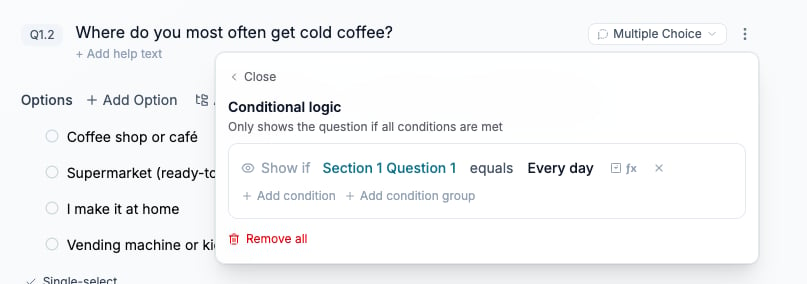 Use **is one of** or **is not one of** to match several values in one rule. Numeric questions also support comparisons such as **greater than** and **less than**. **AI checks** evaluates an open-text answer against an instruction you provide.
Place a shared condition on the section or block when every item inside it follows the same rule. Individual options can also use **Only show this option if…**.
## Jump to a later question or section
Open **⋯ → Jump to…**, select a destination later in the questionnaire, and add the condition that activates the jump. The question card shows a **Jump to … if …** summary.
Jumps only move forward. A destination inside a randomized block is not accepted because its position can differ between participant routes. Select a destination outside the block or remove that block's randomization.
Use conditional display when the requirement is to hide a set of questions without moving to a named destination.
## End the survey after a qualifying route
Use **⋯ → End survey when…** to complete the response when a condition is met at that point. This records an early completion rather than a screen-out.
Screening questions use **Screening rule** instead. A screen-out identifies a participant as outside the required audience and can send them to the configured screen-out redirect.
## Insert an earlier answer into text
Type **@** in question text, help text, or an option label. Select an earlier question or variable, then [test the substituted text](/building-your-study/answer-piping#verify-each-route).
## Reuse earlier selections as options
Use **Options source → Pipe from question** on the target question. See [Reuse earlier answers](/building-your-study/answer-piping#reuse-earlier-selections-as-options) for selected, unselected, ranked, and numeric sources.
## Randomize options, rows, blocks, or sections
| Level | Controls and result |
| ---------------- | ----------------------------------------------------------------------------------------------------- |
| Question options | **Randomize Order** changes their order per participant. A display count can limit the drawn options. |
| Matrix rows | **Randomize rows** changes row order and can draw a subset. Grouped rows remain together. |
| Question block | **Randomize** changes question order; **Show only N** draws a subset. |
| Sections | A section group can randomize or draw sections as a unit. |
Test rules that enter or leave a randomized area. Do not use a jump destination inside a randomized block.
## Create a derived variable
Open **Variables → Add variable** in the builder. Follow [Create a derived variable](/building-your-study/derived-variables) to define cases or a calculation, test the result, and verify stored values.
## Use a formula in a rule
Select **ƒx** or **Use a formula instead** on a condition row. Insert numeric references with **@** or `{`, then build the comparison. A formula can only use numeric questions or variables available before the point where it runs.
## Test the full logic
Open **Test** from the builder view menu. Run **Flow coverage** to identify unreachable content, then use a test link to complete each important route as a participant.
Test a branch where an earlier source is never shown, as well as one where a participant explicitly skips it. Rules read never-shown sources as blank (zero for numeric evaluation); this is different from an answer still waiting to be collected. Check that validation and screening finish with the intended outcome.
## Check the result
Complete both routes through a test link and inspect their final statuses. A saved rule must name its source, operator, and value; an empty condition is not a completed example.
## Related
* [Choose a question type](/building-your-study/question-types)
* [Screen participants](/recruiting/screening-questions)
* [Fix survey problems](/building-your-study/survey-validation)
* [Test and publish a study](/recruiting/testing-publishing)
Use **is one of** or **is not one of** to match several values in one rule. Numeric questions also support comparisons such as **greater than** and **less than**. **AI checks** evaluates an open-text answer against an instruction you provide.
Place a shared condition on the section or block when every item inside it follows the same rule. Individual options can also use **Only show this option if…**.
## Jump to a later question or section
Open **⋯ → Jump to…**, select a destination later in the questionnaire, and add the condition that activates the jump. The question card shows a **Jump to … if …** summary.
Jumps only move forward. A destination inside a randomized block is not accepted because its position can differ between participant routes. Select a destination outside the block or remove that block's randomization.
Use conditional display when the requirement is to hide a set of questions without moving to a named destination.
## End the survey after a qualifying route
Use **⋯ → End survey when…** to complete the response when a condition is met at that point. This records an early completion rather than a screen-out.
Screening questions use **Screening rule** instead. A screen-out identifies a participant as outside the required audience and can send them to the configured screen-out redirect.
## Insert an earlier answer into text
Type **@** in question text, help text, or an option label. Select an earlier question or variable, then [test the substituted text](/building-your-study/answer-piping#verify-each-route).
## Reuse earlier selections as options
Use **Options source → Pipe from question** on the target question. See [Reuse earlier answers](/building-your-study/answer-piping#reuse-earlier-selections-as-options) for selected, unselected, ranked, and numeric sources.
## Randomize options, rows, blocks, or sections
| Level | Controls and result |
| ---------------- | ----------------------------------------------------------------------------------------------------- |
| Question options | **Randomize Order** changes their order per participant. A display count can limit the drawn options. |
| Matrix rows | **Randomize rows** changes row order and can draw a subset. Grouped rows remain together. |
| Question block | **Randomize** changes question order; **Show only N** draws a subset. |
| Sections | A section group can randomize or draw sections as a unit. |
Test rules that enter or leave a randomized area. Do not use a jump destination inside a randomized block.
## Create a derived variable
Open **Variables → Add variable** in the builder. Follow [Create a derived variable](/building-your-study/derived-variables) to define cases or a calculation, test the result, and verify stored values.
## Use a formula in a rule
Select **ƒx** or **Use a formula instead** on a condition row. Insert numeric references with **@** or `{`, then build the comparison. A formula can only use numeric questions or variables available before the point where it runs.
## Test the full logic
Open **Test** from the builder view menu. Run **Flow coverage** to identify unreachable content, then use a test link to complete each important route as a participant.
Test a branch where an earlier source is never shown, as well as one where a participant explicitly skips it. Rules read never-shown sources as blank (zero for numeric evaluation); this is different from an answer still waiting to be collected. Check that validation and screening finish with the intended outcome.
## Check the result
Complete both routes through a test link and inspect their final statuses. A saved rule must name its source, operator, and value; an empty condition is not a completed example.
## Related
* [Choose a question type](/building-your-study/question-types)
* [Screen participants](/recruiting/screening-questions)
* [Fix survey problems](/building-your-study/survey-validation)
* [Test and publish a study](/recruiting/testing-publishing)