> ## Documentation Index
> Fetch the complete documentation index at: https://support.deepfield-ai.com/llms.txt
> Use this file to discover all available pages before exploring further.
# Create and apply weighting
> Build a target or manual weighting scheme, inspect its diagnostics, and apply it to plan outputs or individual charts.
Weighting changes each eligible respondent's contribution to selected results. Open **Analysis → Analysis plan → Manage weighting** to create or inspect schemes, then select the scheme in the plan or individual chart.
## Before you start
Prepare documented target distributions or agreed manual multipliers, using variables actually collected in the study.
## Create a scheme
Use **New weight** (the **+** beside the scheme names). A new scheme starts in **Target proportions**; use its **⋯** menu to change to **Manual weights** when entering multipliers directly.
Select the name in the editor and enter a unique description of the targets or use.
Select **Add variable** and choose up to five eligible questions. A variable already used in the scheme is not offered again.
In Target proportions, each variable's targets must total 100% within the displayed tolerance. In Manual weights, enter the required multiplier for each option.
Check **Weighted N**, efficiency, weight range, missing cells, and convergence, then select **Save weights**.
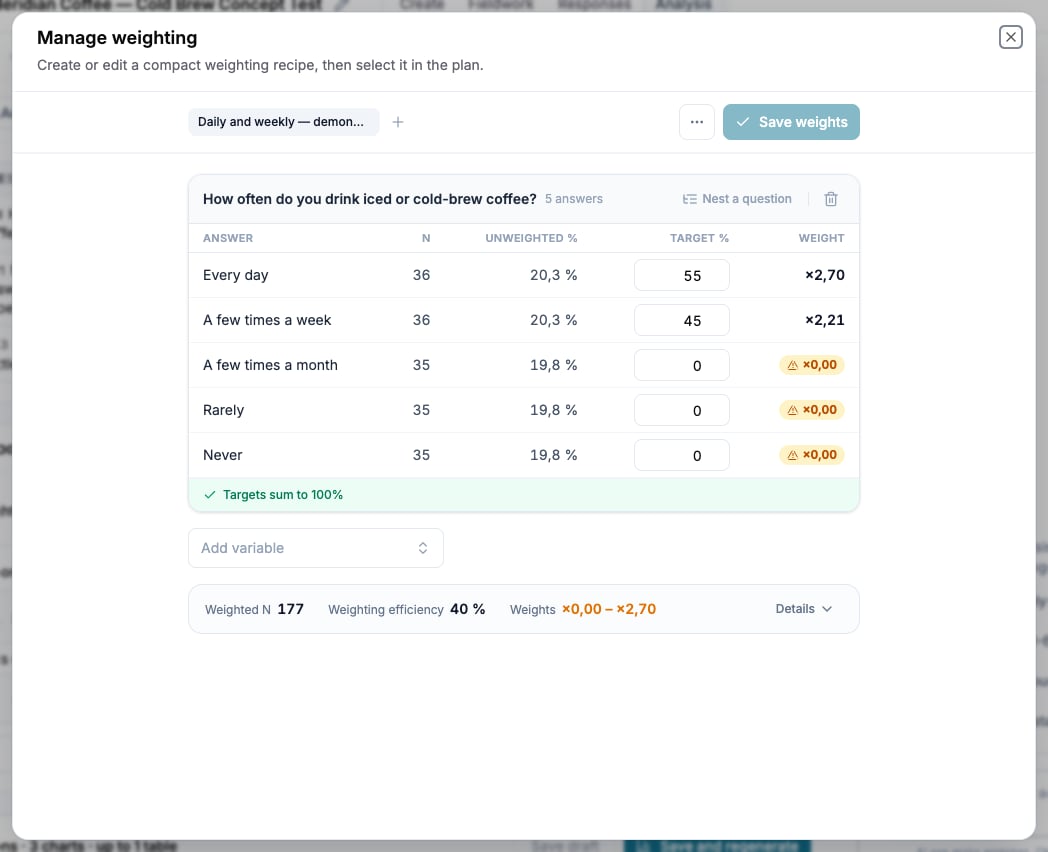 Target proportions use rim weighting when several variables are present. Nonzero multipliers are constrained to 0.2–5.0. A 0% target keeps an exact zero weight and removes that category’s contribution. Newly added targets begin from the observed distribution until you change them.
## Nest a target
Select **Nest a question** under a variable to define joint targets such as age within region. One child can be nested beneath each variable, and its percentages must total 100% within each parent category.
Use a nested target only when the joint distribution is known and required. It creates more cells and can increase missing or extreme weights.
## Read the diagnostics
| Diagnostic | What to check |
| --------------------------------------- | ------------------------------------------------------------------------- |
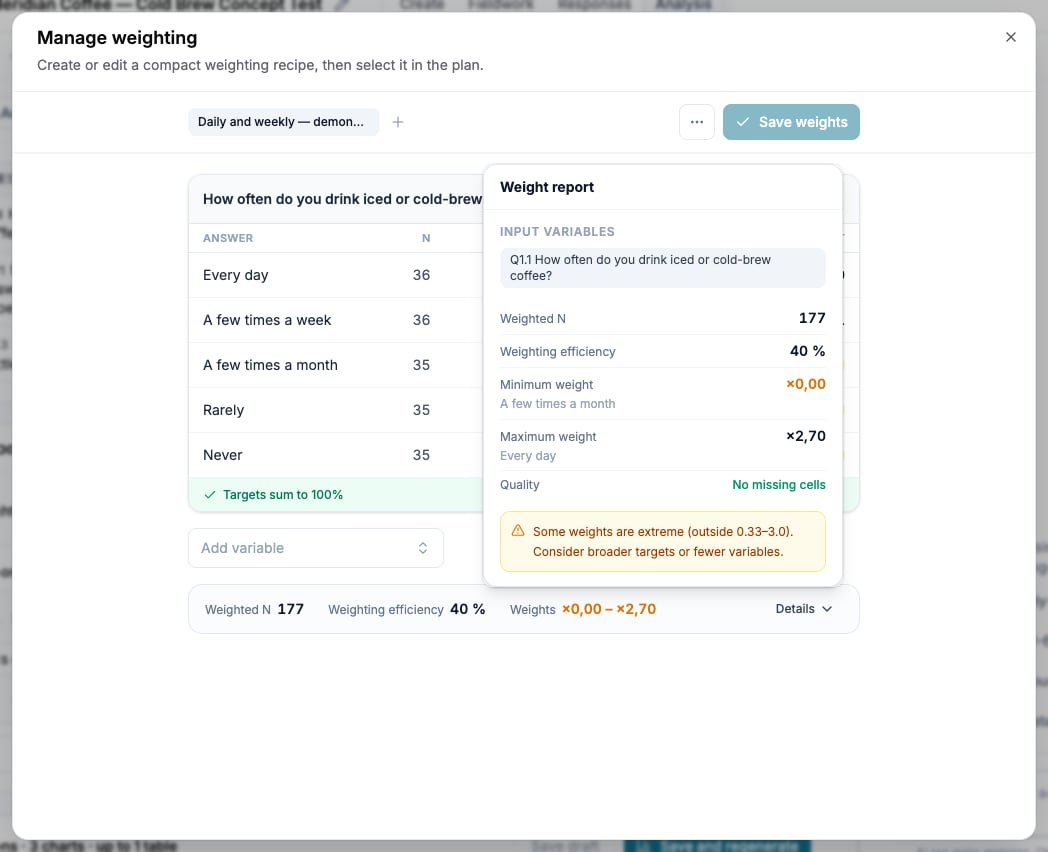
| **Weighted N** | The sum of the included respondent weights; not the effective sample size |
| **Weighting efficiency** | How evenly the sample contributes after weighting |
| **Minimum weight** / **Maximum weight** | The smallest and largest respondent multipliers and their characteristics |
| **Quality** | Missing target cells and whether the scheme converged |
Weights outside 0.33–3.0 are marked as extreme. Nonzero values remain clamped to 0.2–5.0. A non-converged scheme displays the closest available result; relax or remove incompatible targets before using it.
A respondent missing any required weighting variable is excluded from weighted results. Compare the included raw base and excluded count after every variable or nested target is added. Manual weights are not rescaled, so **Weighted N** can differ from the raw base even when nobody is excluded. Effective sample size is the included raw base multiplied by weighting efficiency divided by 100.
The eligible base contains completed responses that pass the quality criteria. It does not include every row in Responses.
Target proportions use rim weighting when several variables are present. Nonzero multipliers are constrained to 0.2–5.0. A 0% target keeps an exact zero weight and removes that category’s contribution. Newly added targets begin from the observed distribution until you change them.
## Nest a target
Select **Nest a question** under a variable to define joint targets such as age within region. One child can be nested beneath each variable, and its percentages must total 100% within each parent category.
Use a nested target only when the joint distribution is known and required. It creates more cells and can increase missing or extreme weights.
## Read the diagnostics
| Diagnostic | What to check |
| --------------------------------------- | ------------------------------------------------------------------------- |
| **Weighted N** | The sum of the included respondent weights; not the effective sample size |
| **Weighting efficiency** | How evenly the sample contributes after weighting |
| **Minimum weight** / **Maximum weight** | The smallest and largest respondent multipliers and their characteristics |
| **Quality** | Missing target cells and whether the scheme converged |
Weights outside 0.33–3.0 are marked as extreme. Nonzero values remain clamped to 0.2–5.0. A non-converged scheme displays the closest available result; relax or remove incompatible targets before using it.
A respondent missing any required weighting variable is excluded from weighted results. Compare the included raw base and excluded count after every variable or nested target is added. Manual weights are not rescaled, so **Weighted N** can differ from the raw base even when nobody is excluded. Effective sample size is the included raw base multiplied by weighting efficiency divided by 100.
The eligible base contains completed responses that pass the quality criteria. It does not include every row in Responses.
 ## Choose where the scheme applies
The plan stores the weighting for its generated charts and tables. Individual saved charts can have their own selection.
| Surface | Selection point |
| -------------------------------- | ------------------------------------------------------------- |
| Saved chart or crosstab | **Weighting** in its row or builder |
| Plan-generated charts and tables | **Weighting** under **Responses to include** in Analysis Plan |
| Bulk chart generation | **Weighting** in the bulk dialog |
A scheme not selected anywhere is listed as Not applied. A scheme used by analysis may be locked to keep its calculations reproducible.
## Duplicate, change, or delete a scheme
Open the scheme menu to duplicate it, change its method, or delete it. A report-locked scheme cannot be edited or deleted. Duplicate it, adjust the copy, and select that scheme in the plan before regenerating its outputs.
The study supports up to 20 schemes. At that limit, **New weight** and **Duplicate** are unavailable; remove an unused scheme to create another.
Changing weighting and regenerating updates matching plan charts without archiving analysis conversations. Review the regenerated outputs and any saved slides before delivery. Changing the output language has different consequences; see [Generate and update analysis results](/analysis/generating-reports).
## Check the result
Reopen the scheme and the chart using it. Compare weighted and unweighted results, document excluded records and diagnostics, and confirm the intended scheme remains selected on each output.
## Related
* [Decide whether to weight](/analysis/weighting-methodology)
* [Build and organize charts](/analysis/charts-library)
* [Build a crosstab](/analysis/crosstabs)
* [Generate and update analysis results](/analysis/generating-reports)
## Choose where the scheme applies
The plan stores the weighting for its generated charts and tables. Individual saved charts can have their own selection.
| Surface | Selection point |
| -------------------------------- | ------------------------------------------------------------- |
| Saved chart or crosstab | **Weighting** in its row or builder |
| Plan-generated charts and tables | **Weighting** under **Responses to include** in Analysis Plan |
| Bulk chart generation | **Weighting** in the bulk dialog |
A scheme not selected anywhere is listed as Not applied. A scheme used by analysis may be locked to keep its calculations reproducible.
## Duplicate, change, or delete a scheme
Open the scheme menu to duplicate it, change its method, or delete it. A report-locked scheme cannot be edited or deleted. Duplicate it, adjust the copy, and select that scheme in the plan before regenerating its outputs.
The study supports up to 20 schemes. At that limit, **New weight** and **Duplicate** are unavailable; remove an unused scheme to create another.
Changing weighting and regenerating updates matching plan charts without archiving analysis conversations. Review the regenerated outputs and any saved slides before delivery. Changing the output language has different consequences; see [Generate and update analysis results](/analysis/generating-reports).
## Check the result
Reopen the scheme and the chart using it. Compare weighted and unweighted results, document excluded records and diagnostics, and confirm the intended scheme remains selected on each output.
## Related
* [Decide whether to weight](/analysis/weighting-methodology)
* [Build and organize charts](/analysis/charts-library)
* [Build a crosstab](/analysis/crosstabs)
* [Generate and update analysis results](/analysis/generating-reports)