> ## Documentation Index
> Fetch the complete documentation index at: https://support.deepfield-ai.com/llms.txt
> Use this file to discover all available pages before exploring further.
# Manage workspace members
> Invite members, assign account types, deactivate access, and configure organization-wide sharing rules.
Workspace settings control who belongs to your organization and what kind of account each person has. Access to an individual study is managed separately through that study's Share dialog.
Open **Settings → Members** to view the member list. Open **Settings → Organization** for organization-wide controls. Collaborator accounts do not have access to these pages.
## Before you start
Confirm the required account type and studies for the member. Administrator permissions are needed to change existing account types or deactivate members.
## Distinguish account type from study access
| Setting | Where it is managed | What it controls |
| -------------------------------------------------- | -------------------------------- | ----------------------------------------------------------------------------- |
| **Account type**: Admin, Researcher, Collaborator | Workspace Members | Organization-wide capabilities, such as creating studies or managing members. |
| **Access level**: Owner, Editor, Commenter, Viewer | A study or folder's Share dialog | What a person can do in that specific study or folder. |
Changing a person to Researcher does not automatically share existing studies with them. After inviting or updating a member, grant the required study access separately.
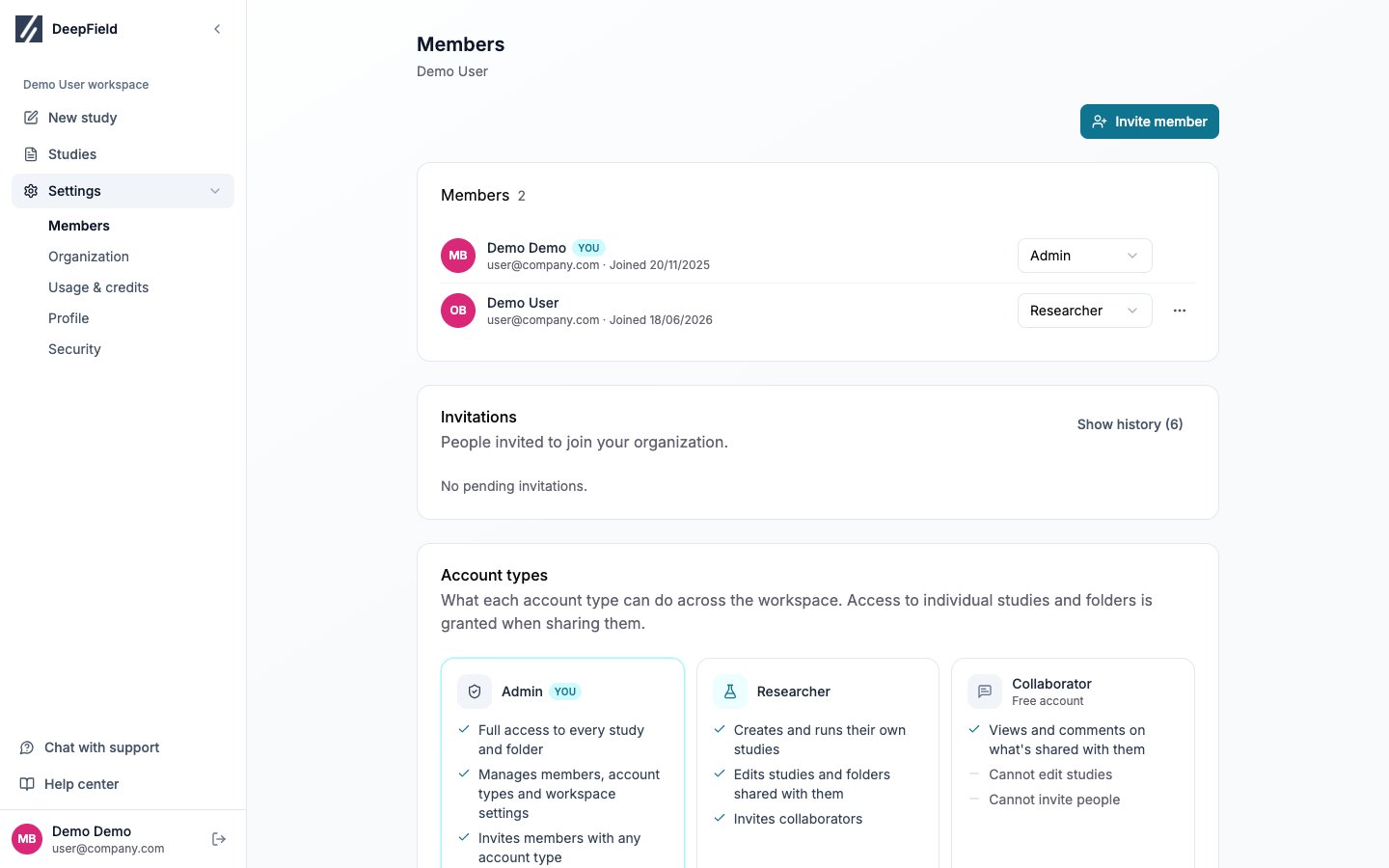 ## Account types
| Type | Workspace capabilities |
| ---------------- | --------------------------------------------------------------------------------------------------------- |
| **Admin** | Accesses all studies and folders; manages members, account types, and organization settings. |
| **Researcher** | Creates studies and folders; works in resources shared with them; can invite Collaborators. |
| **Collaborator** | Views and comments in shared resources; cannot create or edit studies and is limited to Commenter access. |
Admins have Owner-level access to every study automatically. This is why they do not need a separate row in each study's access list.
## Invite a member
Select **Invite member** on the Members page.
Admins can select any account type. Researchers can invite Collaborators, so the account-type field is fixed for them.
Select **Send invitation**, then copy the displayed invitation link.
Send it directly to the intended person. After they create their account, share the relevant studies or folders with them.
## Account types
| Type | Workspace capabilities |
| ---------------- | --------------------------------------------------------------------------------------------------------- |
| **Admin** | Accesses all studies and folders; manages members, account types, and organization settings. |
| **Researcher** | Creates studies and folders; works in resources shared with them; can invite Collaborators. |
| **Collaborator** | Views and comments in shared resources; cannot create or edit studies and is limited to Commenter access. |
Admins have Owner-level access to every study automatically. This is why they do not need a separate row in each study's access list.
## Invite a member
Select **Invite member** on the Members page.
Admins can select any account type. Researchers can invite Collaborators, so the account-type field is fixed for them.
Select **Send invitation**, then copy the displayed invitation link.
Send it directly to the intended person. After they create their account, share the relevant studies or folders with them.
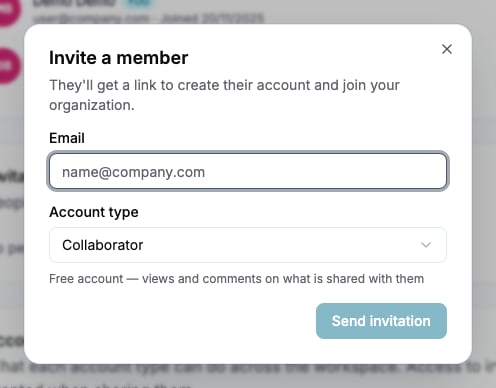 The invitation link is shown once. If it is not copied, revoke the pending invitation and create a new one.
Pending and historical invitations appear in the Invitations area with their state and expiry. Revoking an invitation makes its setup link unusable.
## Restrict member email domains
Admins can use **Allowed invitation domains** in Organization settings to restrict Admin and Researcher invitations. Add a bare domain such as `example.com`, without `@`. Collaborator invitations remain available for external recipients.
## Change or deactivate a member
Admins can use a member row to:
* Change the account type
* Select **⋯ → Deactivate** to stop sign-in and end active sessions
* Show deactivated members and select **Reactivate** when access should return
Deactivation retains the person's studies and access records. You cannot deactivate your own account, and the last active Admin cannot be demoted. Assign another Admin before changing the last one.
## Configure guest-link access
The **Allow share links** organization setting determines whether study Editors and Owners can create external guest links.
Turning this setting off disables all existing guest links in the organization immediately. It does not only prevent new links.
## Resolve access problems
| Situation | Check |
| ------------------------------------------------------------- | -------------------------------------------------------------------------------------------- |
| A Researcher cannot see a study | Share the study or its folder with them. |
| A Collaborator cannot edit despite an Editor grant | Change their account type to Researcher; Collaborators are capped at Commenter. |
| The invitation dialog has no account-type selector | A Researcher is sending the invite, so it creates a Collaborator account. |
| An Admin or Researcher invitation is blocked by a domain rule | Use an allowed domain, update the organization rule, or invite the person as a Collaborator. |
## Check the result
The active member has the intended account type and can open the separately shared studies. After an access change, verify the member’s actual capabilities rather than relying on membership alone.
## Related
* [Share a study](/sharing/share-your-work)
* [Manage your account](/account-settings/account-settings)
* [Review usage and credits](/account-settings/usage-billing)
The invitation link is shown once. If it is not copied, revoke the pending invitation and create a new one.
Pending and historical invitations appear in the Invitations area with their state and expiry. Revoking an invitation makes its setup link unusable.
## Restrict member email domains
Admins can use **Allowed invitation domains** in Organization settings to restrict Admin and Researcher invitations. Add a bare domain such as `example.com`, without `@`. Collaborator invitations remain available for external recipients.
## Change or deactivate a member
Admins can use a member row to:
* Change the account type
* Select **⋯ → Deactivate** to stop sign-in and end active sessions
* Show deactivated members and select **Reactivate** when access should return
Deactivation retains the person's studies and access records. You cannot deactivate your own account, and the last active Admin cannot be demoted. Assign another Admin before changing the last one.
## Configure guest-link access
The **Allow share links** organization setting determines whether study Editors and Owners can create external guest links.
Turning this setting off disables all existing guest links in the organization immediately. It does not only prevent new links.
## Resolve access problems
| Situation | Check |
| ------------------------------------------------------------- | -------------------------------------------------------------------------------------------- |
| A Researcher cannot see a study | Share the study or its folder with them. |
| A Collaborator cannot edit despite an Editor grant | Change their account type to Researcher; Collaborators are capped at Commenter. |
| The invitation dialog has no account-type selector | A Researcher is sending the invite, so it creates a Collaborator account. |
| An Admin or Researcher invitation is blocked by a domain rule | Use an allowed domain, update the organization rule, or invite the person as a Collaborator. |
## Check the result
The active member has the intended account type and can open the separately shared studies. After an access change, verify the member’s actual capabilities rather than relying on membership alone.
## Related
* [Share a study](/sharing/share-your-work)
* [Manage your account](/account-settings/account-settings)
* [Review usage and credits](/account-settings/usage-billing)